How to Change Password in cPanel

This article will show you how to change password in cPanel.
Before you start: this changes the password for the whole cPanel account, not for an individual email address or FTP user. Anything storing the old password, including backup scripts and FTP clients, will stop working until you update it.
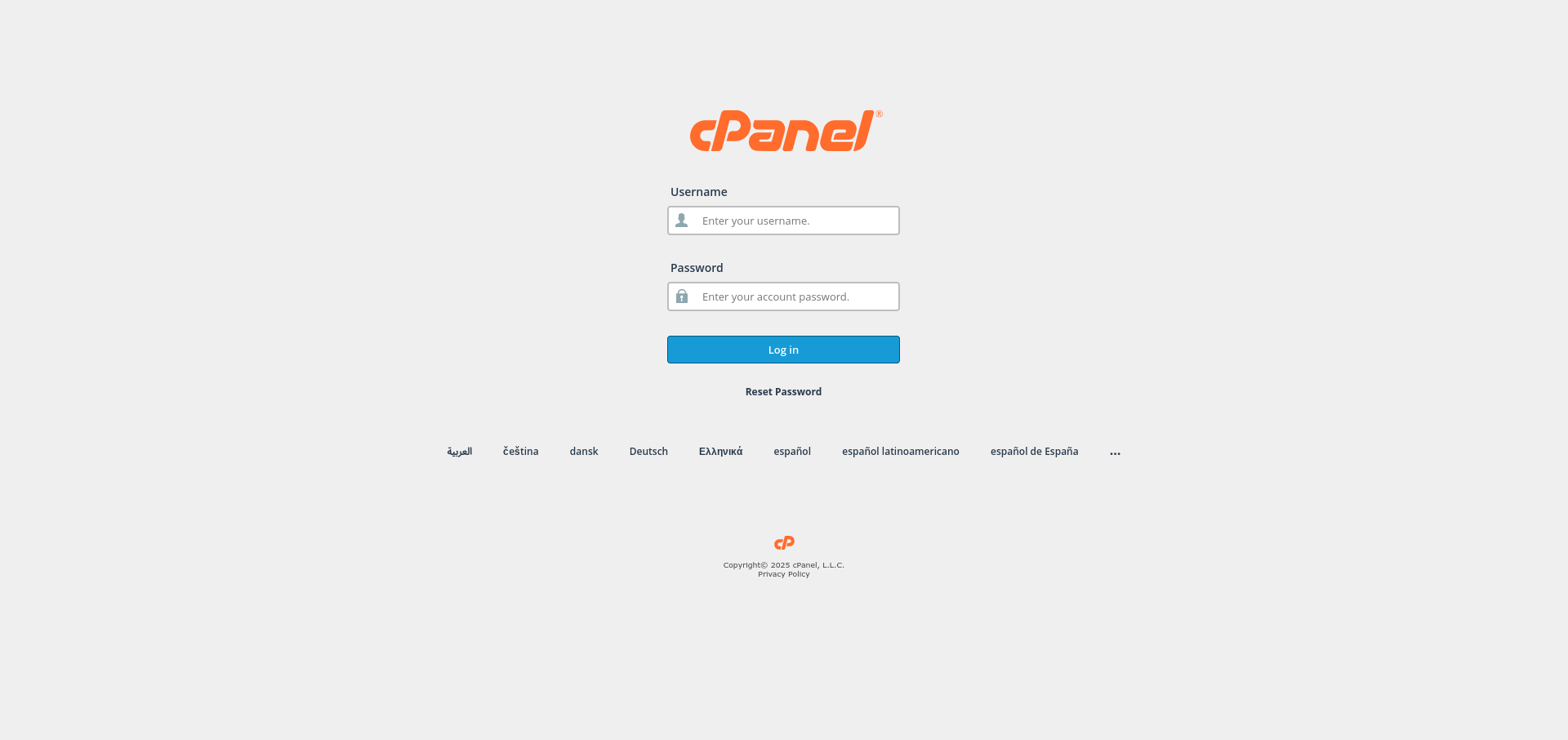
1. Log in to cPanel
Use your user details to log in to the cPanel control panel.
2. Navigate to Password Settings
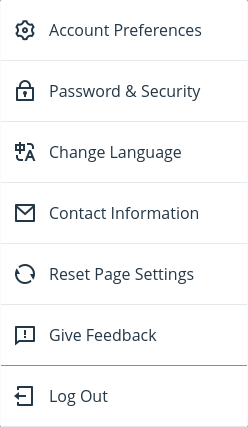
Click on your profile icon from the top-right corner of cPanel and click on Password & Security.
3. Enter Your Old Password
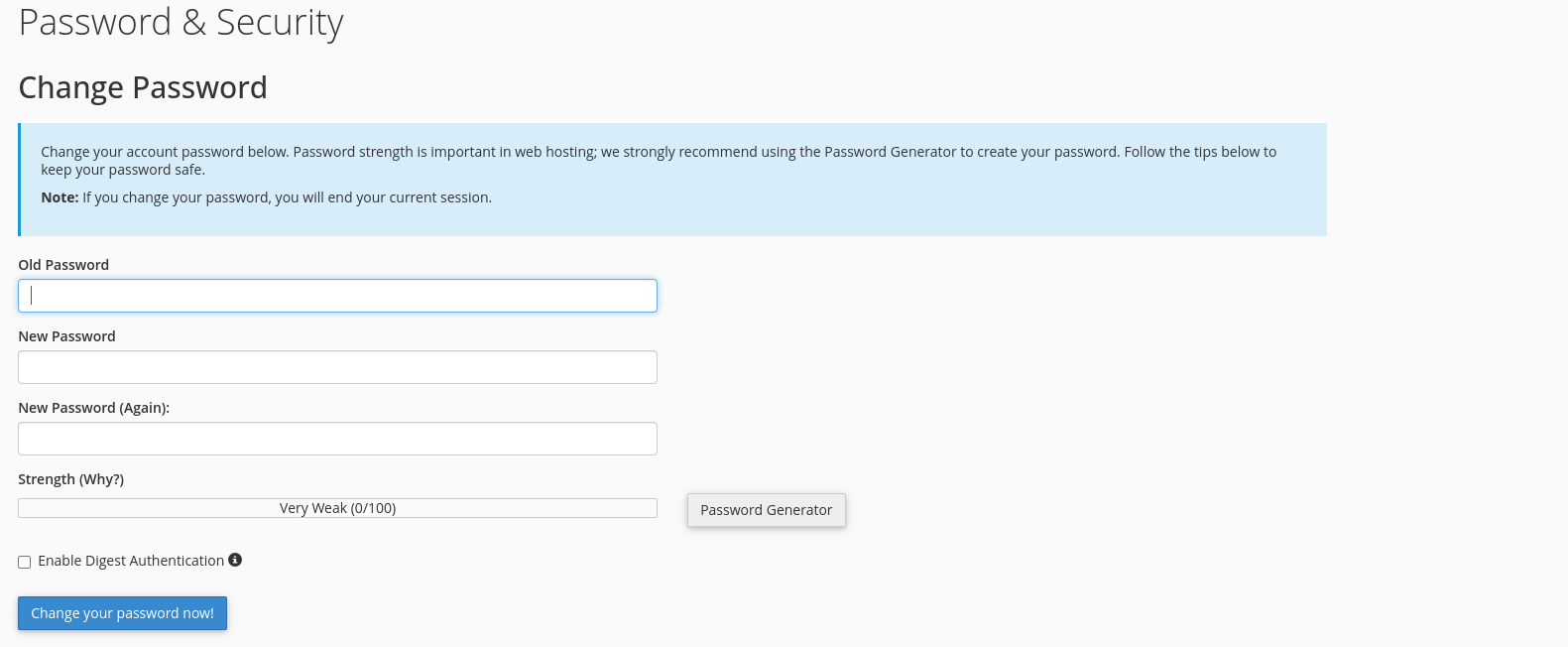
In the Password & Security page, input your current password for verification.
4. Set a New Password
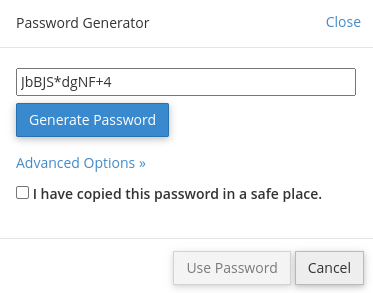
Enter your new password or use the password generator to create one.
5. Save Your New Password
Click the Change your password now! button to save your new password.

6. Verify the Change
Log out and back in with the new password. Update anything that stored the old one, including FTP clients and backup tools.
Next: How to Choose a Strong Password covers what makes a password worth using.