How to Remove a Domain in cPanel

This article will show you how to remove a domain in cPanel.
Before you start: removing a domain deletes its DNS entries and stops it resolving. Website files stay in place, but email addresses on that domain stop working immediately. If you only want the domain to point elsewhere, changing its name servers is the safer option.
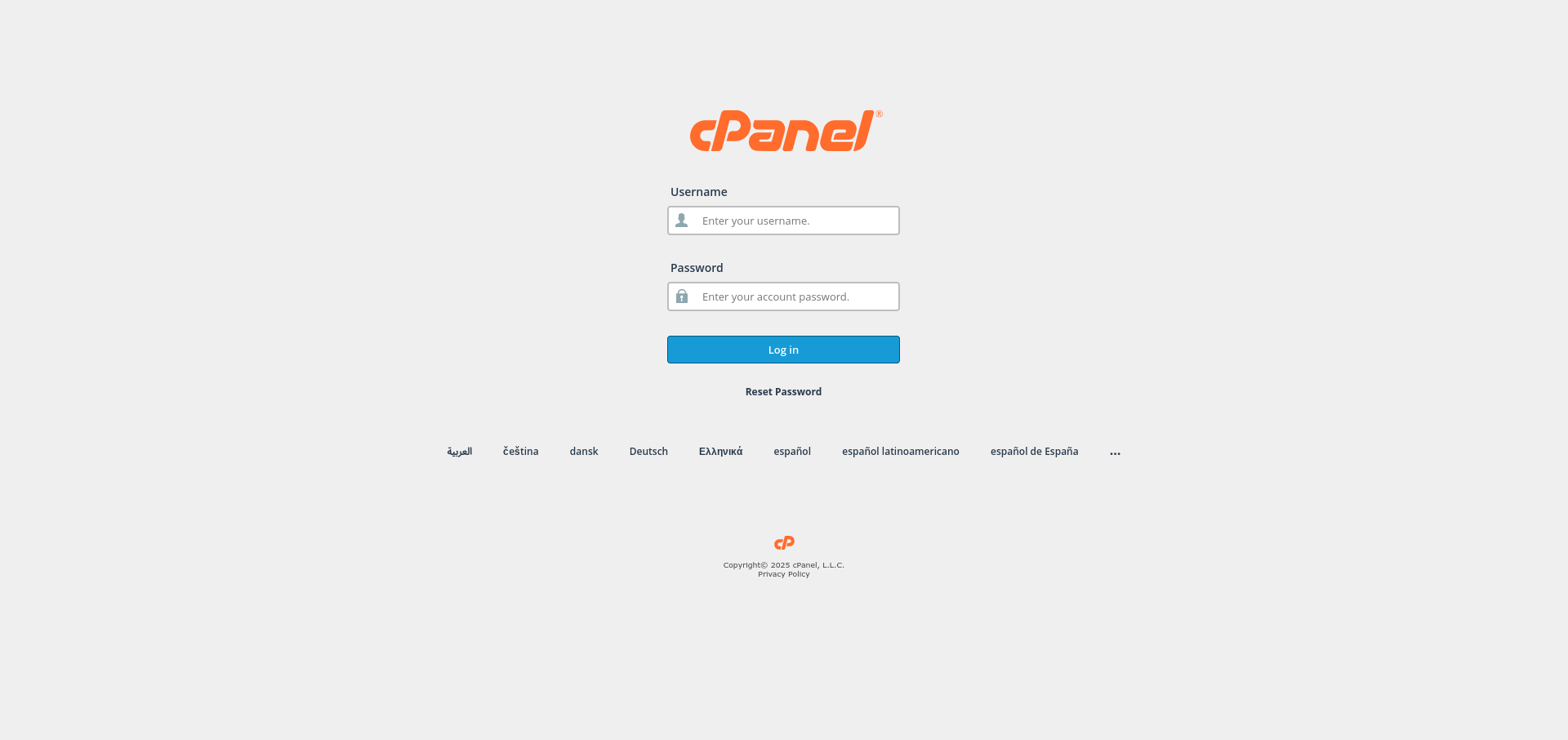
1. Log in to cPanel
Use your user details to log in to the cPanel control panel.
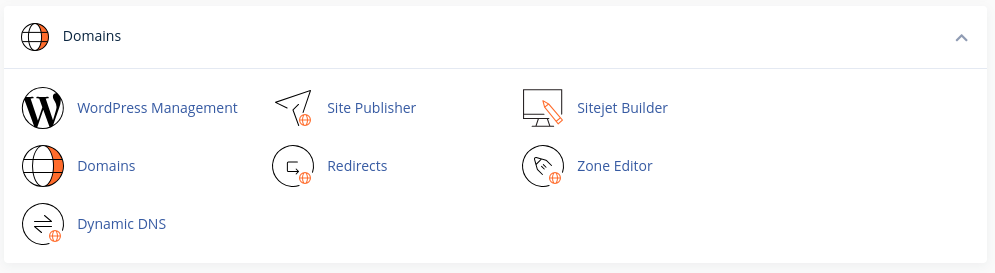
2. Navigate to the Domains Section
Scroll down until you find the Domains subsection of cPanel.
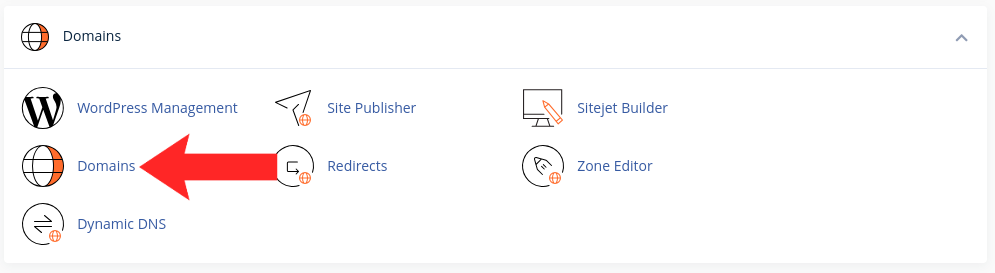
3. Access the Domains Page
Click on the Domains page from the Domains subsection.
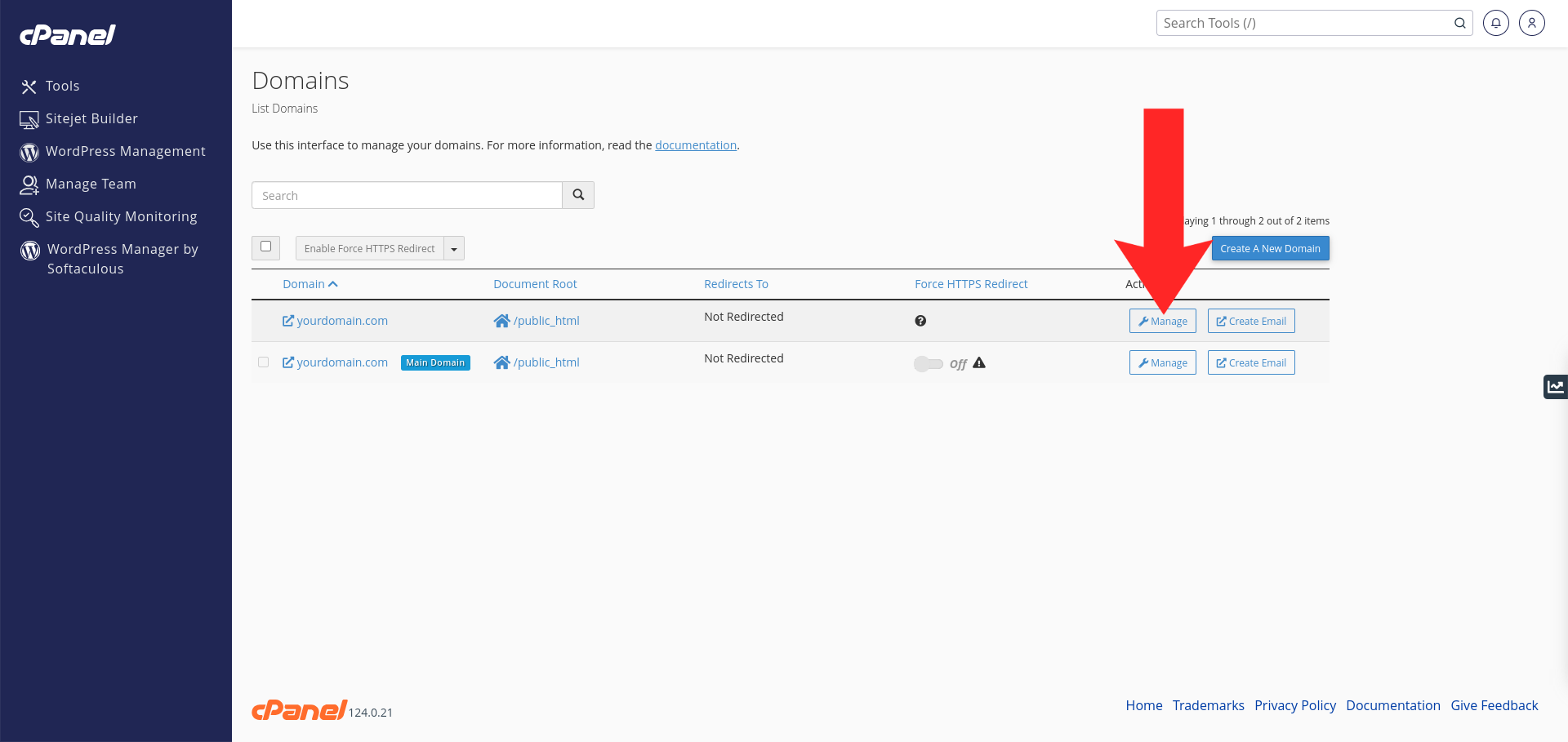
4. Manage the Domain
Click the Manage button next to the domain you want to remove.
5. Remove the Domain
Warning: this cannot be undone from cPanel. A domain removed by mistake has to be added again and its DNS records recreated by hand. The list groups similar names together, so check you have the right one.
Click the Remove Domain button at the bottom of the page.

6. Verify the Removal
The domain should no longer appear in the list. Visiting it now returns an error or a default page. Mail sent to addresses on that domain will bounce, so redirect anything you still need.