How to Add a Domain in DirectAdmin

This article will show you how to add a domain in DirectAdmin.
Before you start: the domain must already be registered and its name servers pointed at this server, or it will be added to DirectAdmin but will not resolve. Adding a domain here does not register it.
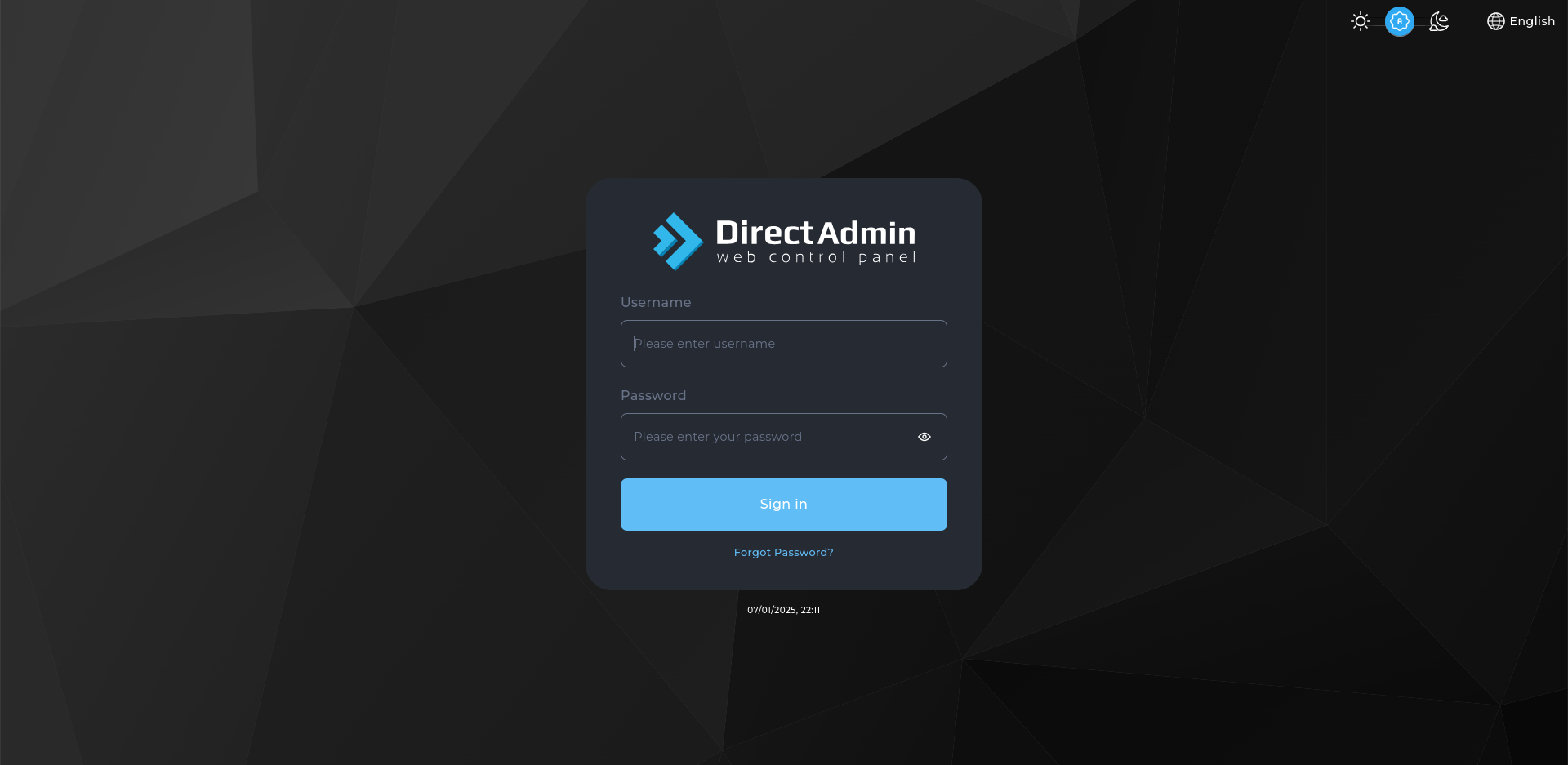
1. Log in to DirectAdmin
Use your user details to log in to the DirectAdmin control panel.
2. Navigate to the Domain Management Section
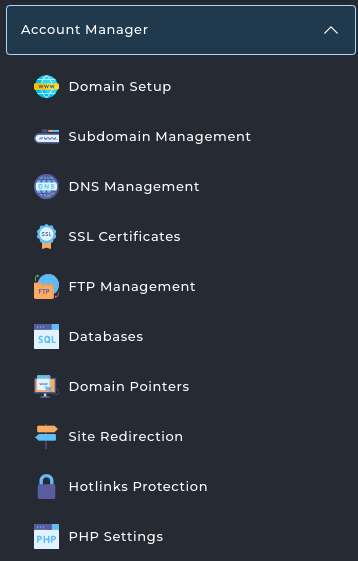
On the homepage, click on Domain Setup under the Account Manager section.
3. Add a New Domain
Click on the Add New button in the top right.

4. Enter Domain Details
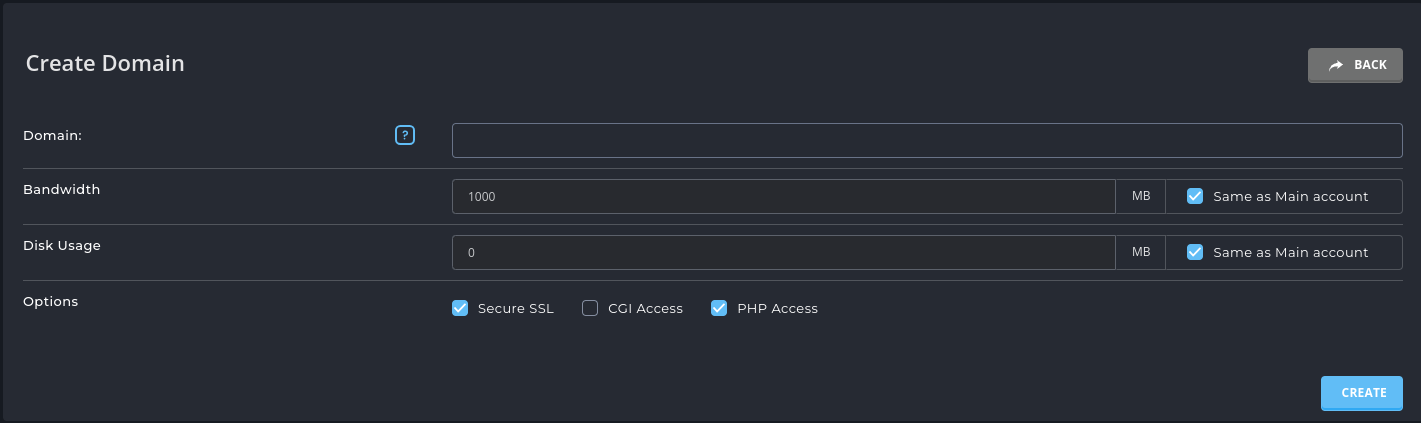
- Domain Name: Enter the domain name you wish to add (e.g. example.com).
- IP Address: Choose the IP address for the domain (if applicable).
- Bandwidth: Set the desired bandwidth limit for the domain.
- Disk Usage: Set the desired disk usage for the domain (storage space).
- Options: Choose additional options such as Secure SSL, CGI Access, and PHP Access.
5. Create the Domain
Click the Create button to finish adding your new domain.

6. Verify the Domain
The domain should now appear in your domain list with a document root. Visiting it in a browser shows either your site or a default page. If it does not resolve, the name servers are the usual cause rather than DirectAdmin.
Next: set up mail for the new domain with How to Create an Email Account in DirectAdmin, or point it at your server using How to Add DNS Records in DirectAdmin.