How to Remove a Domain in DirectAdmin
This article will show you how to remove a domain in DirectAdmin.
Before you start: removing a domain deletes its DNS zone and stops it resolving. Depending on your configuration it may also delete the domain's files and email accounts, so take a backup first rather than relying on being able to add it back.
1. Log in to DirectAdmin
Use your user details to log in to the DirectAdmin control panel.
2. Navigate to the Domain Management Section
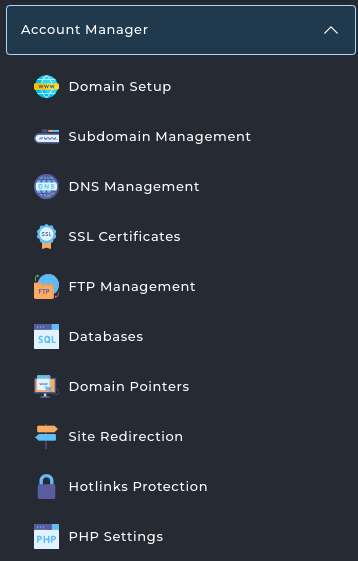
On the homepage, click on Domain Setup under the Account Manager section.
3. Select the Domain to Remove
In the Domain Management page, select the domain you wish to remove and click on the Delete button in the top right.

4. Confirm Removal
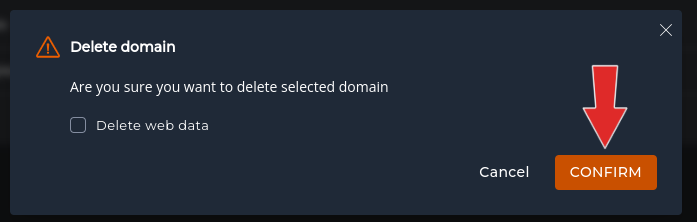
Warning: this cannot be undone from DirectAdmin. Check you have the right domain before confirming, since the list groups similar names together.
A confirmation prompt will appear. Confirm that you want to remove the domain by clicking Confirm.
5. Verify the Removal
The domain should no longer appear in the list. Visiting it now returns an error or a default page, and mail to addresses on that domain will bounce.