How to Remove an Email Account in DirectAdmin
This article will show you how to remove an email account in DirectAdmin.
Before you start: deleting a mailbox permanently removes every message in it. Nothing is archived. If the address may be needed later, set up a forwarder instead, which keeps mail flowing without storing it.
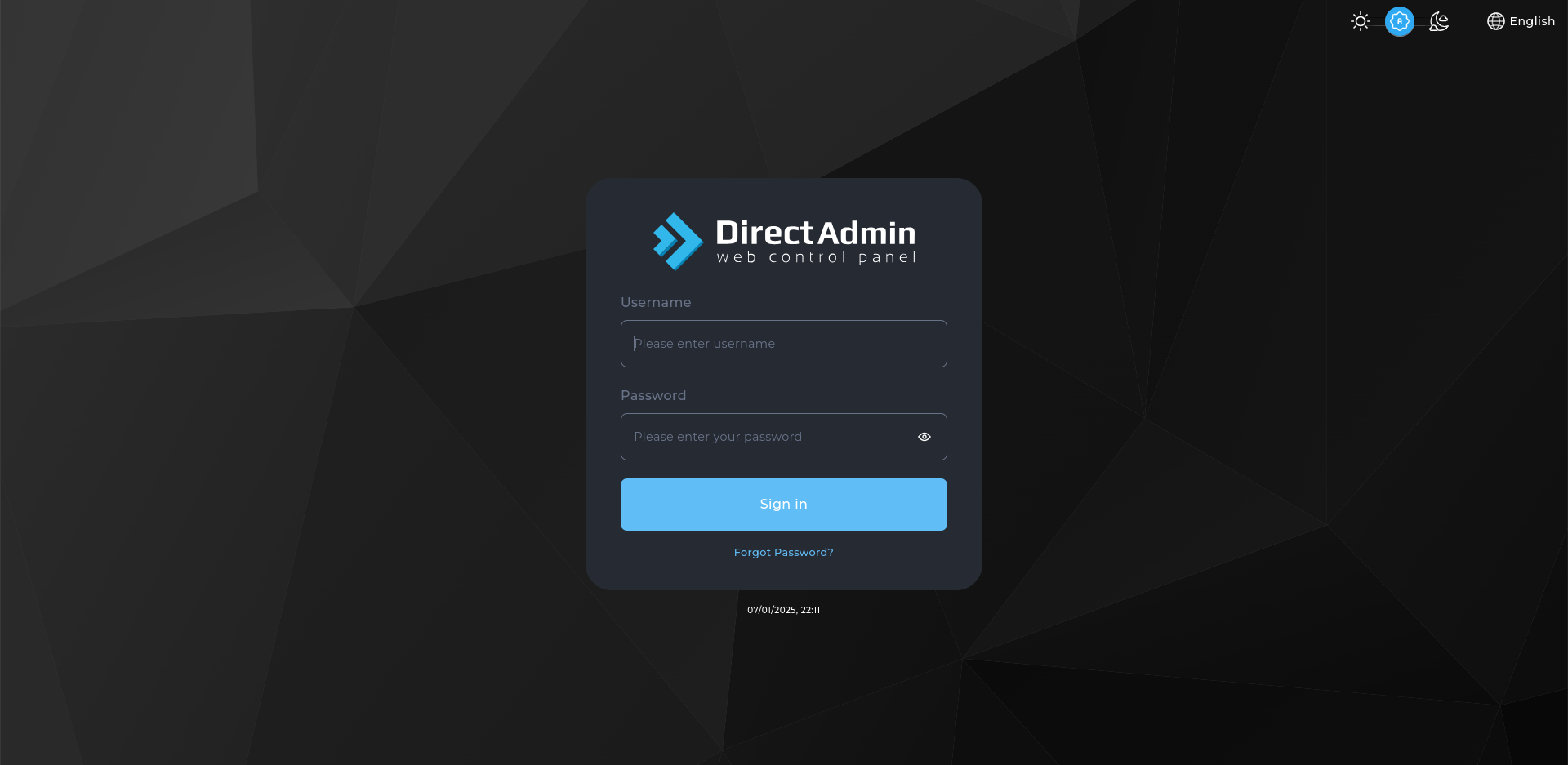
1. Log in to DirectAdmin
Use your user details to log in to the DirectAdmin control panel.
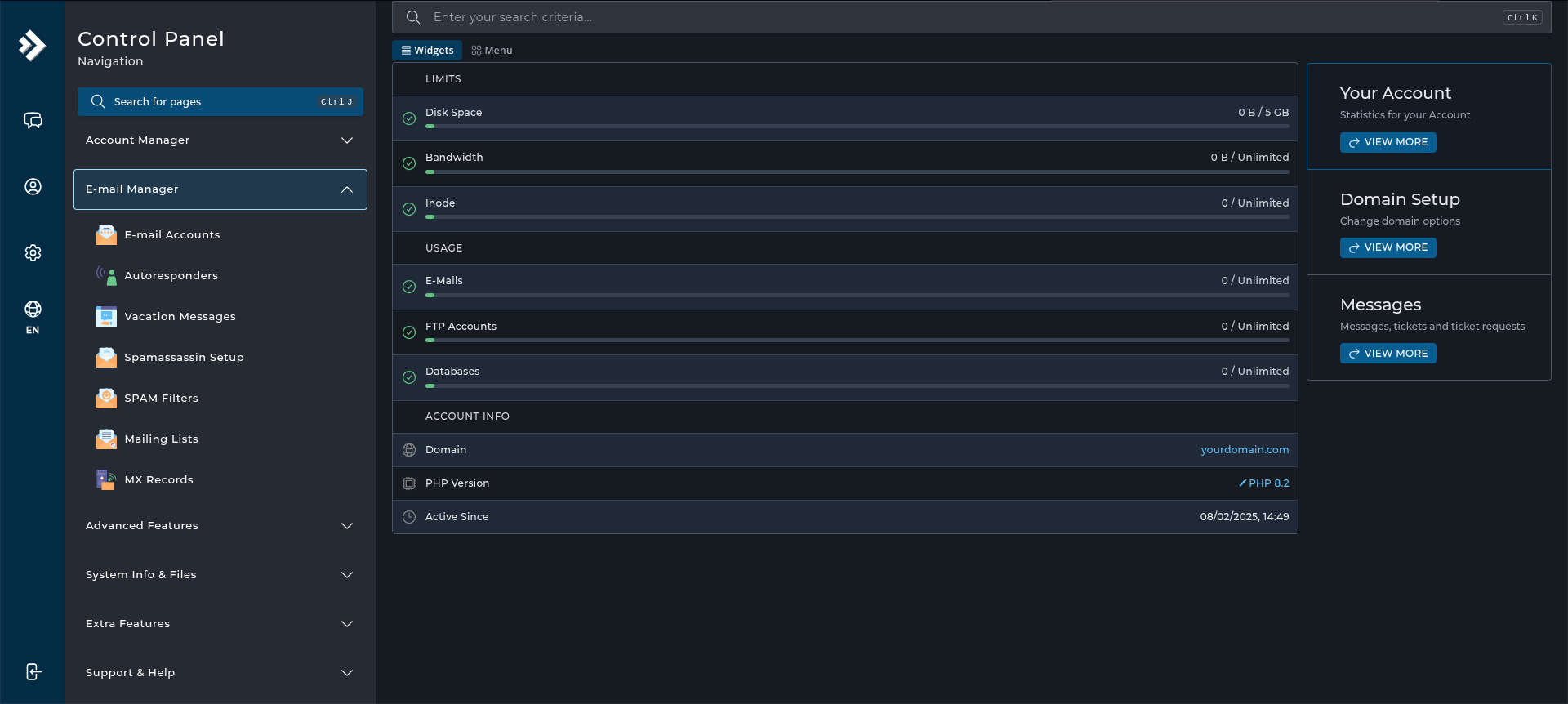
2. Navigate to the Email Management Section
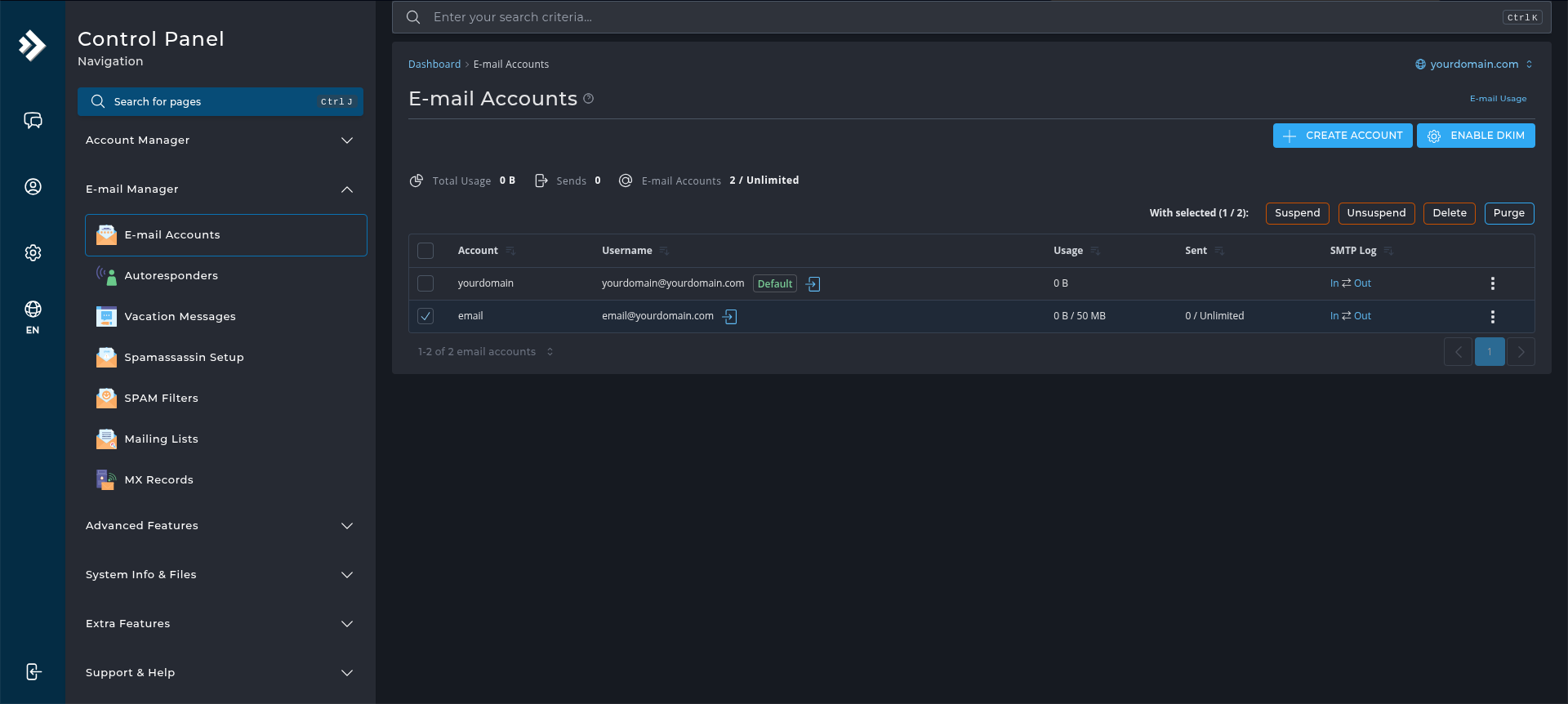
On the homepage, click on Email Accounts under the Email Management section.
3. Select the Email Account to Remove
On the Email Accounts page, find the email account you want to remove from the list.
4. Click on the Remove Button
After selecting the desired email account, click the Delete button in the Actions column.
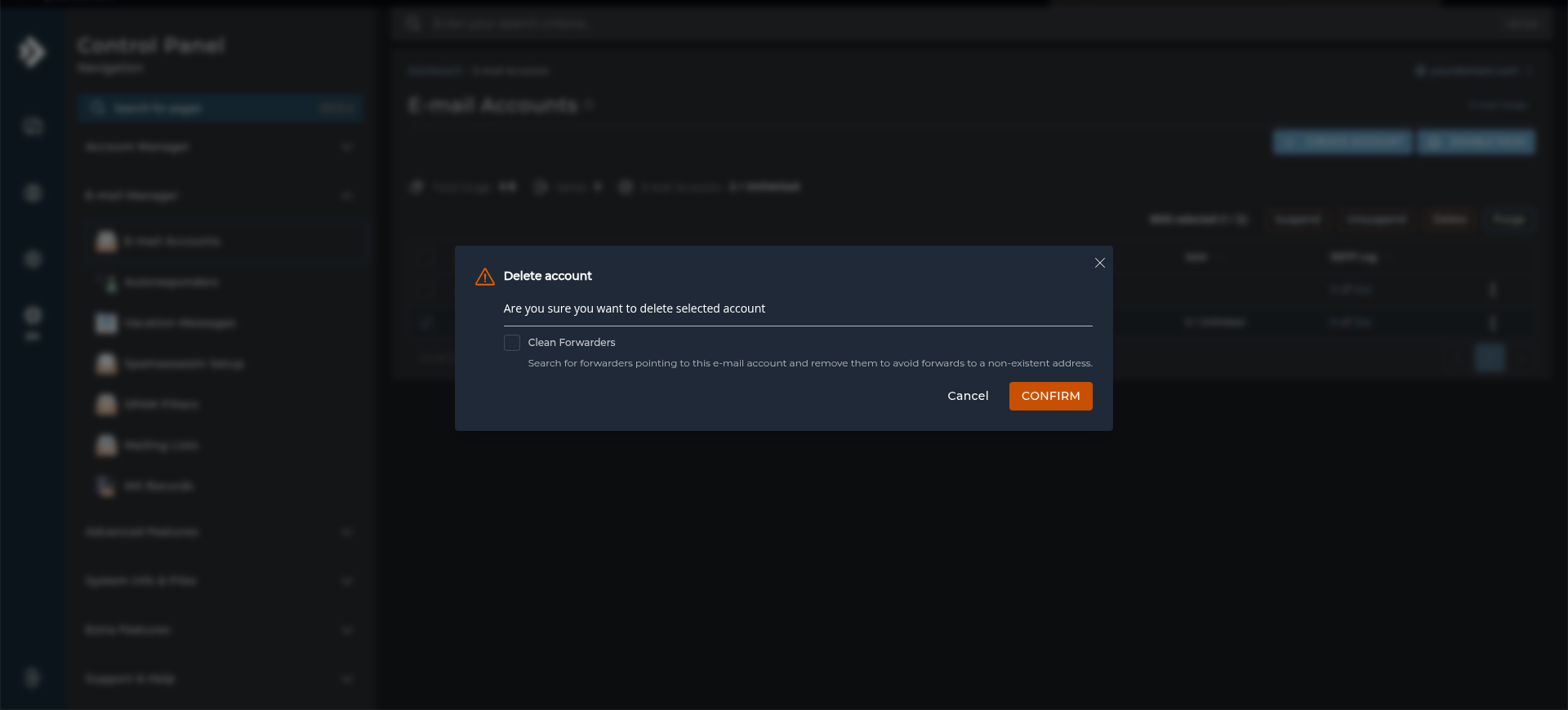
5. Confirm the Removal
Warning: every message in the mailbox is deleted with it, including anything not downloaded to a device. There is no undo and no recycle bin.
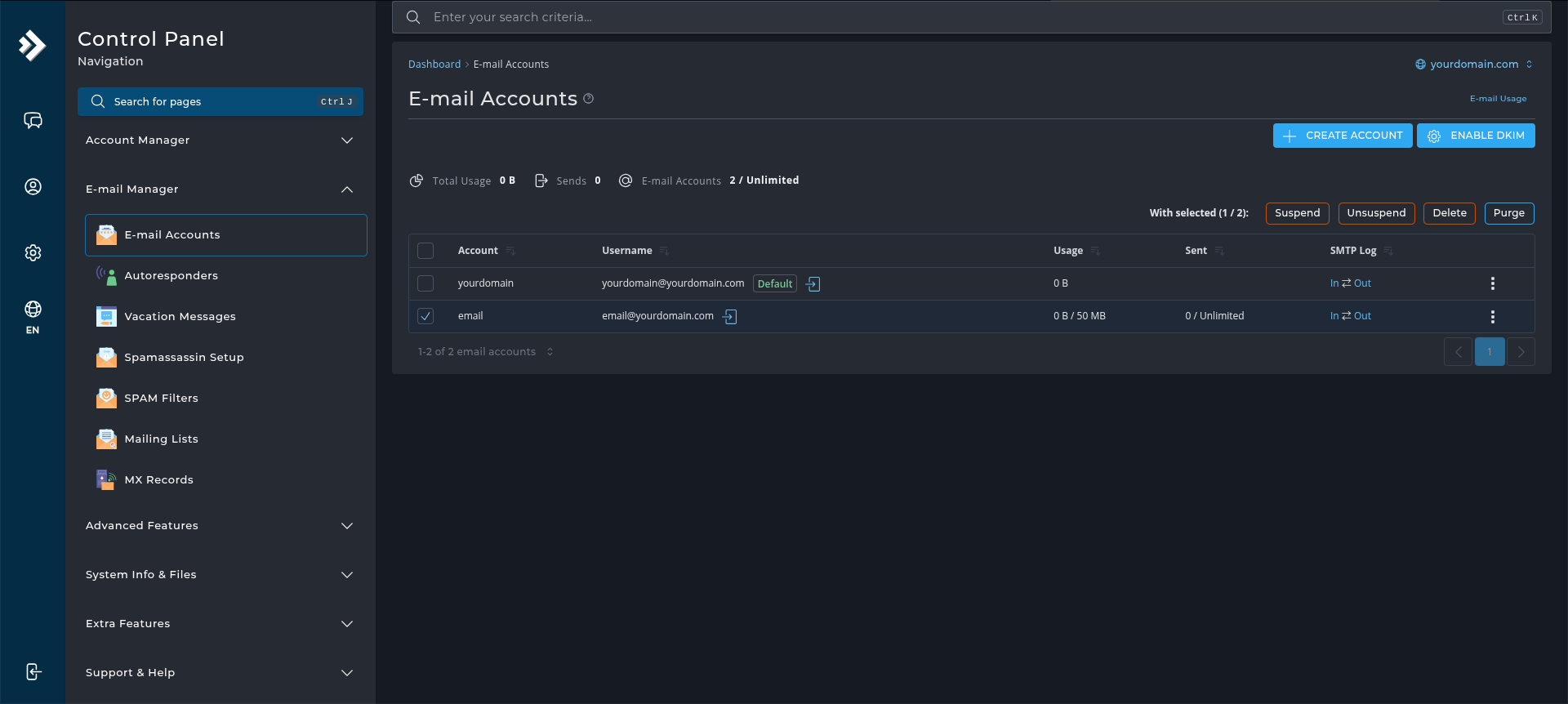
A confirmation prompt will appear. Click Confirm to permanently delete the email account. The account and its associated emails will be removed.