How to Remove a Database in DirectAdmin
This article will show you how to remove a database in DirectAdmin.
Before you start: deleting a database destroys every table and row in it, and takes the site that uses it offline immediately. Export a copy from phpMyAdmin first, even if you are sure it is unused.
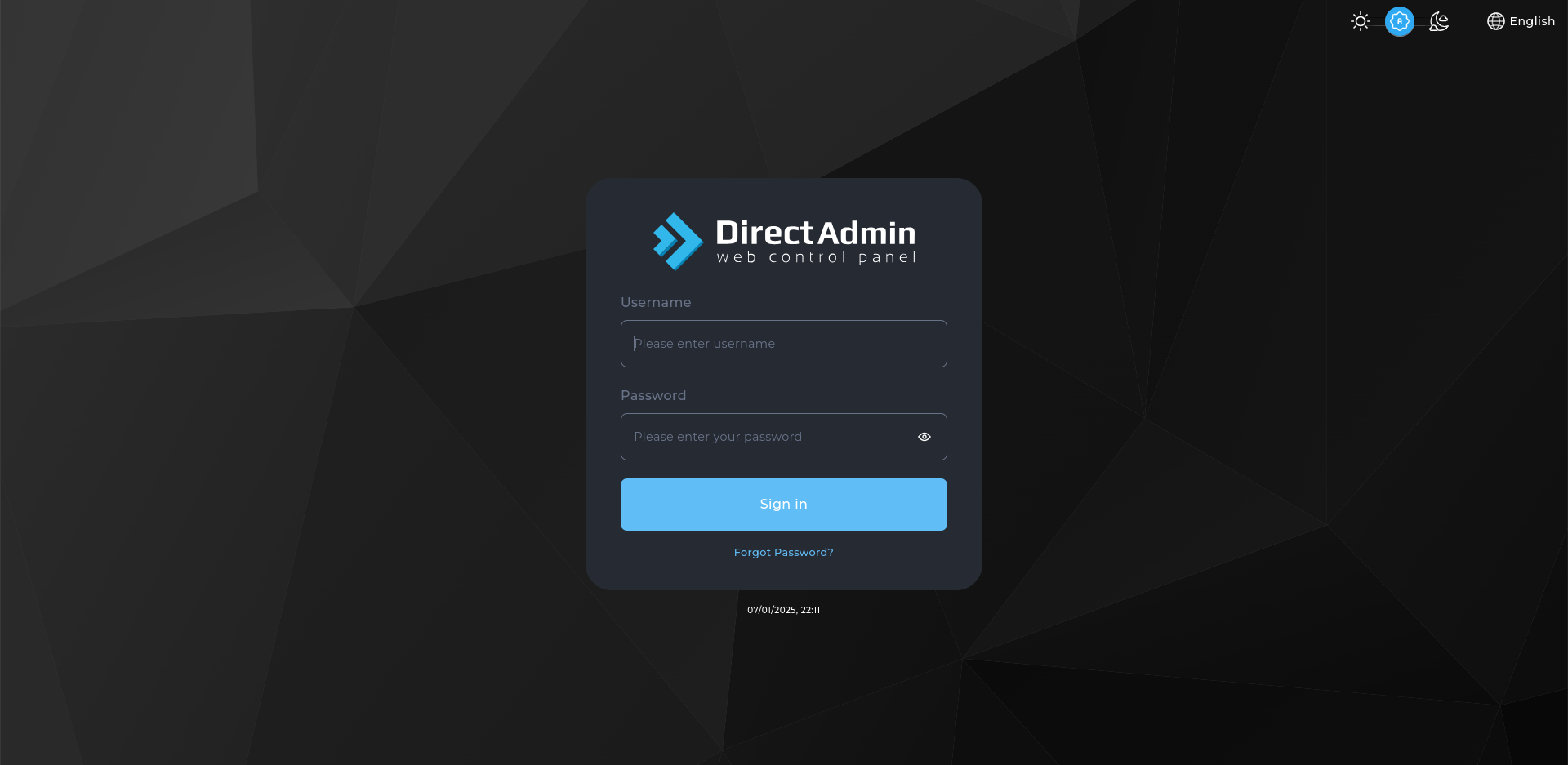
1. Log in to DirectAdmin
Use your user details to log in to the DirectAdmin control panel.
2. Navigate to the Databases Section
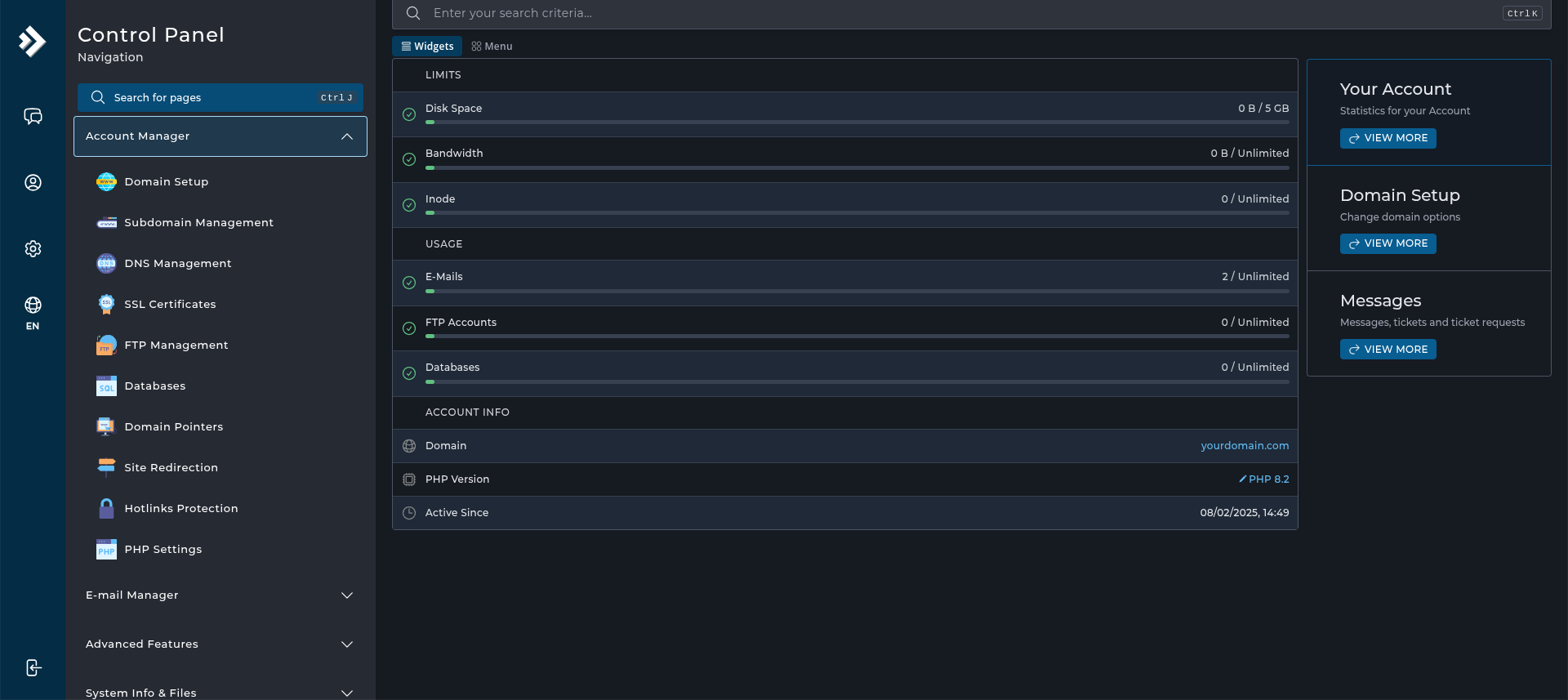
Navigate to and click on Databases under the Account Manager section.
3. Remove the Database
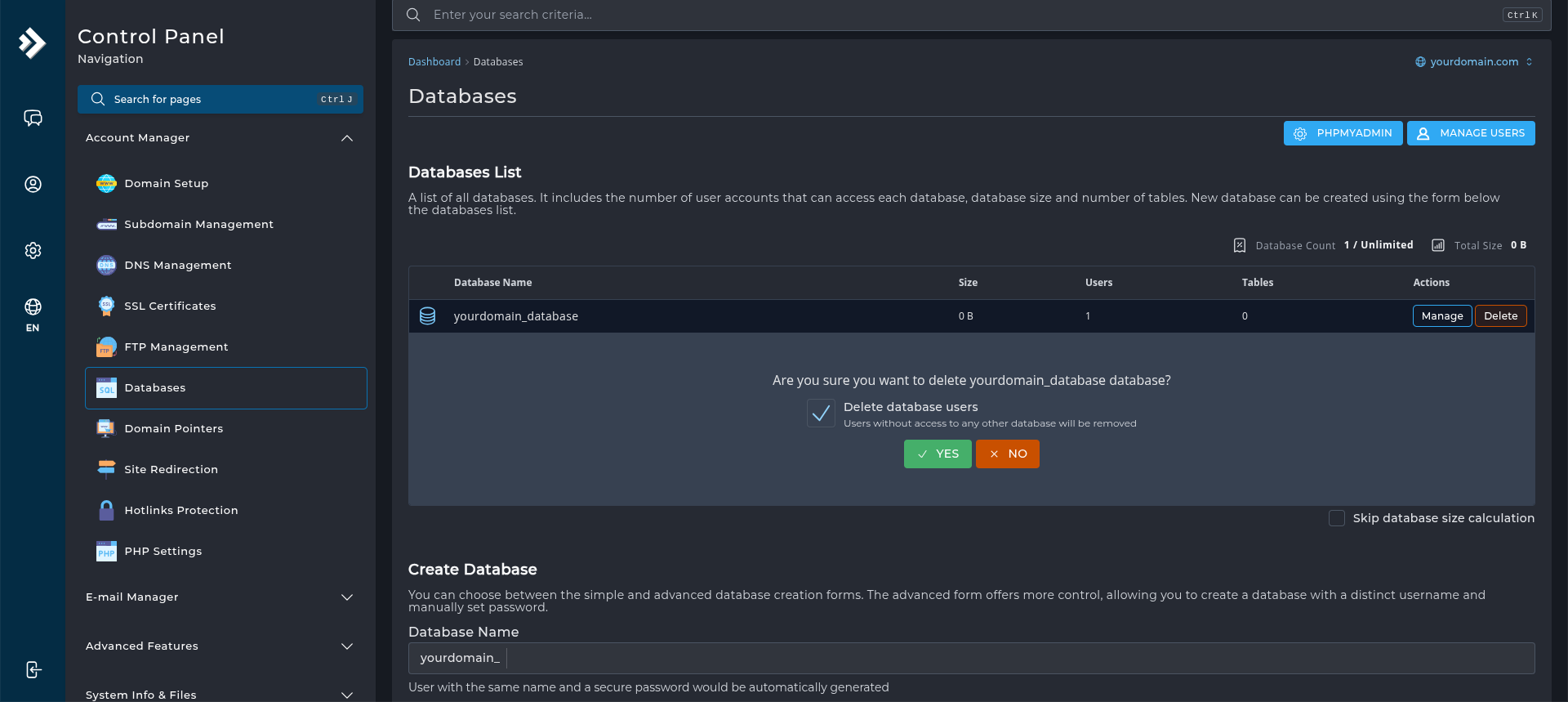
Under Databases List, click on the Delete button in the Actions column next to your desired database.
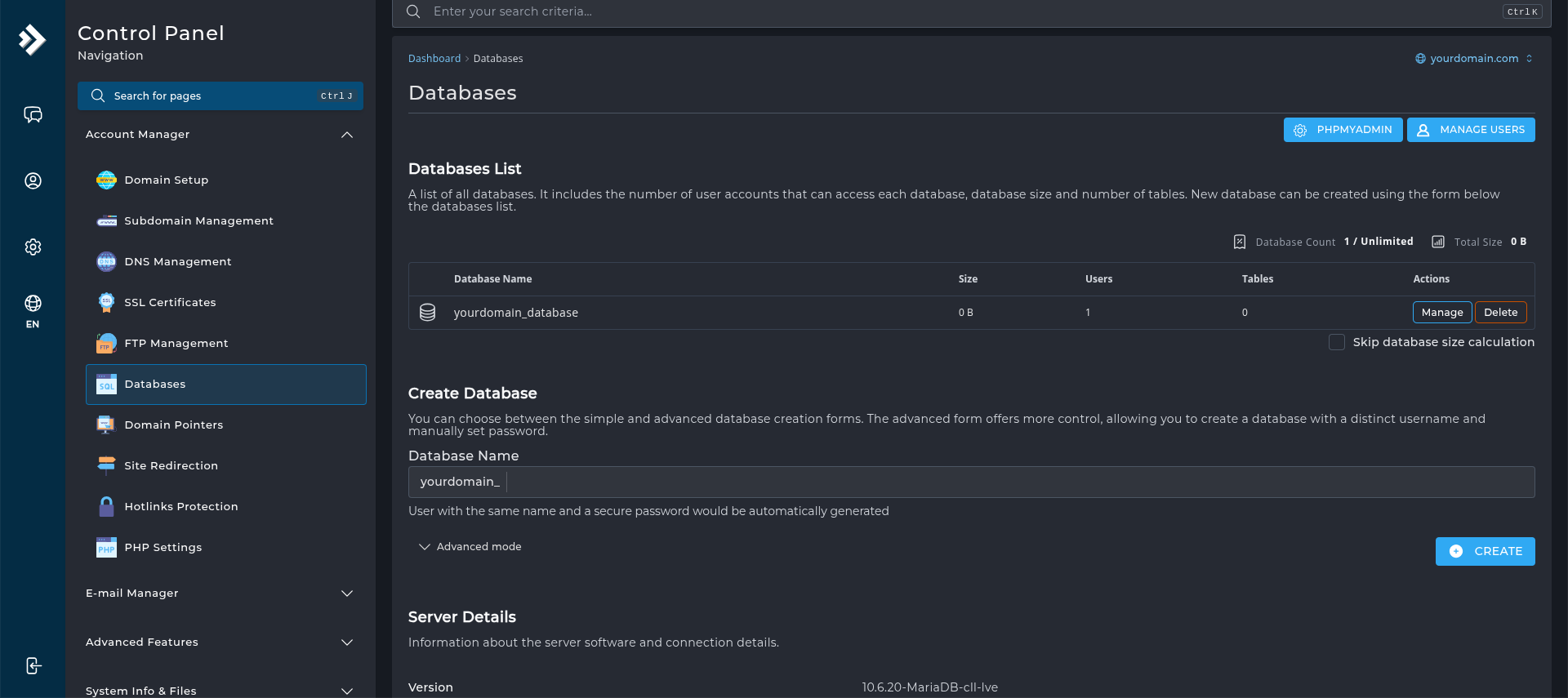
4. Confirm the Deletion
Warning: this destroys the database and everything in it immediately. Any site using it stops working within seconds.
You will be asked to confirm that database users associated with the database will be deleted, and users without access to any other databases will be removed. Confirm that you want to delete the database by clicking Yes. This will permanently delete the database and any users.