How to Create an FTP Account in DirectAdmin

This article will show you how to create an FTP account in DirectAdmin.
Before you start: an FTP account is separate from your DirectAdmin login and gets its own password. The directory you choose becomes the only part of the account that user can reach, so set it deliberately.
Other ways to do this: if you only need to move a few files, the File Manager in DirectAdmin does the same job without any software. See How to Use the File Manager in DirectAdmin.
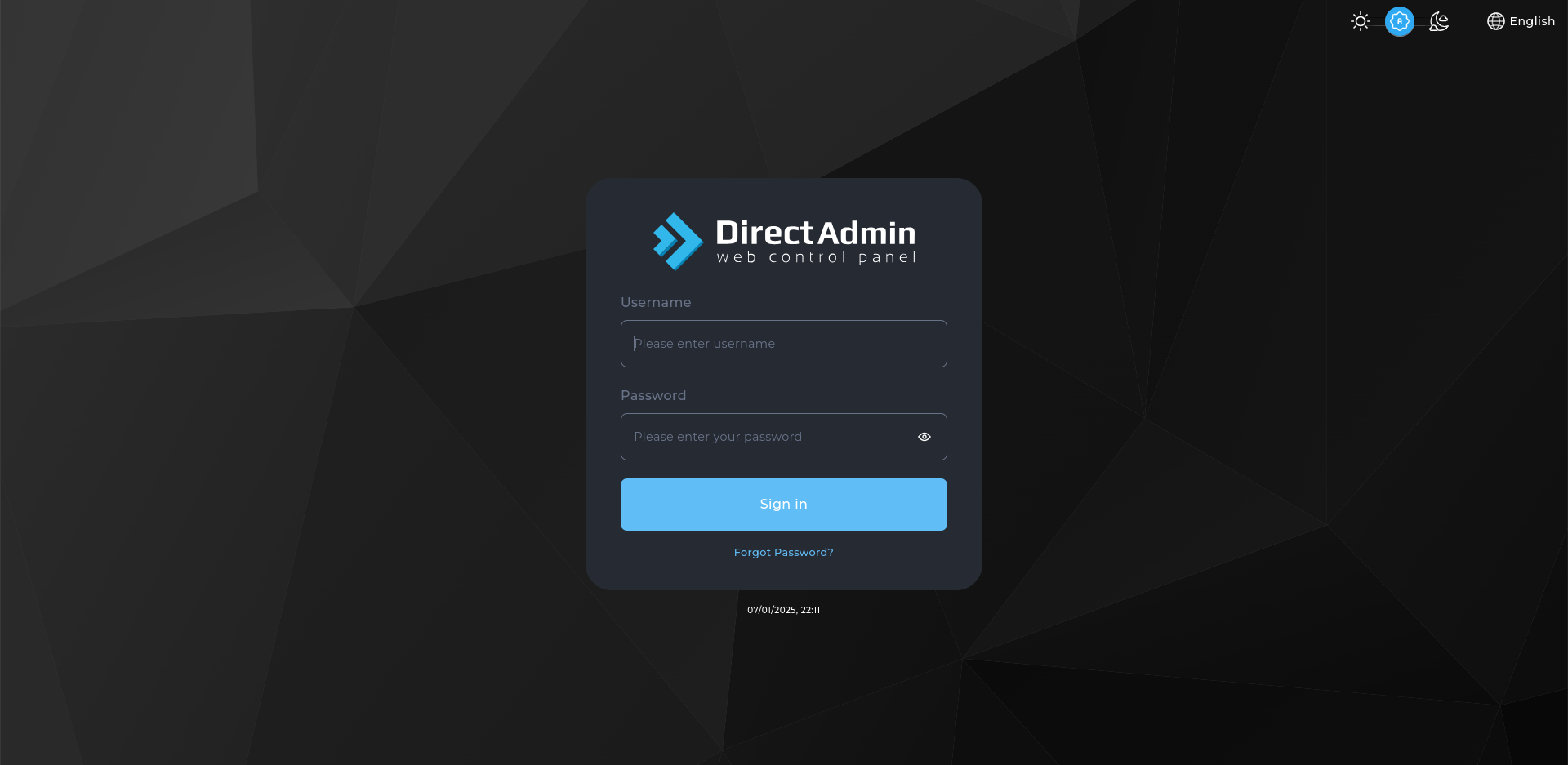
1. Log in to DirectAdmin
Use your user details to log in to the DirectAdmin control panel.
2. Navigate to FTP Management
On the homepage, click on FTP Management under the Account Manager section.
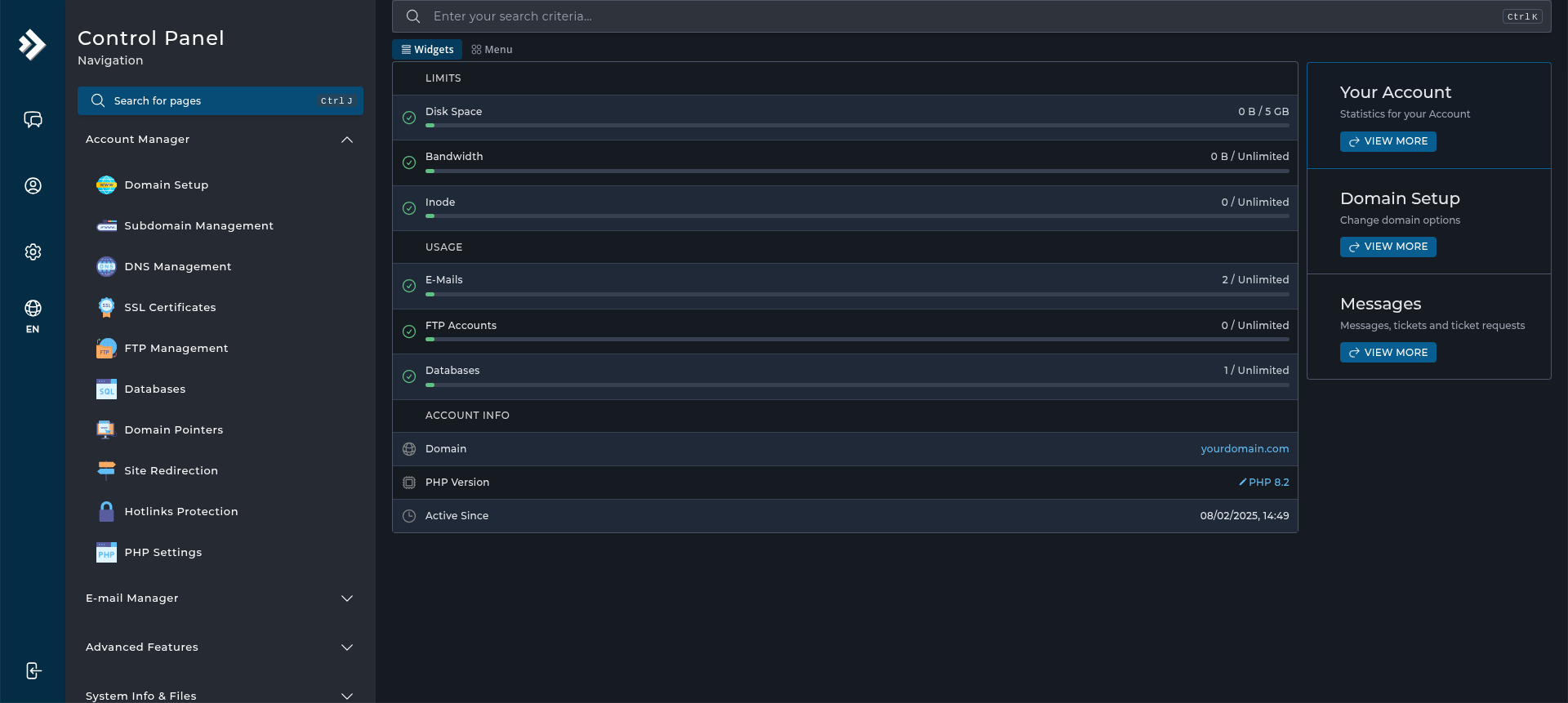
3. Click on "Create FTP Account"
On the FTP Management page, click the Create FTP Account button.
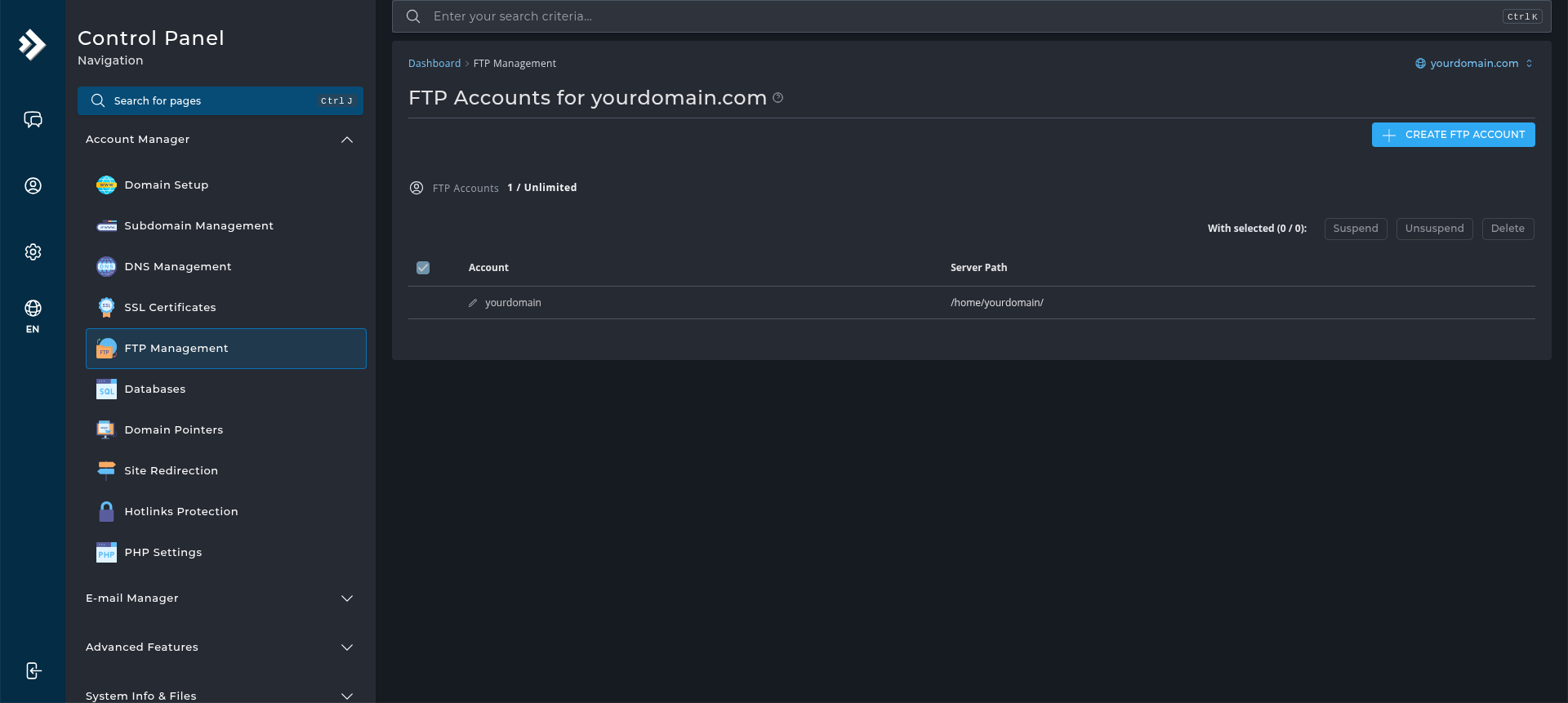
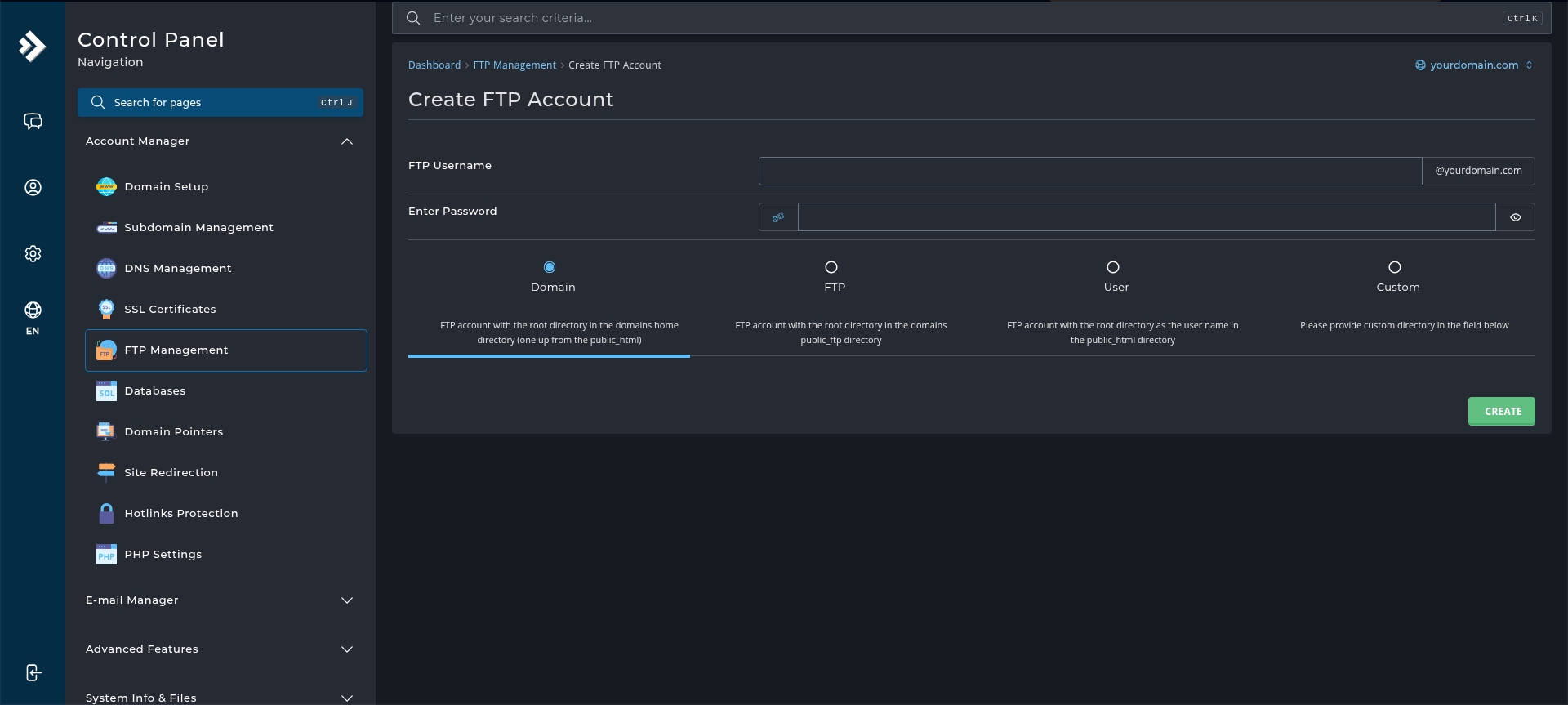
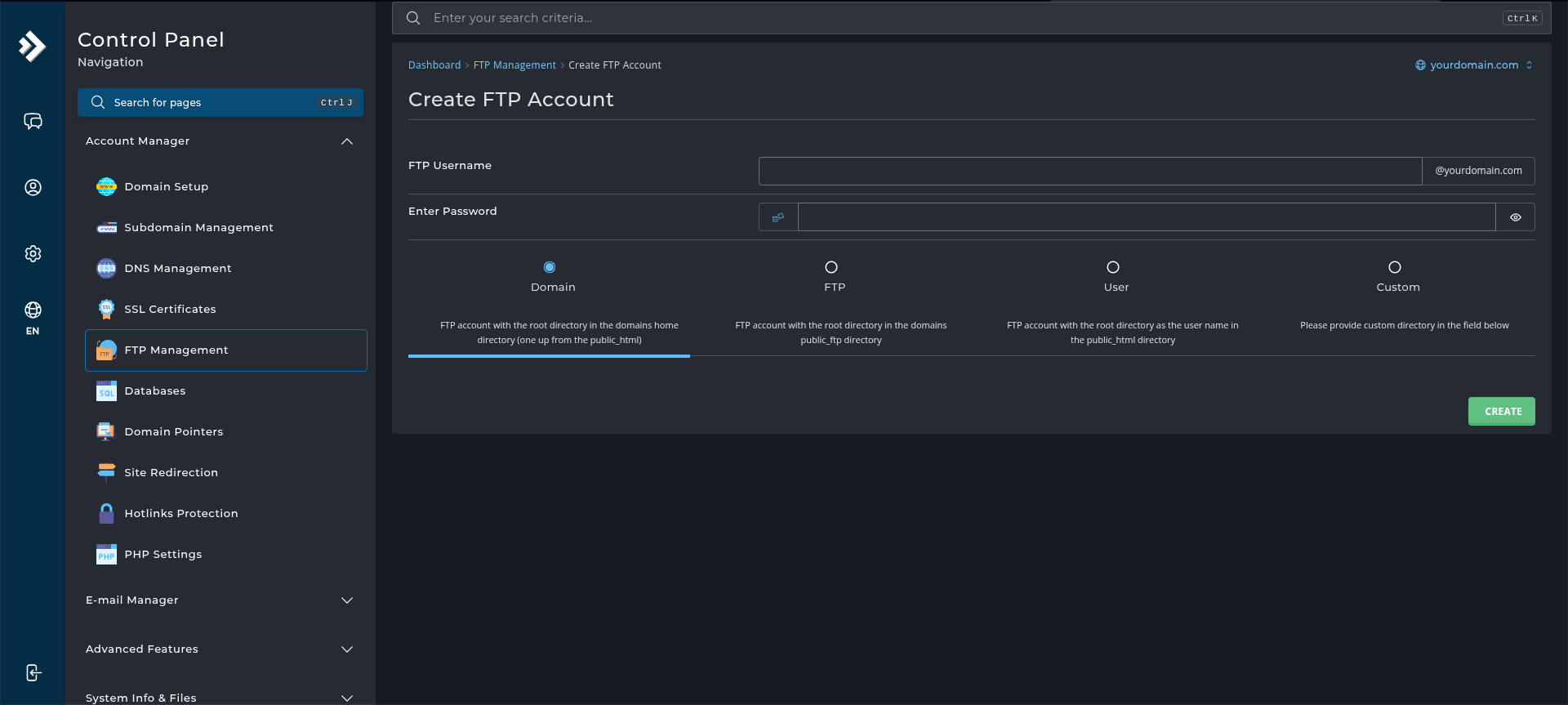
4. Enter FTP Account Details
- FTP Username: Enter the desired username for the FTP account (e.g.
ftpuser). - Enter Password: Set a secure password for the FTP account.
- Access Path: Select the path to which the FTP account will have access. You can choose the User directory or specify another in Custom.
5. Create the FTP Account
After entering the required details, click the Create button to create the FTP account.
6. Verify the Account
The new FTP account should appear in the list. Test it with an FTP client using the full username, which normally includes the domain.
Next: How to Use the File Manager in DirectAdmin covers the same job through the browser if you would rather not use an FTP client.