How to Resolve Common DNS Errors (e.g., DNS_PROBE_FINISHED_NXDOMAIN)

The error DNS_PROBE_FINISHED_NXDOMAIN occurs when a DNS lookup fails. It means the domain name cannot be resolved to an IP address, often due to issues with DNS records or settings.
1. Check Your Domain's DNS Settings
- Ensure your domain is pointing to the correct nameservers.
- Use a DNS lookup tool (like WhatsMyDNS) to check if your DNS records are correctly set up.
- Ensure your A record or CNAME record points to the correct IP address.

2. Clear DNS Cache on Your Computer
Windows
- Open Command Prompt as Administrator.
- Run the command:
ipconfig /flushdnsmacOS
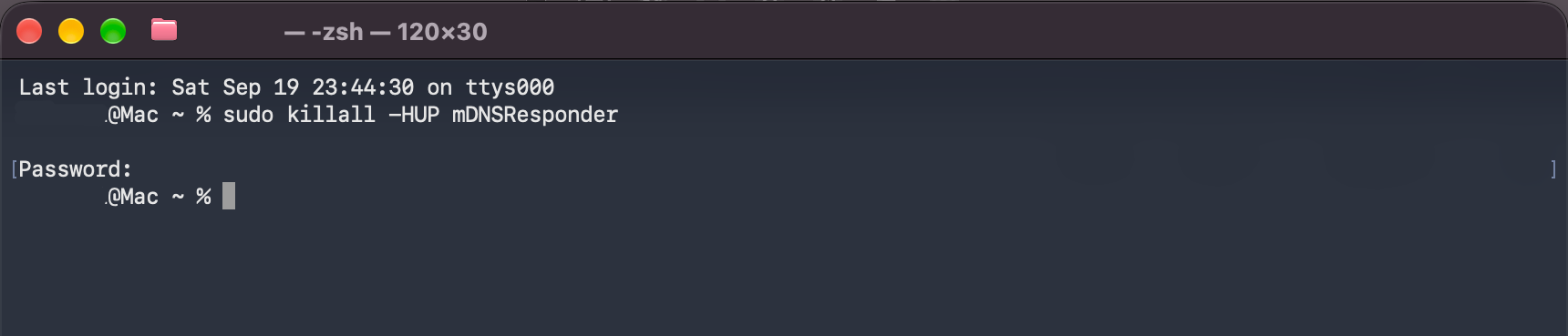
- Open Terminal.
- Run the command:
sudo killall -HUP mDNSResponder3. Check Your Browser Cache
- Sometimes, your browser might store old DNS information. Clear your browser's cache and cookies and try again.
4. Try a Different DNS Server
Your Internet Service Provider's (ISP) DNS server may be experiencing issues. Change your DNS server to a reliable public one:
- Google DNS:
8.8.8.8and8.8.4.4 - Cloudflare DNS:
1.1.1.1and1.0.0.1
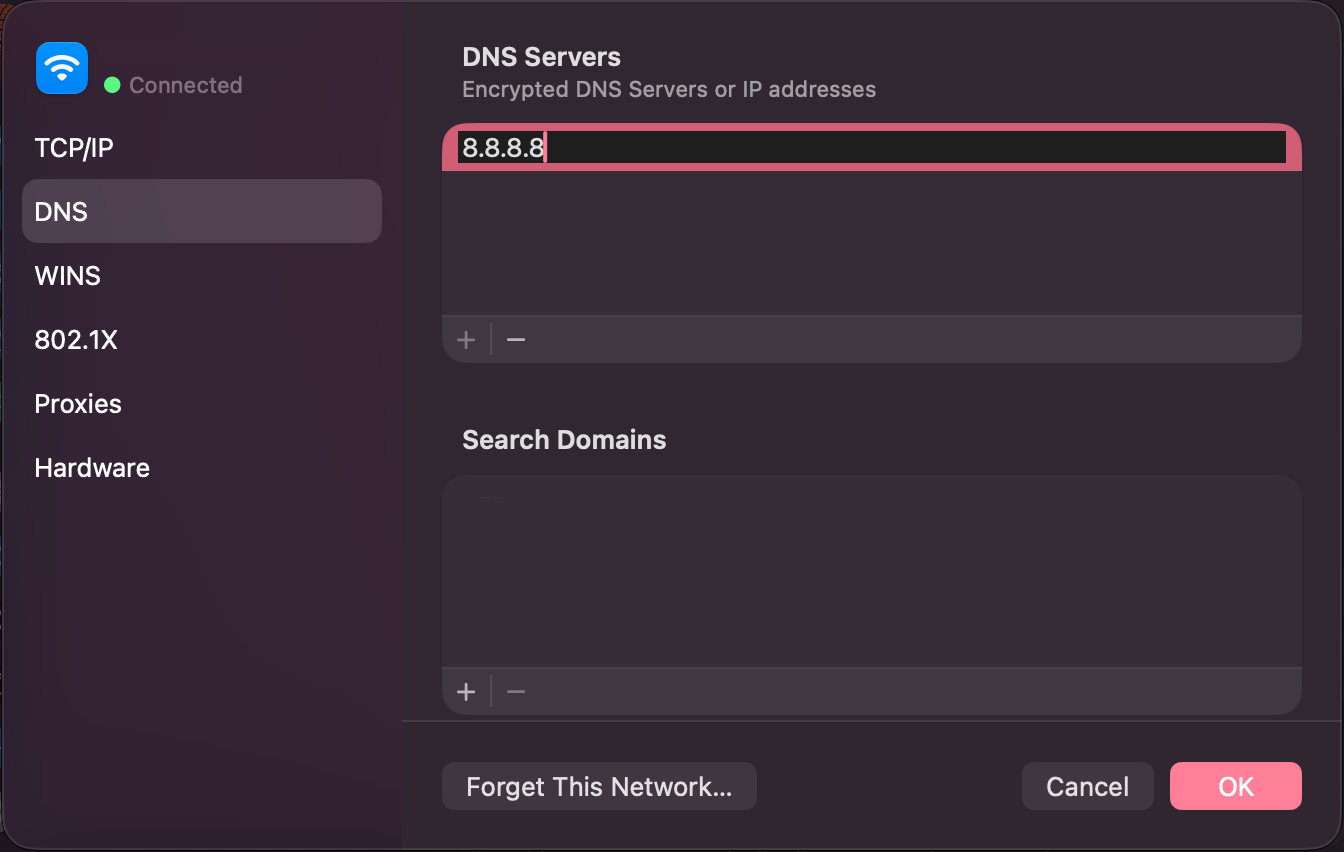
Changing DNS Settings
- Windows: Control Panel > Network and Sharing Centre > Change adapter settings > Right-click your connection > Properties > Internet Protocol Version 4 (TCP/IPv4) > Use the following DNS server addresses.
- macOS: System Preferences > Network > Advanced > DNS.
5. Restart Your Router
- If the issue is network-related, restarting your router can sometimes resolve DNS errors.
- Unplug the router, wait 10-20 seconds, and plug it back in.
6. Verify Your Domain's Registration
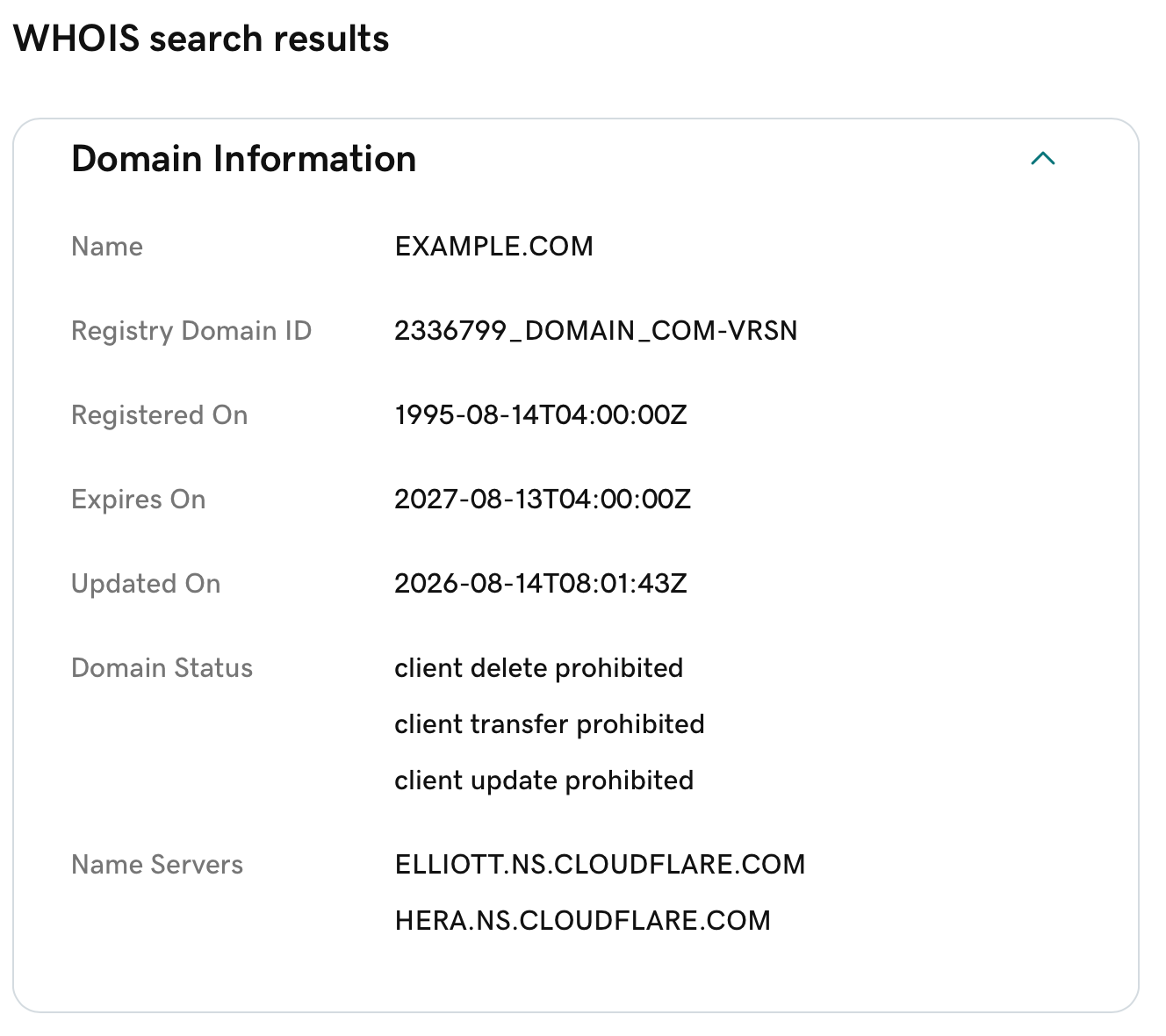
- Ensure your domain is properly registered and has not expired.
- You can check your domain's status using a WHOIS lookup.
7. Check for DNS Server Outages
- If you suspect the problem is with the DNS provider, check if there's an outage on their end.
- Use DownDetector or your DNS provider's status page.
If you encounter DNS_PROBE_FINISHED_NXDOMAIN, try clearing your DNS and browser cache, checking your domain's DNS settings, using a different DNS server, and ensuring your domain registration is active. These steps should resolve the issue in most cases.
Next: if the records look right, confirm the change has propagated with How to Check DNS Propagation and Troubleshoot DNS.
If you have any questions, please contact our support team for assistance.