How to Block an IP Address in cPanel

This article will show you how to block an IP address in cPanel.
Before you start: check the address is not your own. Blocking your own IP locks you out of the site and, on some configurations, out of cPanel as well. If you are unsure what yours is, search for "what is my IP" before continuing.
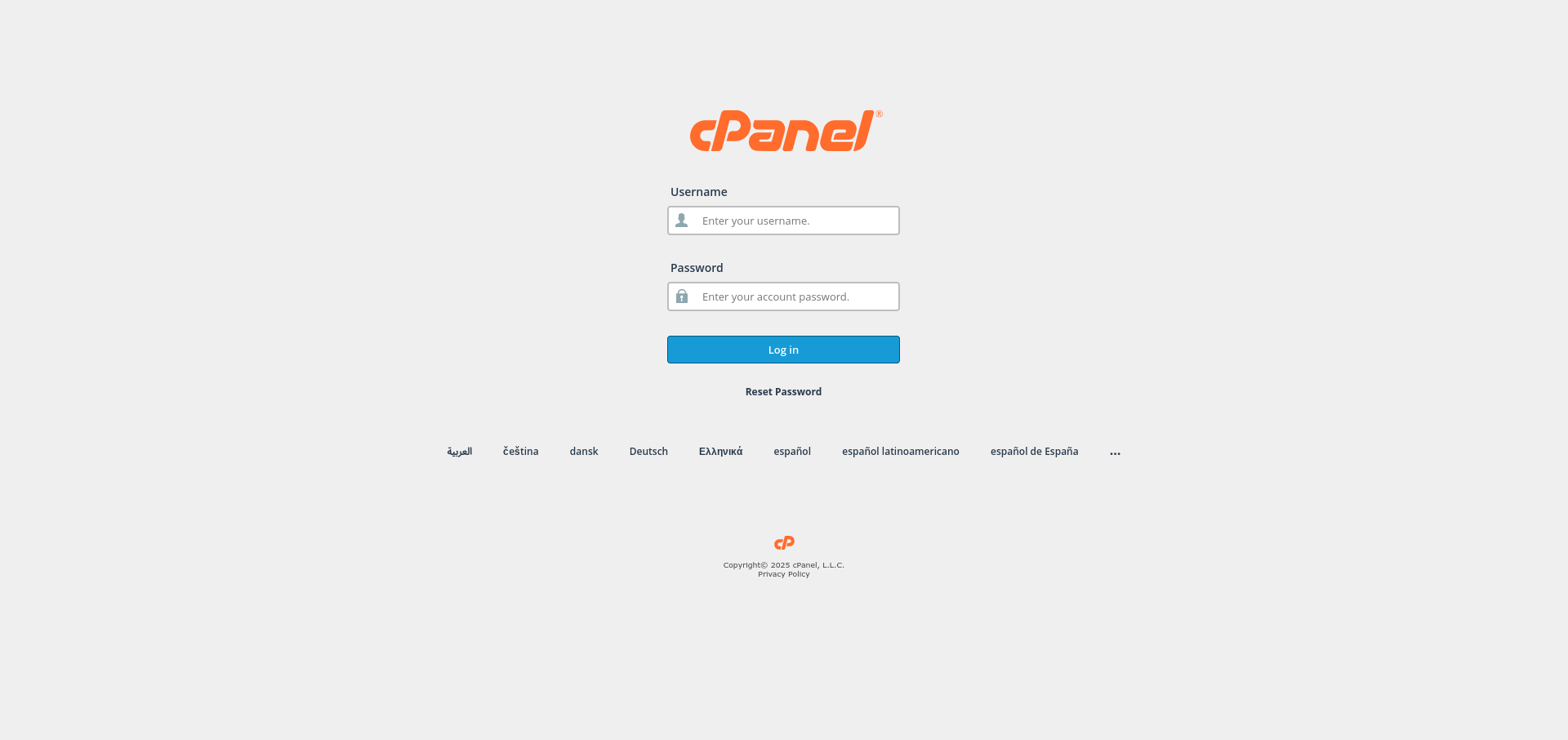
1. Log in to cPanel
Use your user details to log in to the cPanel control panel.
2. Navigate to the Security Section
Scroll down and find the Security section in cPanel.
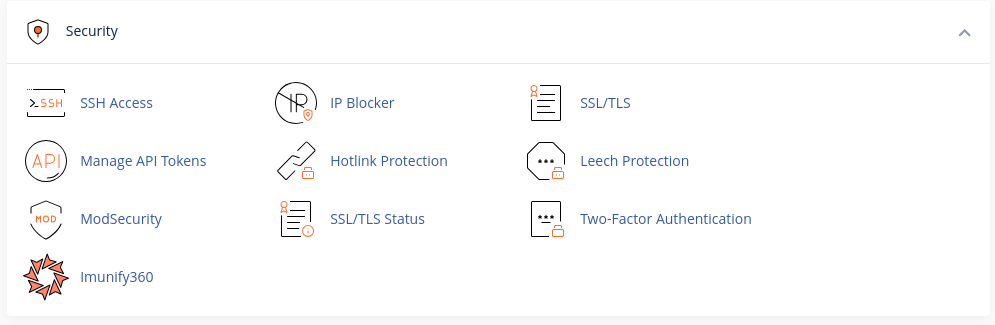
3. Access IP Blocker
Click on the IP Blocker option under the Security section.
4. Enter the IP Address to Block
Note: you can enter a single address, a range, or a partial address such as 192.0.2. to block everything beginning with it. Be careful with ranges, since blocking a whole provider takes out every legitimate visitor using it.
- In the IP Address or Domain field, enter the IP address or domain you wish to block.
- Click the Add button to implement the block.

- Click on Add

5. Verify the Block
The address should appear in the current blocks list. Blocks take effect immediately, with no need to restart anything.
Next: What Is a Brute Force Attack and How Is It Prevented? explains the attacks that IP blocking is usually a response to.