How to Monitor System Performance on Linux Using top
This article will show you how to monitor system performance on Linux using top.
Monitoring system performance is crucial for maintaining a healthy Linux server. The top and htop commands are two powerful tools for checking real-time system resource usage, including CPU, memory, disk, and process statistics. Here's how to use both tools to monitor your system performance.
Using top Command
1. Launch the top Command
The top command shows a dynamic, real-time view of the system's processes, CPU usage, memory usage, and more.
top2. Understanding top Output
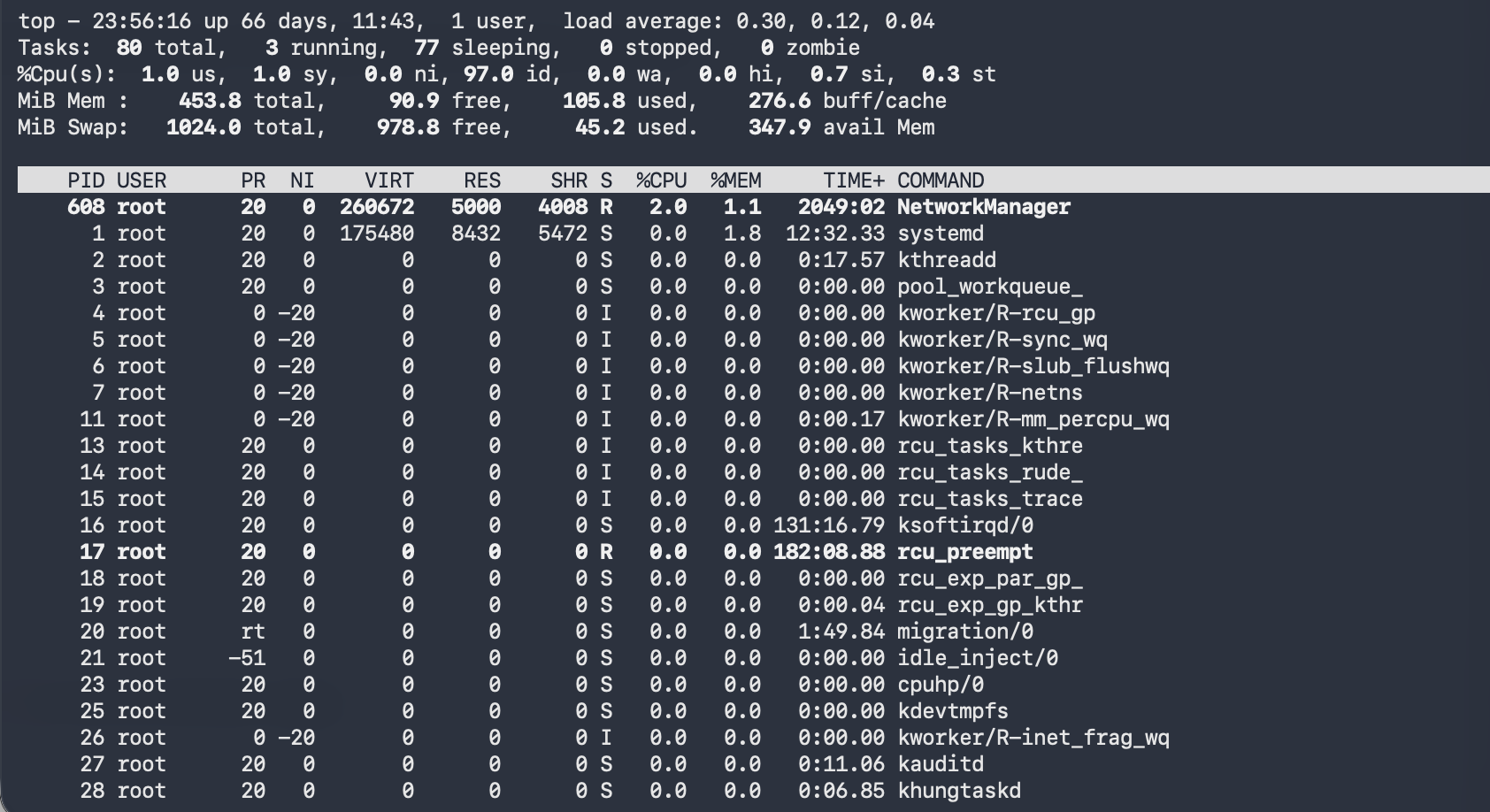
The top command displays several key metrics:
- PID: Process ID
- USER: The user running the process
- PR: Process priority
- %CPU: CPU usage by the process
- %MEM: Memory usage by the process
- COMMAND: The name of the command running
3. Sort Processes
Press Shift + P to sort processes by CPU usage or Shift + M to sort by memory usage.
4. Kill a Process
If you want to terminate a process, press k and then enter the PID of the process you wish to kill.
5. Quit top
Press q to exit top.
Using htop Command
1. Install htop
If htop is not already installed, you can install it with the following command:
sudo apt install htop2. Launch the htop Command
To launch htop, simply type:
htop3. Understanding htop Output
htop provides a more user-friendly, colorful interface that displays the same information as top, but with additional features:
- Process list with CPU and memory usage in bars
- Load average and uptime displayed at the top
- Search and filter options for easier navigation
4. Sort Processes
You can sort processes by CPU or memory usage by clicking on the respective column headers or by pressing F6 and selecting the column to sort by.
5. Manage Processes
To kill or send signals to a process, select the process and press F9 to choose a signal to send, such as SIGKILL.
6. Quit htop
To exit htop, press F10 or q.
- Use
topfor quick, real-time monitoring of system performance via the command line. - Use
htopfor a more user-friendly, visually appealing interface with additional features like filtering, sorting, and easier process management.
By mastering these tools, you can keep track of your Linux server's performance and quickly identify any resource-heavy processes or bottlenecks.
Next: How to Update Linux covers keeping the system current once you know what it is doing.