How to Set Up Email on Mac (Apple Mail)

This article will show you how to set up email on Mac (Apple Mail).
Prerequisites
Before starting, ensure you have:
- Your full email address (e.g.
you@example.com). - Your email password.
- Incoming and outgoing mail server hostnames (typically
mail.yourdomain.com).
1. Add a New Account
- Launch the Mail application on your Mac.
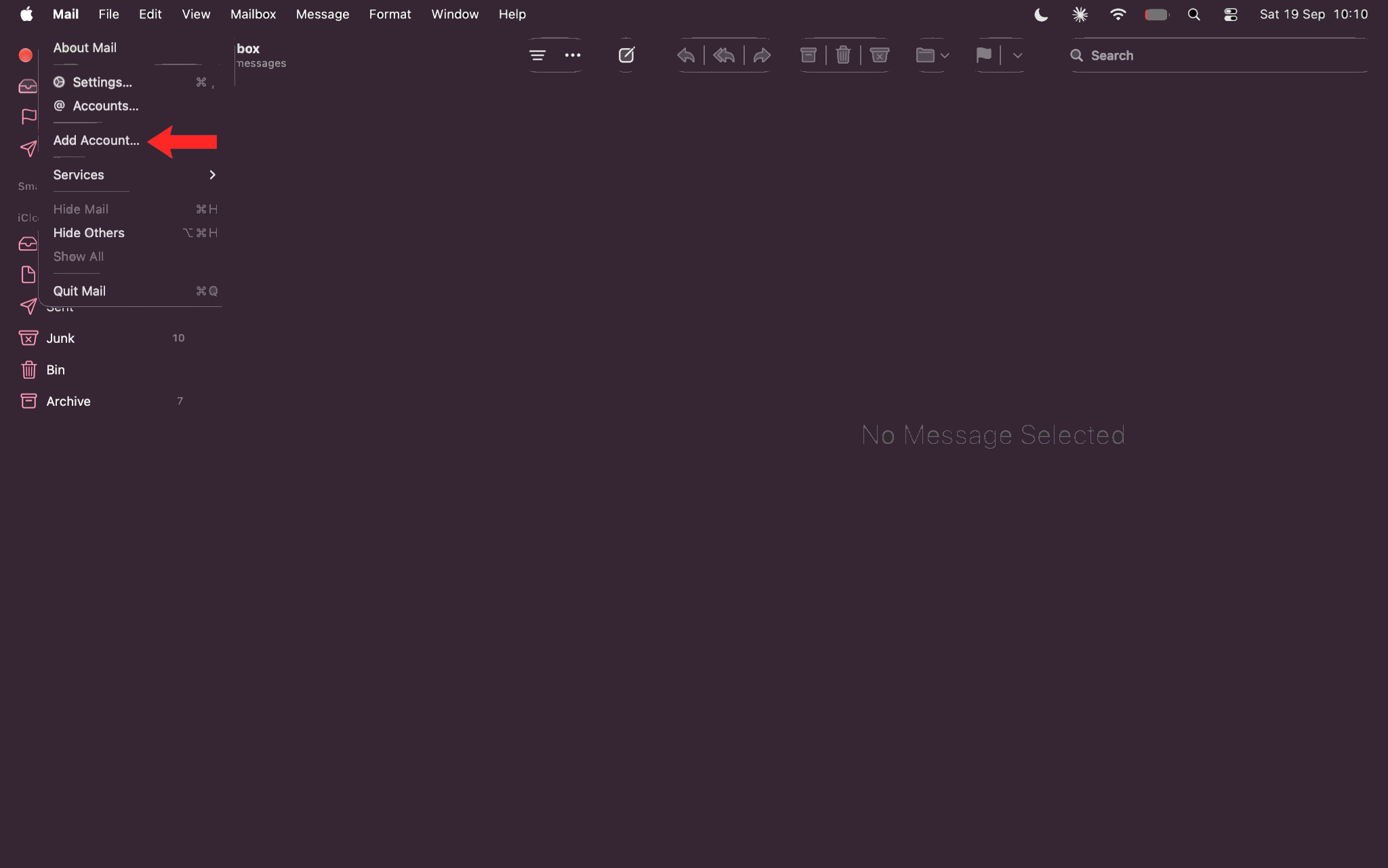
- Click Mail in the top menu bar, then select Add Account...
2. Choose Other Mail Account
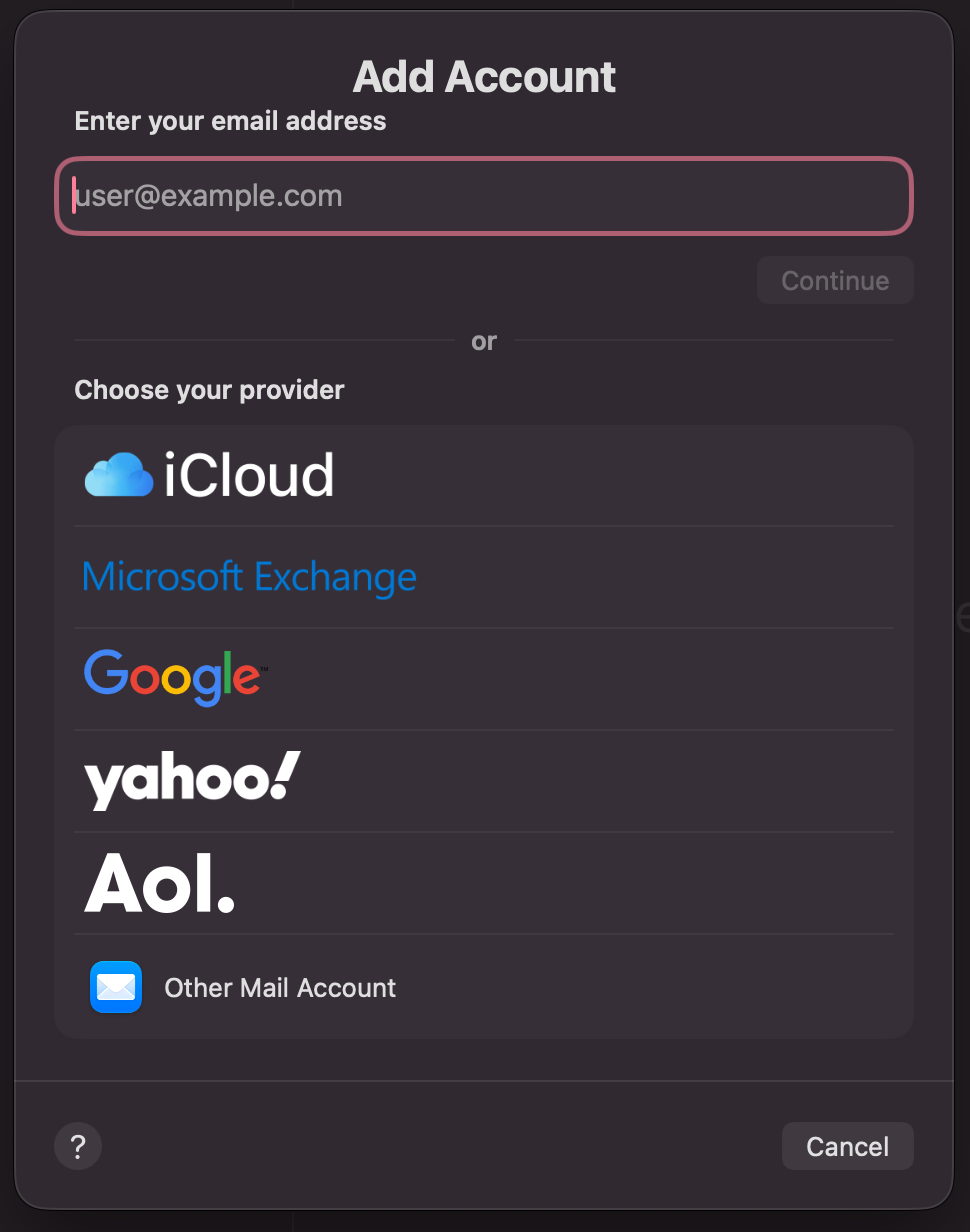
Choose Other Mail Account... at the bottom of the provider list and click Continue.
3. Enter Credentials
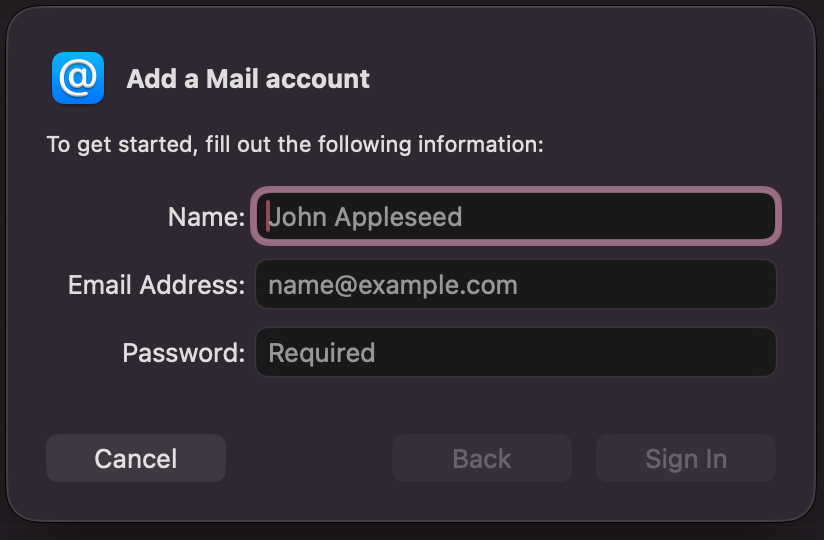
- Enter your Name, full Email Address, and Password.
- Click Sign In.
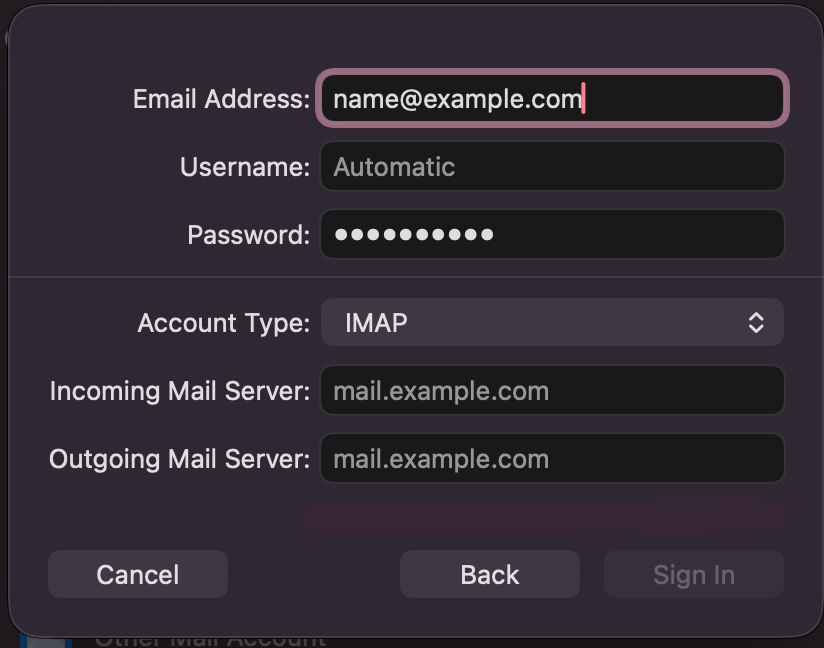
If automatic configuration fails, the manual setup screen will appear.
4. Configure Manual Server Settings
Fill in the server details:
- Account Type: Select IMAP.
- Incoming Mail Server:
mail.yourdomain.com - Outgoing Mail Server:
mail.yourdomain.com
Click Sign In to verify connection details.
Next: How to Configure Spam Filters (SpamAssassin) covers keeping unwanted mail out of the new account.