How to Set Up an Email Autoresponder (Out of Office)

This article will show you how to set up an email autoresponder (Out of Office).
This article will use Roundcube webmail as an example.
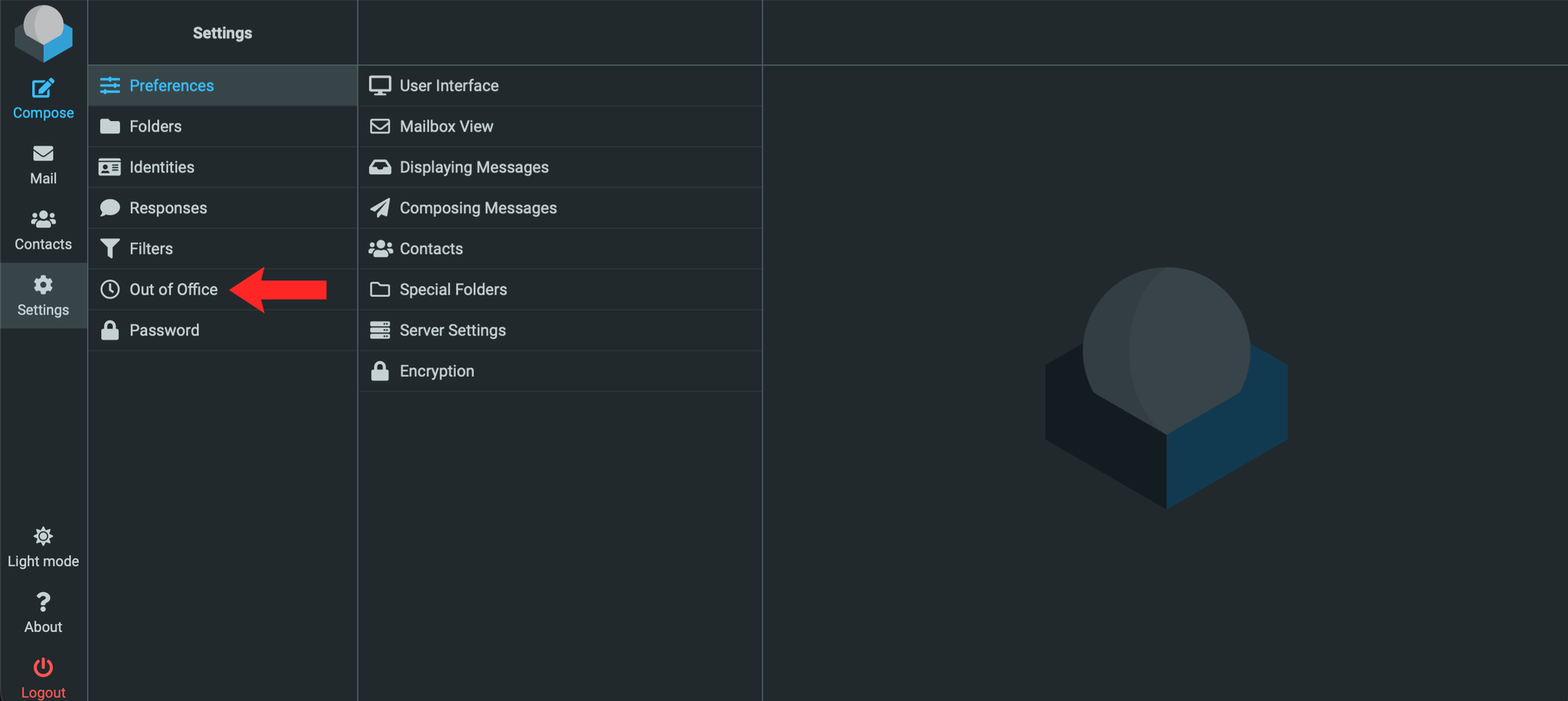
1. Access Autoresponders in Webmail
- Log in to your Webmail portal at
https://example.com/webmail. - Find your account settings from the cog icon or your avatar.
- Select Autoresponders (or Out of Office) from the drop-down menu.
- Click Add Autoresponder.
2. Set Autoresponder Parameters
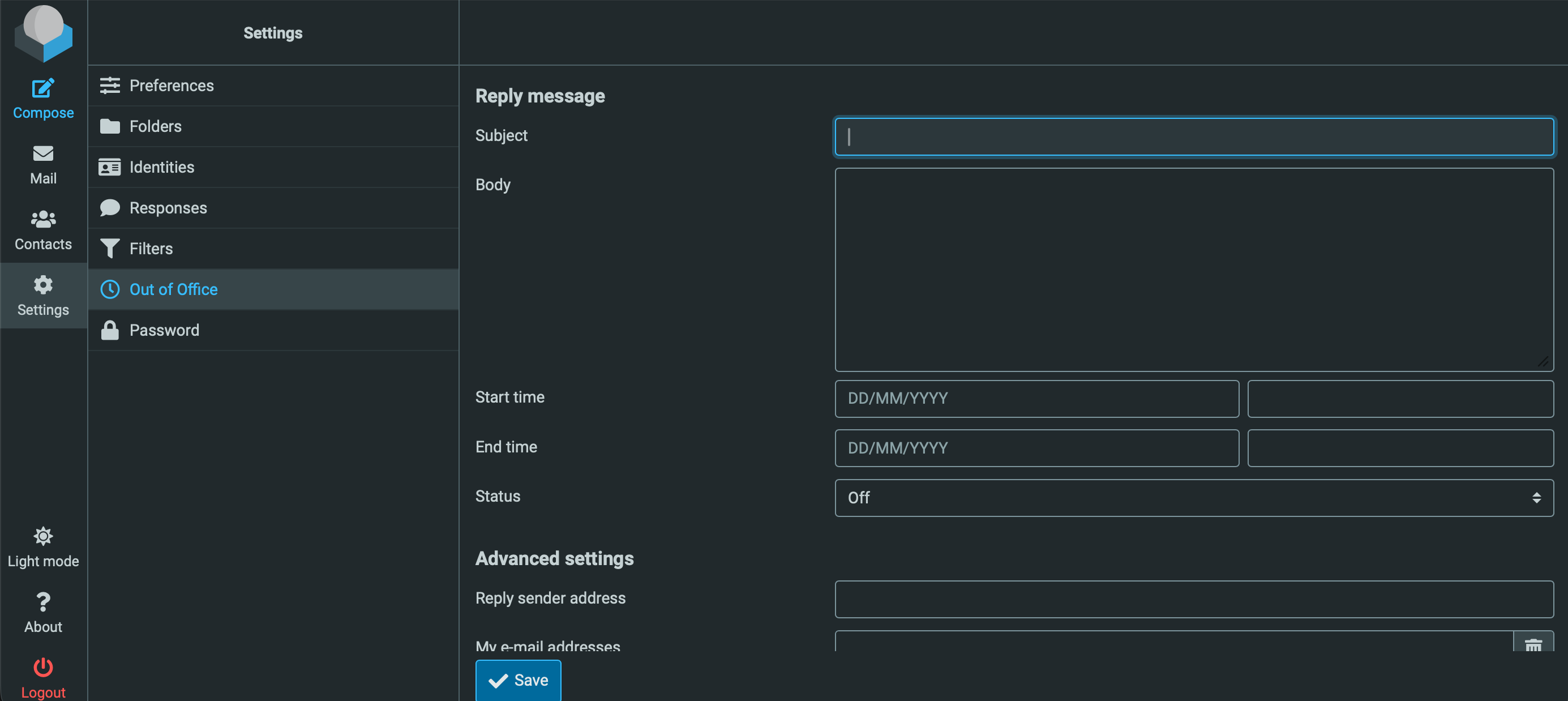
- Fill in the required configuration fields:
- Subject: The autoresponse subject line (e.g. Out of Office: [Original Subject]).
- Body: The text message sent automatically to incoming senders.
- Select Start Time:
- Immediately: Activates the autoresponder straight away.
- Custom: Set a specific start date and time.
- Select Stop Time:
- Never: Keeps the autoresponder active until manually deleted.
- Click Save to activate the rule.
Note: Autoresponders will send a reply to every incoming message, including automated newsletters and marketing emails, unless an interval time is specified.
Next: How to Configure Spam Filters (SpamAssassin) covers keeping unwanted mail out of your inbox.