How to Edit Files Using the cPanel Code Editor

This article will show you how to edit files directly in cPanel, without downloading and re-uploading them.
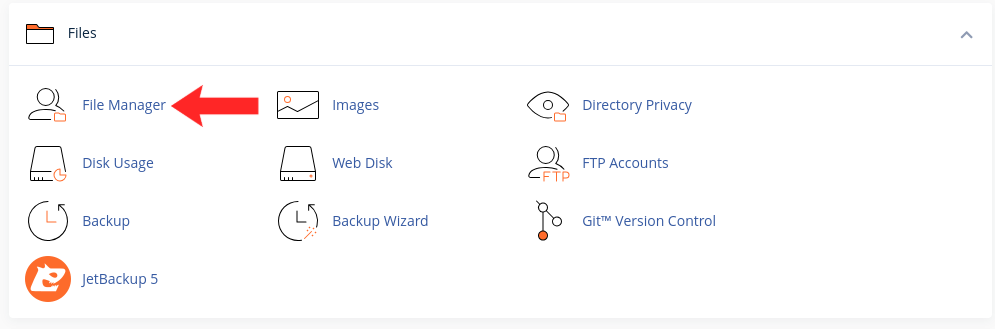
1. Open File Manager
Find it in the Files section of cPanel.
2. Find the File
Navigate to the file you want to change. Common ones are .htaccess, wp-config.php and index.html.
3. Take a Copy First
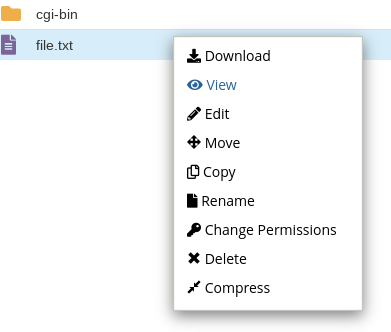
Right-click and choose Copy before editing anything that affects how the site runs. A copy named wp-config.php.bak takes seconds and saves an afternoon.
4. Choose Edit or Code Edit
Edit is a plain text editor. Code Edit adds syntax highlighting and line numbers, which makes mistakes easier to spot.
5. Check the Character Encoding
If the editor offers a character set, leave it as UTF-8. Choosing the wrong one can strip accented characters or corrupt code when you save.
6. Make Your Change and Save
Save, then load the site in a browser straight away. A syntax error in a PHP file takes the whole site down, so test before moving on.
7. Restore the Copy If Needed
If something breaks, delete the edited file and rename your copy back.
Next: if the site errors after an edit, see How to Fix a 500 Internal Server Error.