How to Temporarily Disable ModSecurity in cPanel

This article will show you how to temporarily disable ModSecurity when its rules are blocking legitimate activity.
1. Understand What It Does
ModSecurity is a web application firewall that inspects requests and blocks ones matching known attack patterns. It should normally stay on: it is doing real work.
2. Recognise When It Is the Cause
The usual sign is a 403 error on a specific action rather than the whole site. Submitting a form, saving a post or logging in to an admin area are typical. Being locked out of WordPress admin after repeated login attempts is the classic case.
3. Open ModSecurity
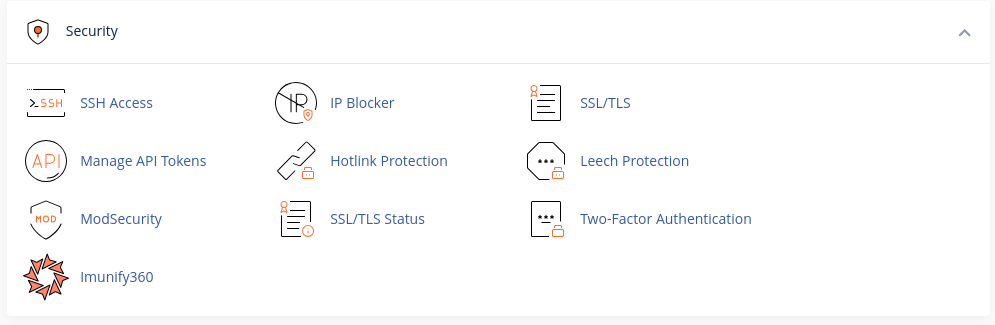
Find it in the Security section of cPanel. If it is not there, your provider manages it at server level and you need to raise a ticket.
4. Disable It for One Domain
Turn it off for the affected domain only, never for the whole account. Leave everything else protected while you work.
5. Test and Turn It Back On
Repeat the action that failed. Whether or not it works, turn ModSecurity back on when you are done. Leaving it off is not a fix.
6. Report a False Positive
If a legitimate action is consistently blocked, contact our support team with the time it happened. A single rule can be excluded rather than disabling the whole firewall.
Next: How to Fix a 403 Forbidden Error covers the other causes of that error.