How to Change Your Password in Enhance

This article will show you how to change your password in Enhance.
Before you start: this changes the password for your control panel login, not for an individual mailbox or FTP user. Those are changed separately.
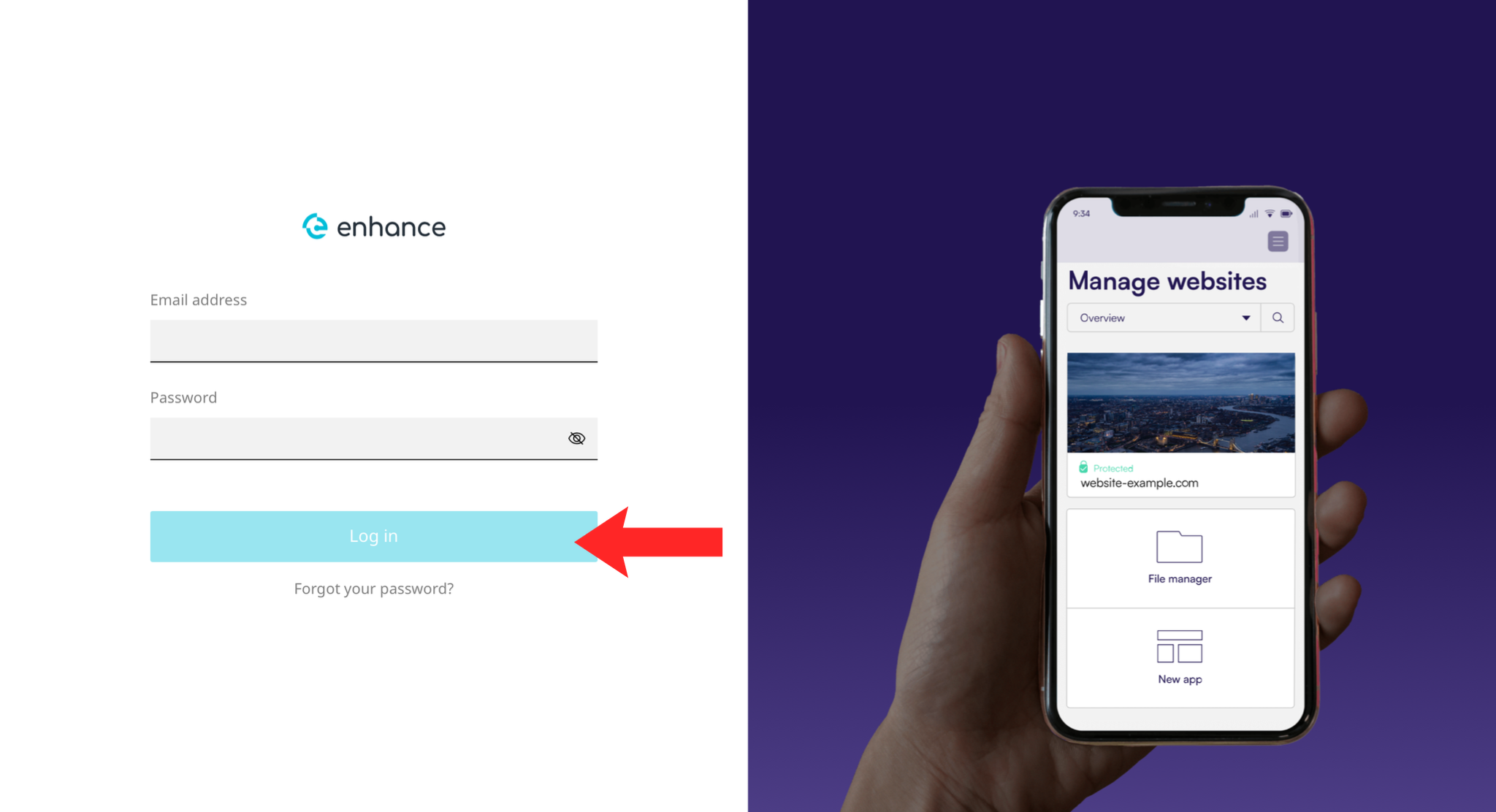
1. Log in to the Enhance Control Panel
Use your credentials to log in to your Enhance control panel.
2. Open Your Account Settings
Click your name or account icon and choose the option for your profile or account settings.
3. Find the Password Section
Look for a password or security section within your account settings.
4. Enter Your Current Password
Confirm who you are by entering the password you use now.
5. Set a New Password
Use a long, unique password. A password manager generating one for you is better than anything you can remember.
6. Save and Log In Again
Save the change, then log out and back in with the new password to confirm it works.
Next: How to Choose a Strong Password covers what to choose.