How to View Error Logs in Enhance

This article will show you how to view error logs in Enhance.
Before you start: this shows the server error log, which records problems such as permission failures and PHP fatal errors. Application logs, including the WordPress debug log, are separate and live in the site's own directory.
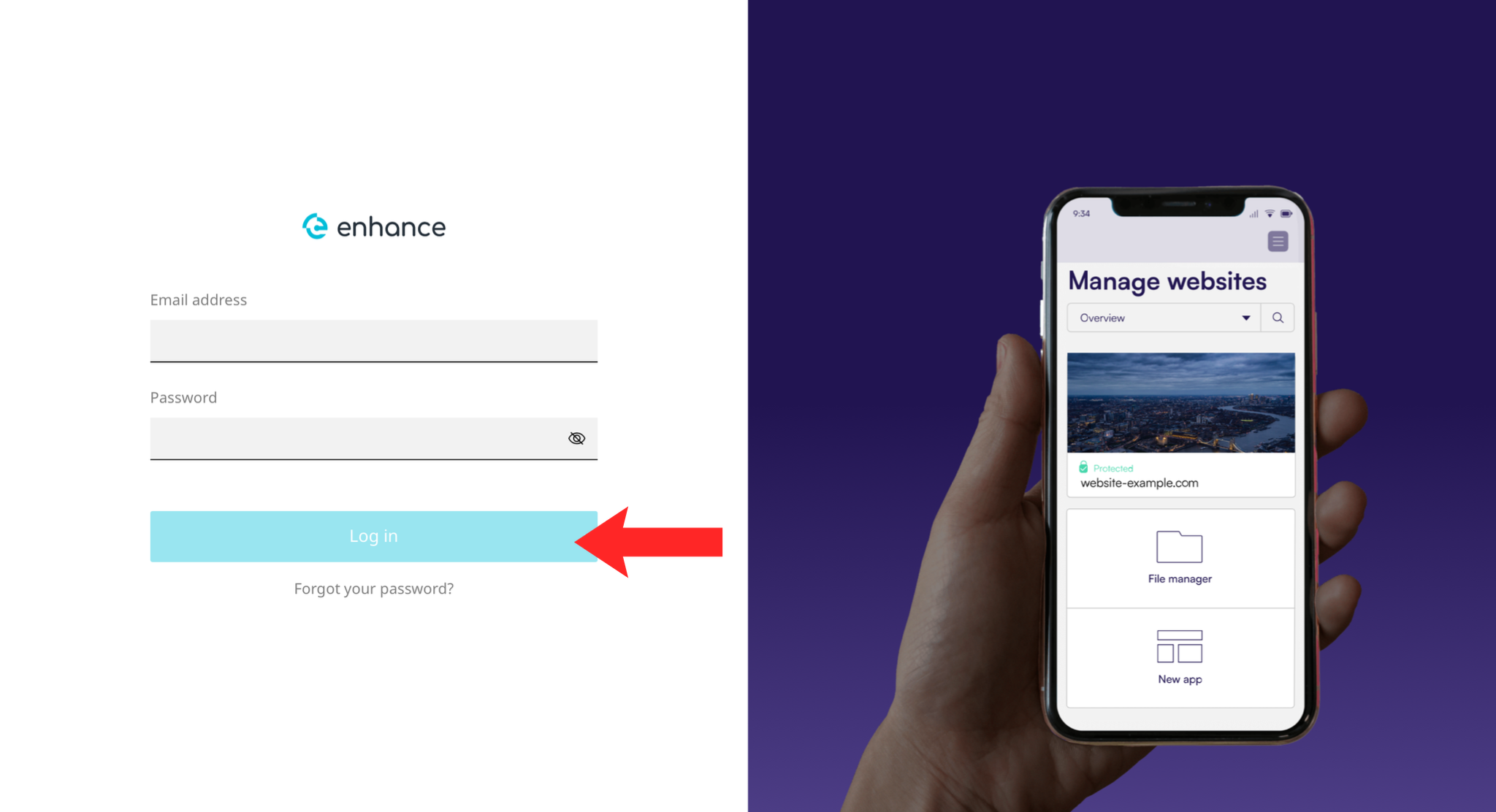
1. Log in to the Enhance Control Panel
Use your credentials to log in to your Enhance control panel.
2. Navigate to Websites
Click Websites and select the site you want to work on.
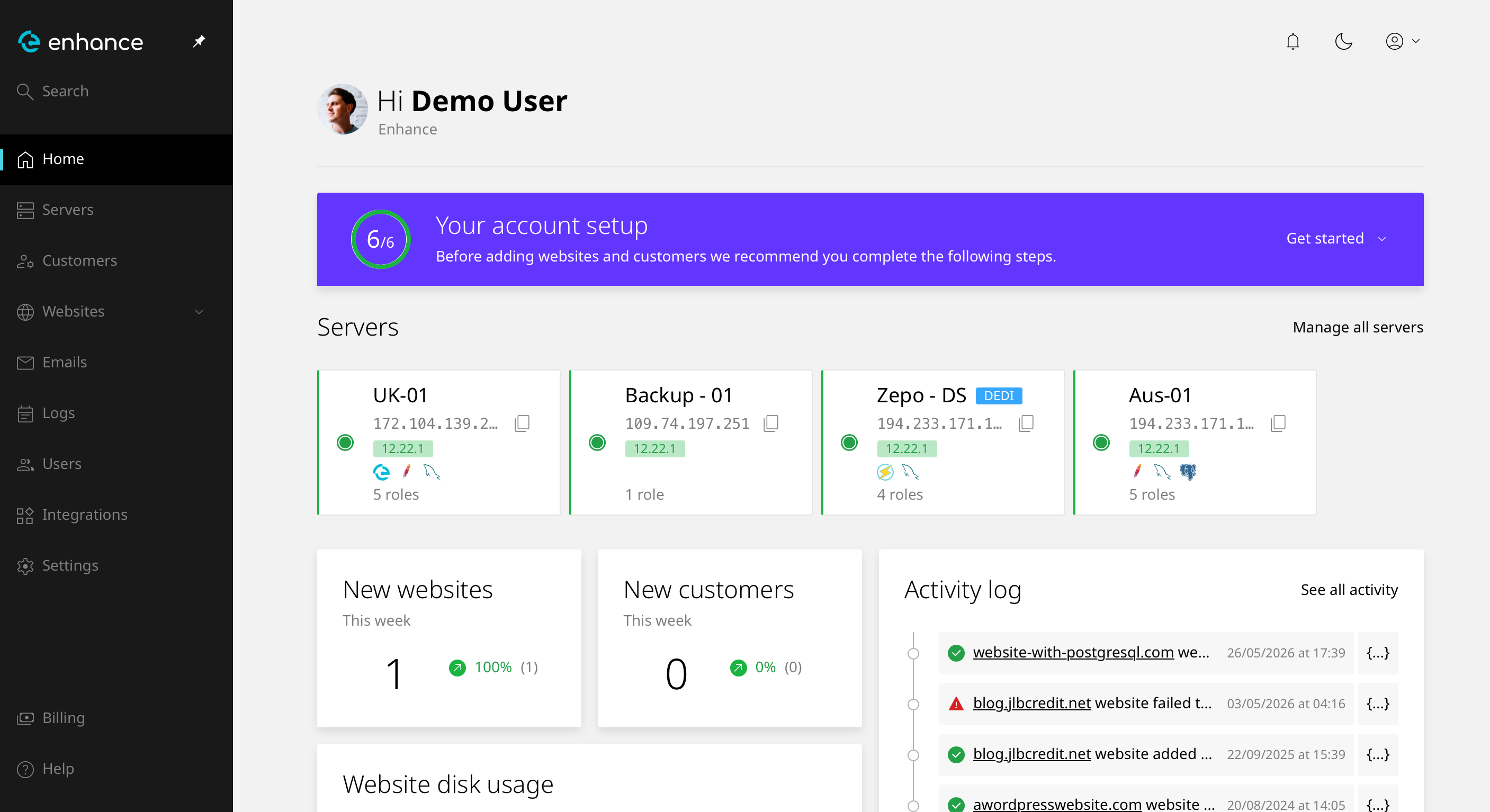
3. Open the Logs Section
Find the logs or error log option for the website.
4. Choose the Error Log
Select the error log rather than the access log. The access log records every visit; the error log records what went wrong.
5. Read the Most Recent Entries
Work from the bottom. The newest entries relate to whatever you just tried.
6. Interpret What You See
Each entry gives a date, an error type and a file path. The path tells you which file caused the problem. Entries repeating every few seconds usually indicate a loop rather than many separate faults.
Next: How to Fix a 500 Internal Server Error covers the most common causes.