How to Add a Domain in cPanel

This article will show you how to add a domain in cPanel.
Before you start: the domain must already be registered and its name servers pointed at this server, or it will be added to cPanel but will not resolve. Adding a domain here does not register it.
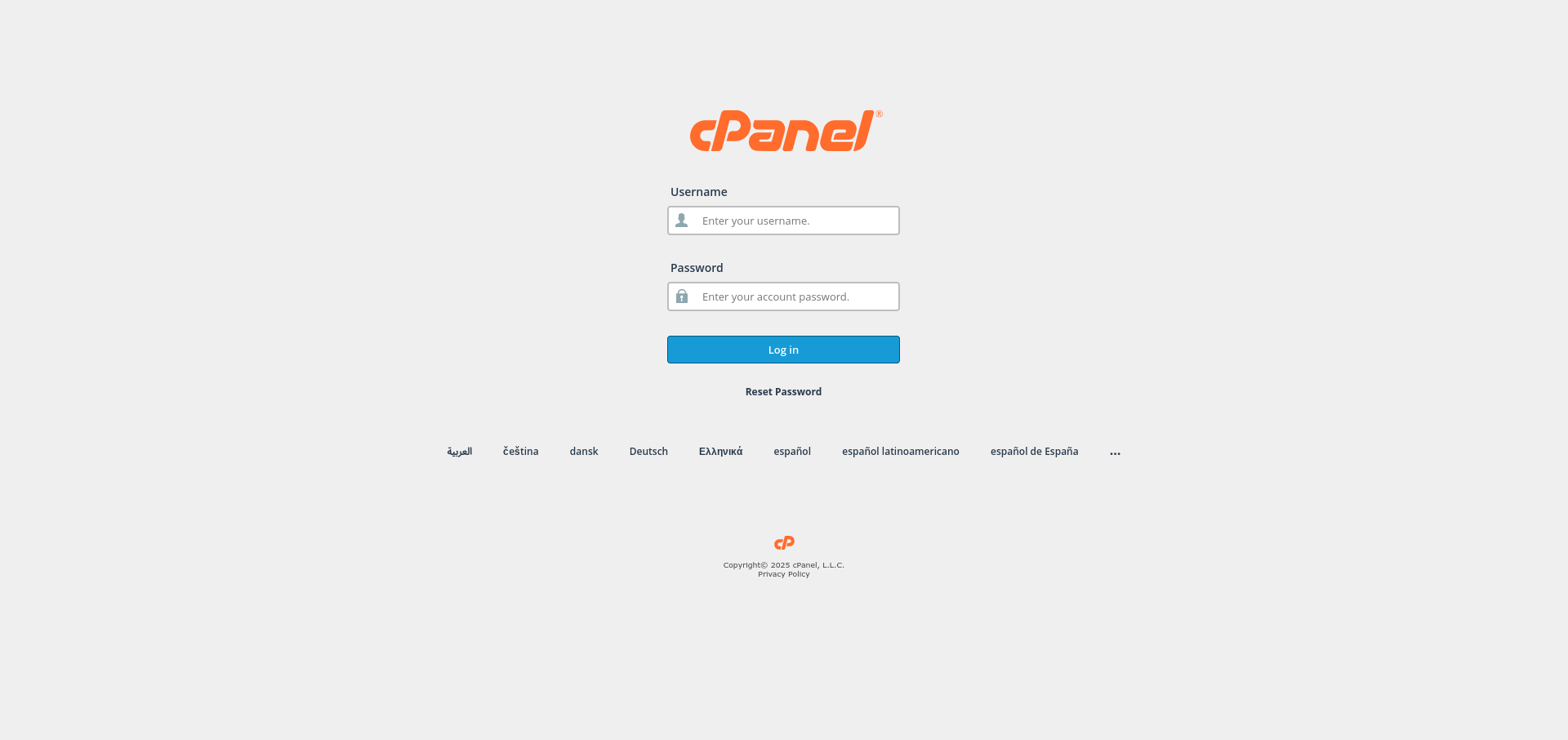
1. Log in to cPanel
Use your user details to log in to the cPanel control panel.
2. Navigate to the Domains Section
Scroll down until you find the Domains subsection of cPanel.

3. Access the Domains Page
Click on the Domains page from the Domains subsection.

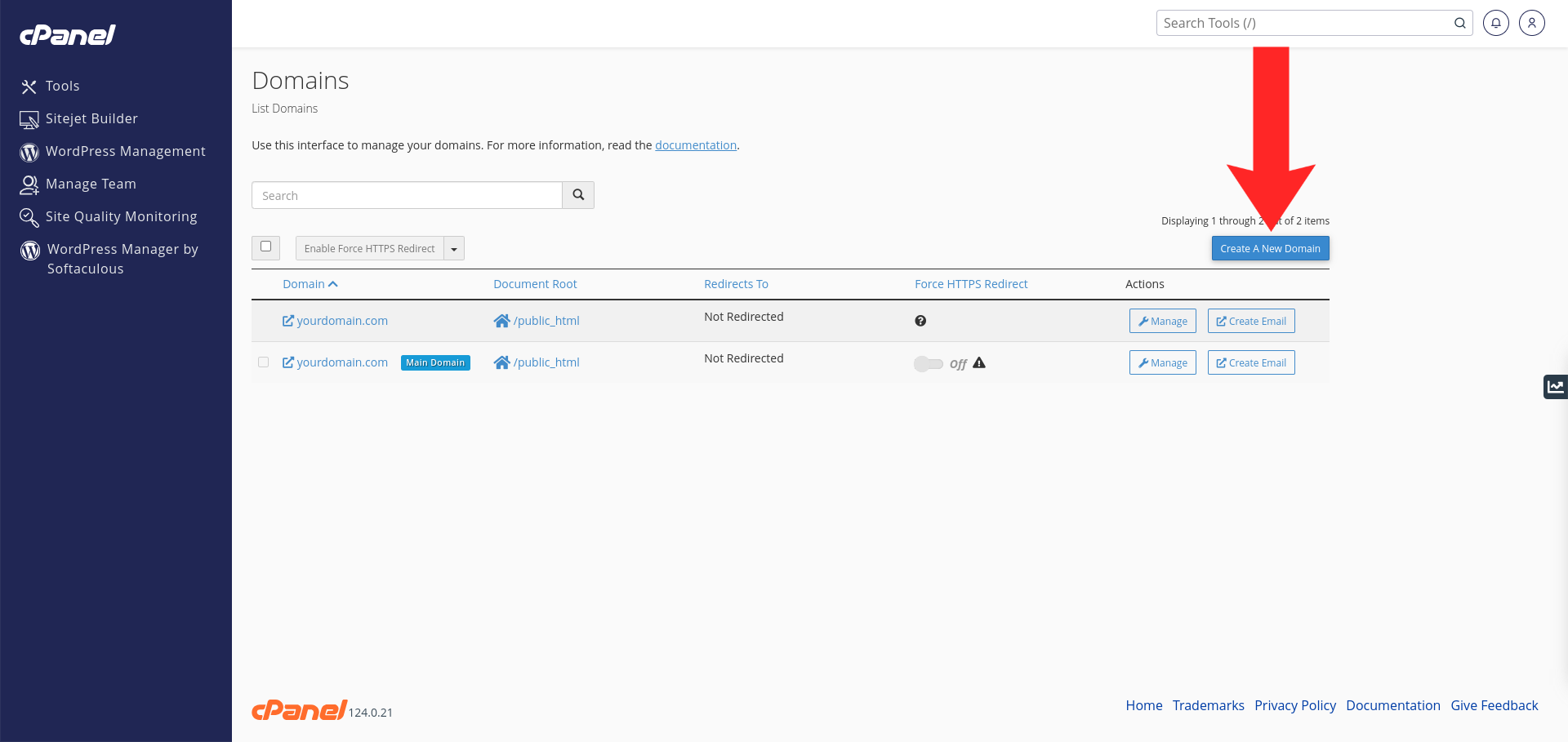
4. Create a New Domain
Click the Create A New Domain button in the top right of the page.
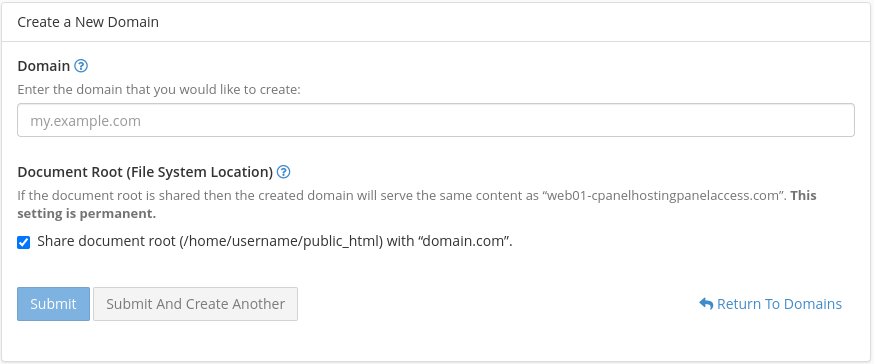
5. Enter Domain Details
Enter your domain name and specify the directory your subdomain should point to.
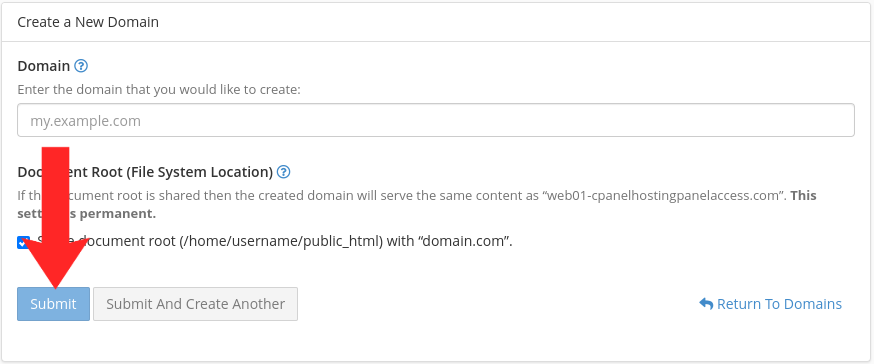
6. Create Your Domain
Click the Submit button to save your new domain.
7. Verify the Domain
The domain should now appear in the list with a document root. Visiting it in a browser shows either your site or a default page. If it does not resolve, the name servers are the usual cause rather than cPanel.
Next: set up mail for the new domain with How to Create an Email Account in cPanel, or point it at your server using How to Add DNS Records in cPanel.