How to Create an Email Account in cPanel

This article will show you how to create an email account in cPanel.
Before you start: decide the full address and the mailbox quota now. The address cannot be renamed afterwards, only deleted and recreated, which loses any mail already in it.
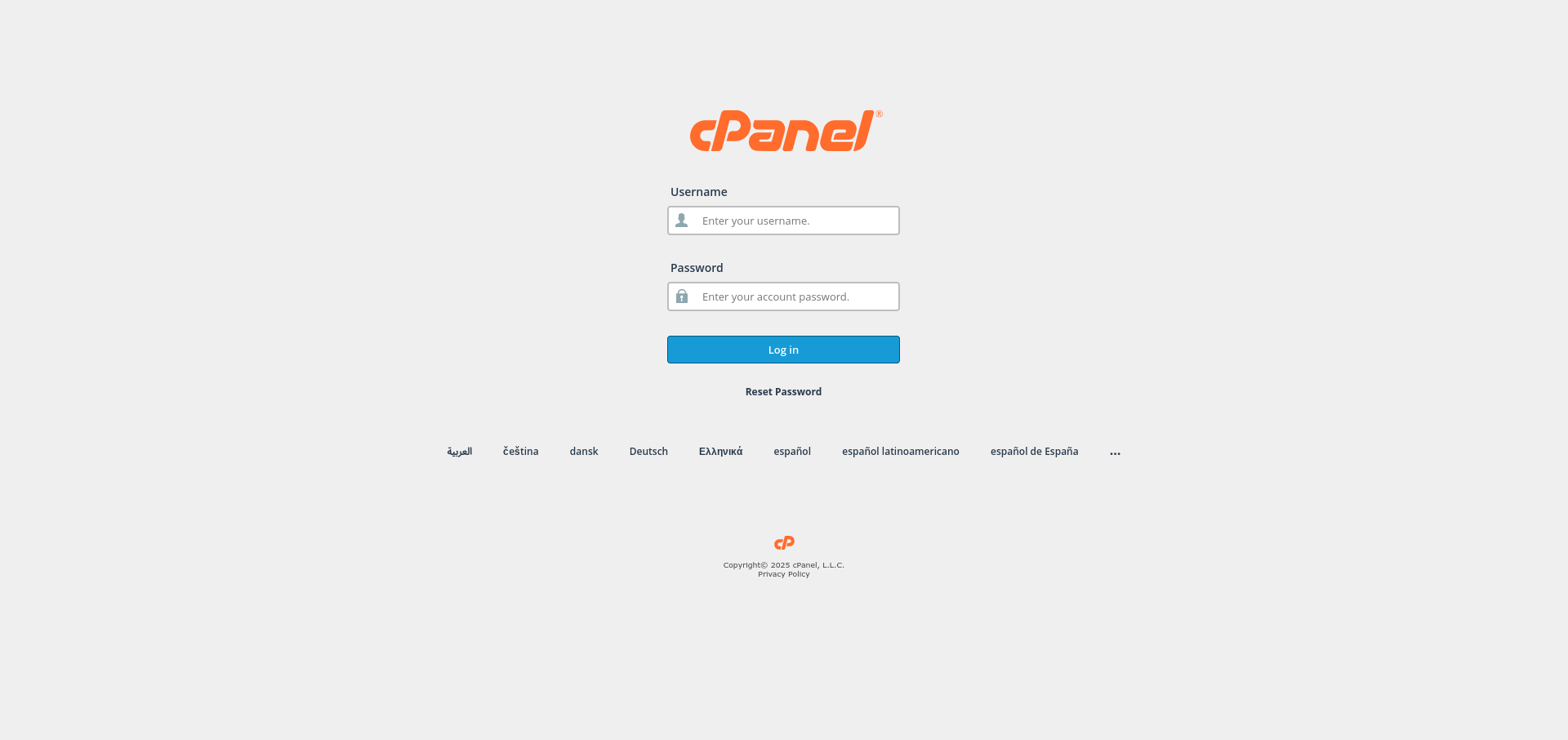
1. Log in to cPanel
Use your user details to log in to the cPanel control panel.
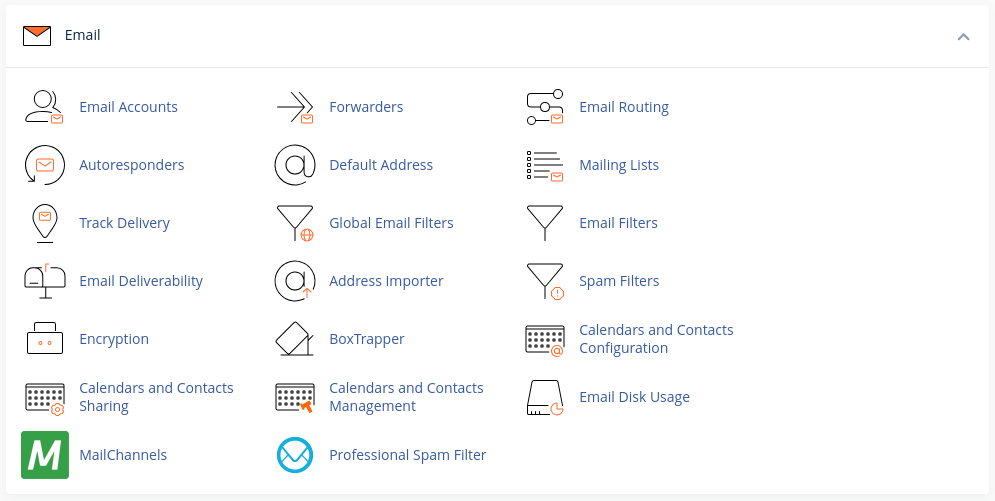
2. Navigate to the Email Section
Scroll down and find the Email section in cPanel.
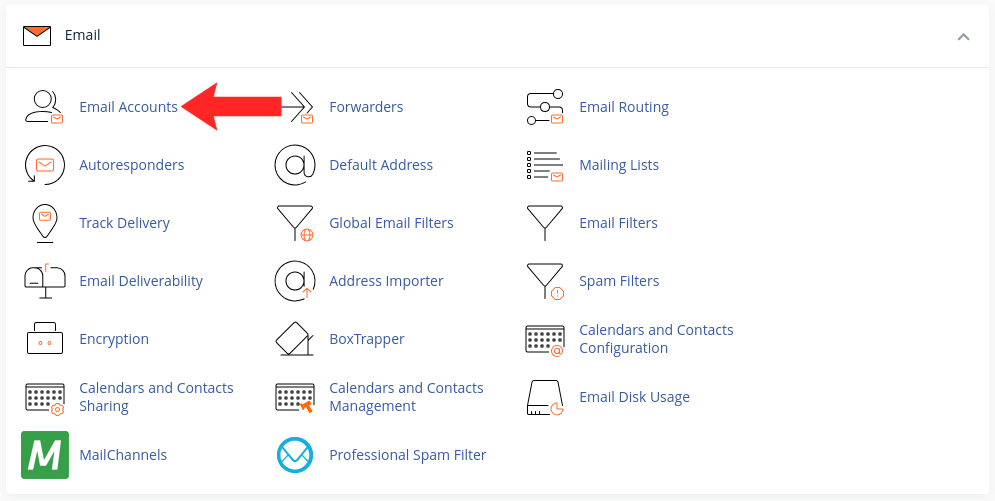
3. Access the Email Accounts Page
Click on the Email Accounts option under the Email section.
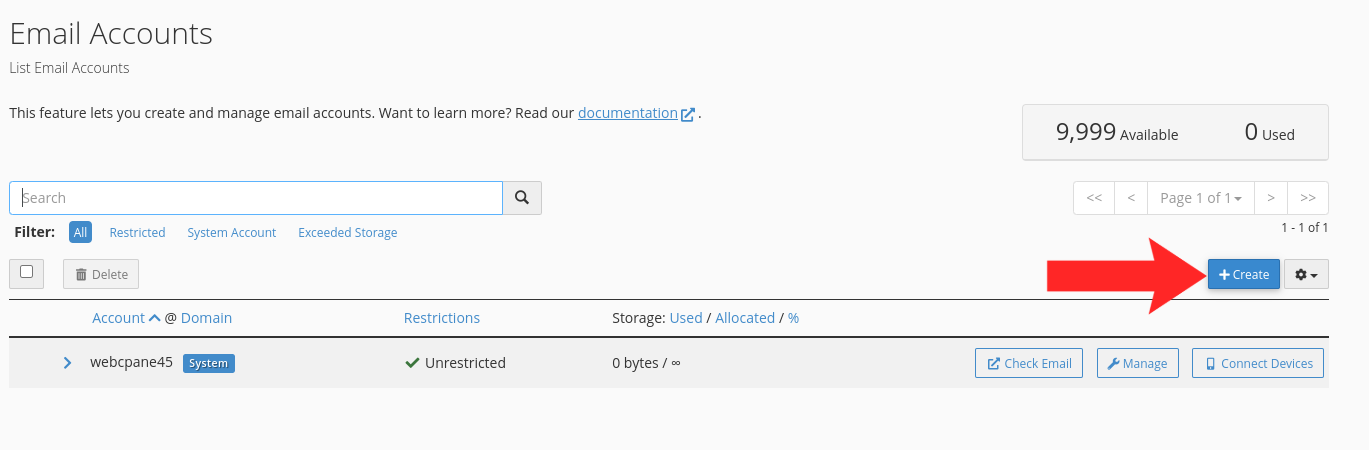
4. Create a New Email Account
Click on the Create button from the top right of the Email Accounts page.
5. Enter Email Account Details
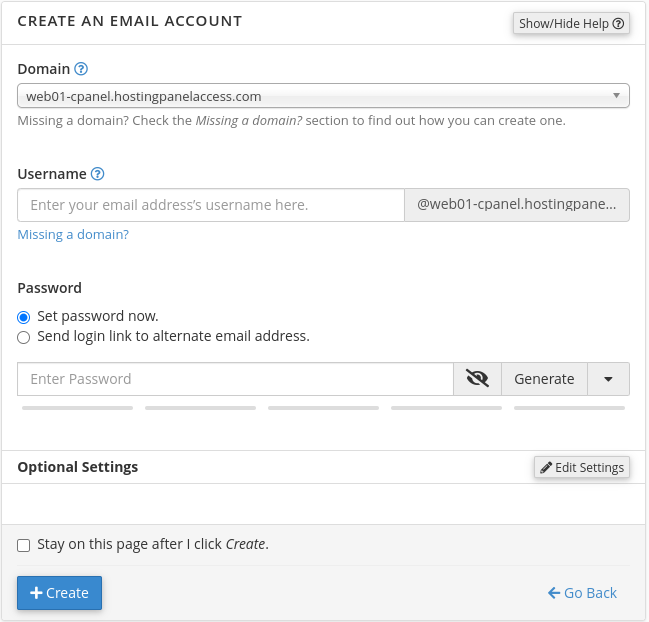
In the Create an Email Account page, select the domain, enter the desired username (e.g. username@example.com), and set a password.
6. Set Storage Quota
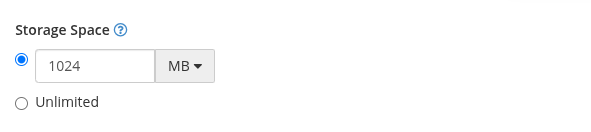
You can set a mailbox storage quota for the account or leave it as Unlimited by clicking on Additional Settings.
7. Create the Account
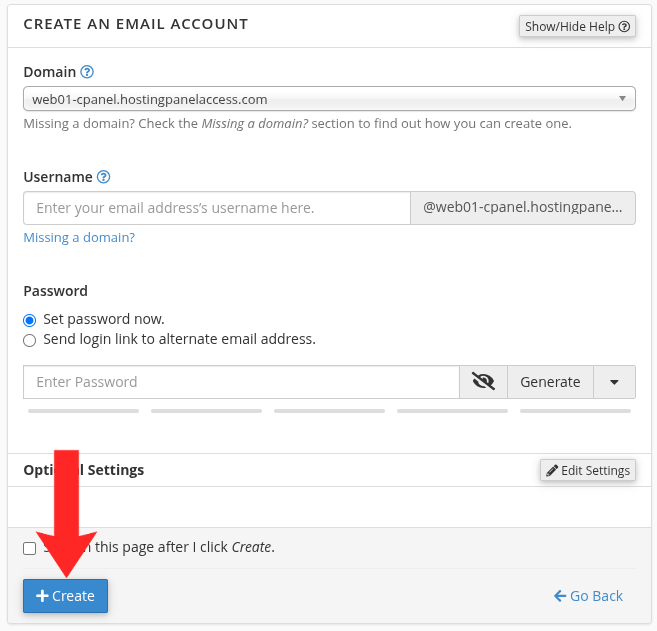
Click the Create button to finish creating the email account.
8. Verify the Account
The new address should appear in the list with its quota. Send a test message to it from an outside account and check it arrives in webmail.
Next: set it up on your phone with How to Set Up Your Email Account on iPhone (iOS Mail), or on a Mac with How to Set Up Email on Mac (Apple Mail).