How to Create a Database in DirectAdmin

This article will show you how to create a database in DirectAdmin.
Before you start: most applications need the database name, a database user and that user's password together. Note all three as you go, because the password cannot be retrieved afterwards. DirectAdmin usually prefixes both the database and the user with your account name.
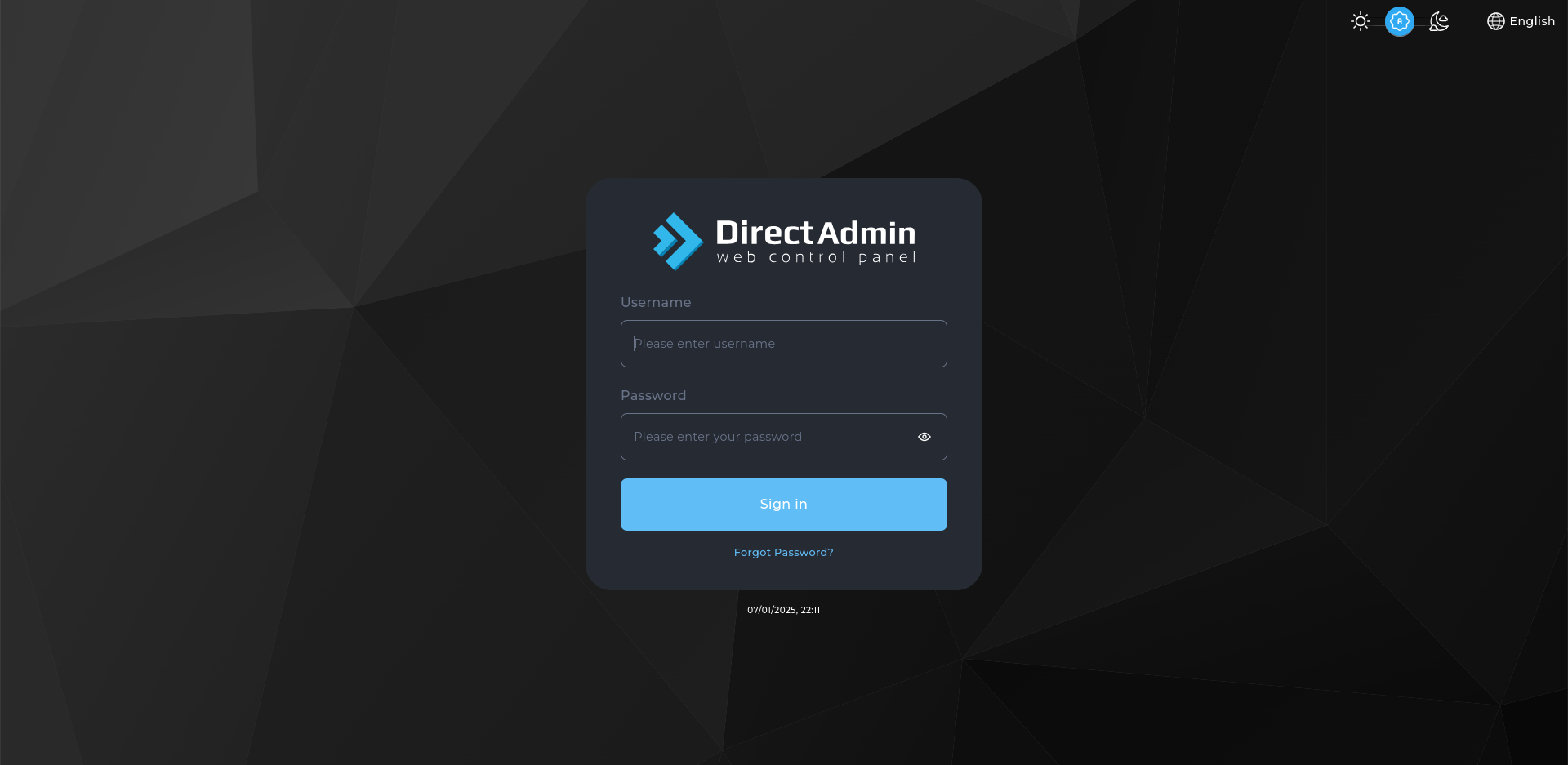
1. Log in to DirectAdmin
Use your user details to log in to the DirectAdmin control panel.
2. Navigate to the Databases Section
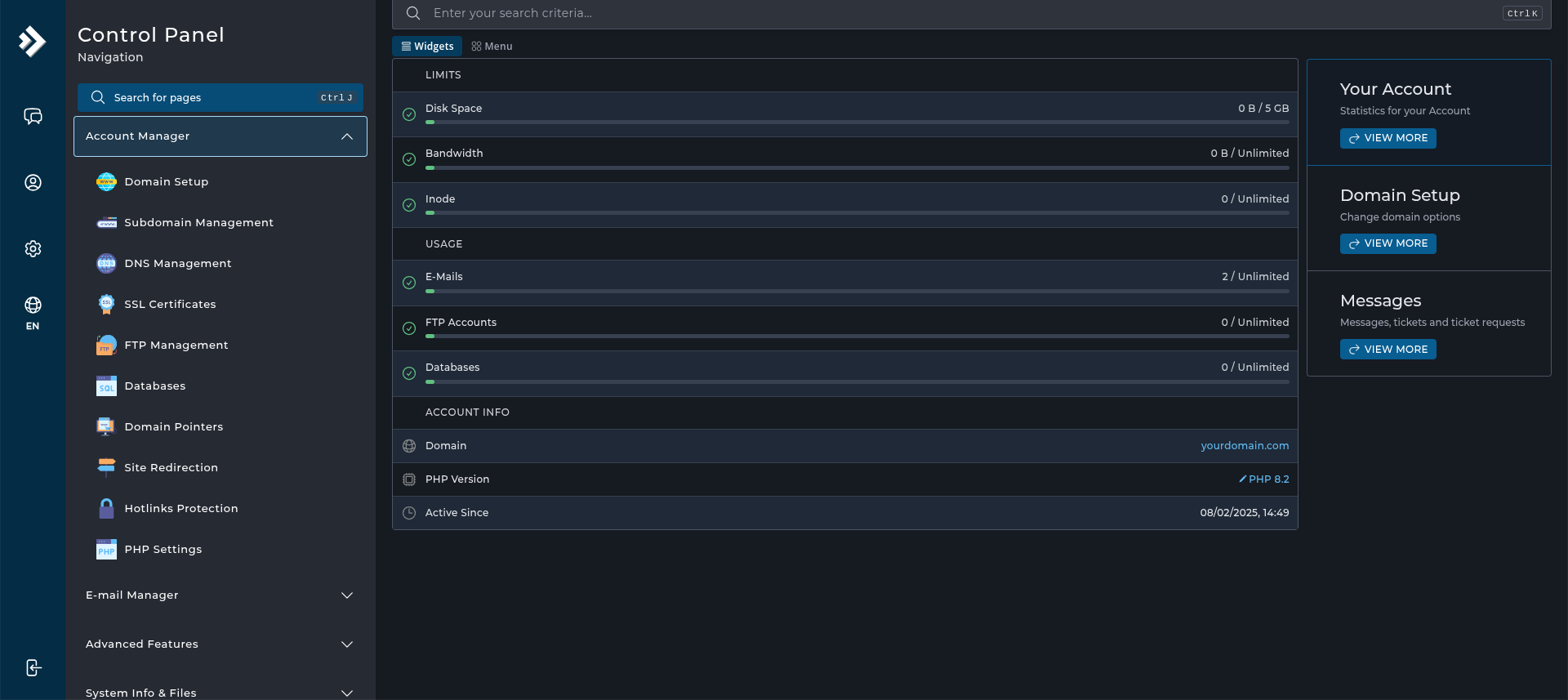
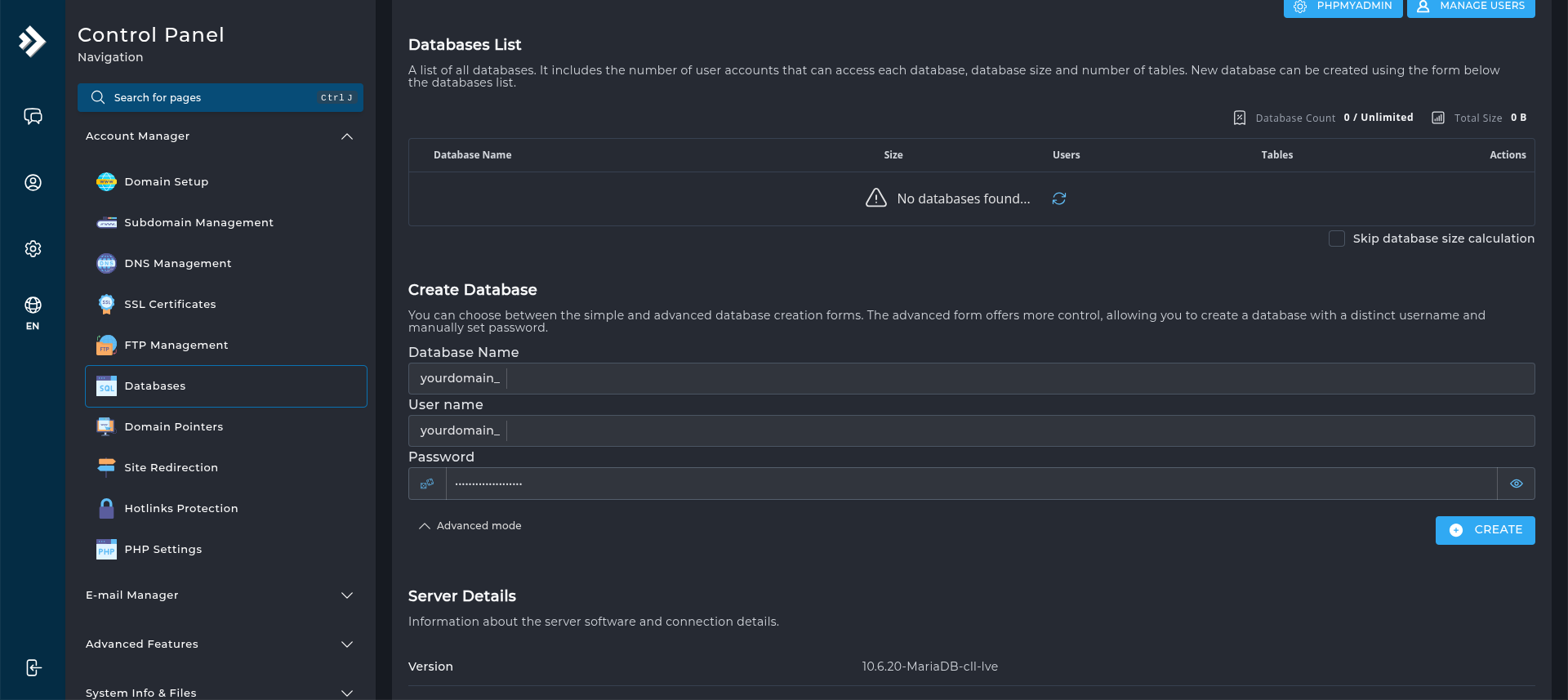
Navigate to and click on Databases under the Account Manager section.
3. Create a New Database
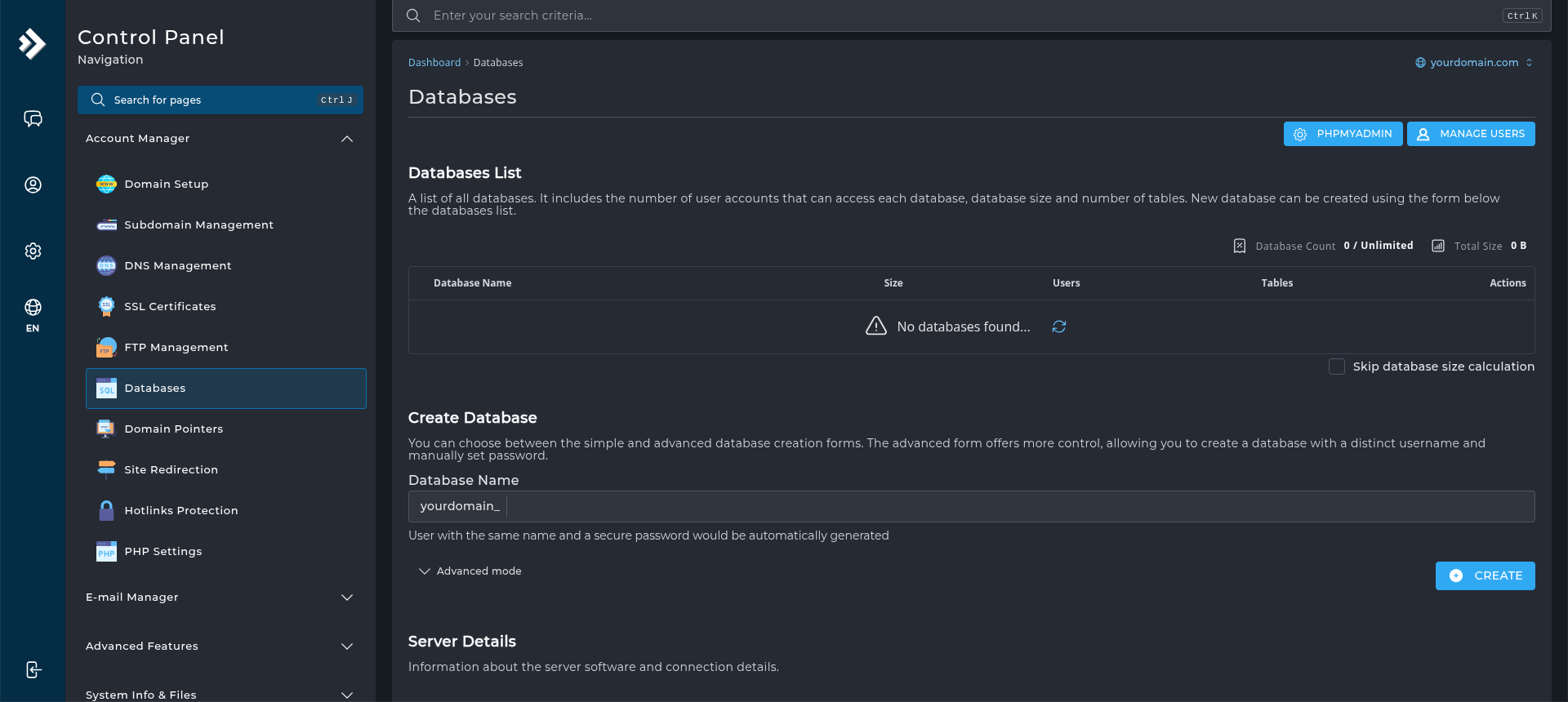
On the Create Database page, enter the desired name for the new database in the Database Name field (e.g. my_database).
4. Enter Database User Details (Optional)
If you want DirectAdmin to create a user with the same name and generate a password at random, skip this step.
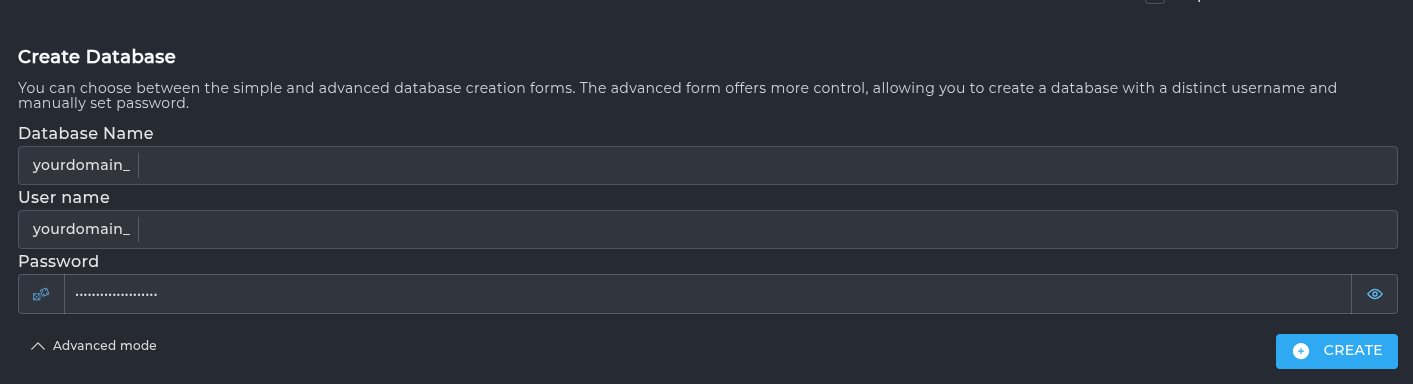
Otherwise click on Advanced mode and then:
- Database Username: Enter a username for the database (e.g. db_user).
- Database Password: Set a strong password or use the Random Password Generator.
5. Create the Database
Click the Create button to finish creating the database.
6. Verify the Database
Once created, you will see a confirmation message displaying your database details. You can verify the new database under Databases List.

Next: keep the database name, user and password to hand for How to Install WordPress Using Softaculous.