How to Create a Package in DirectAdmin
This article will show you how to create a package in DirectAdmin.
Before you start: a package defines the limits applied to every user created with it, so changing one later affects users already assigned to it. Decide the disk, bandwidth and domain limits before you create it.
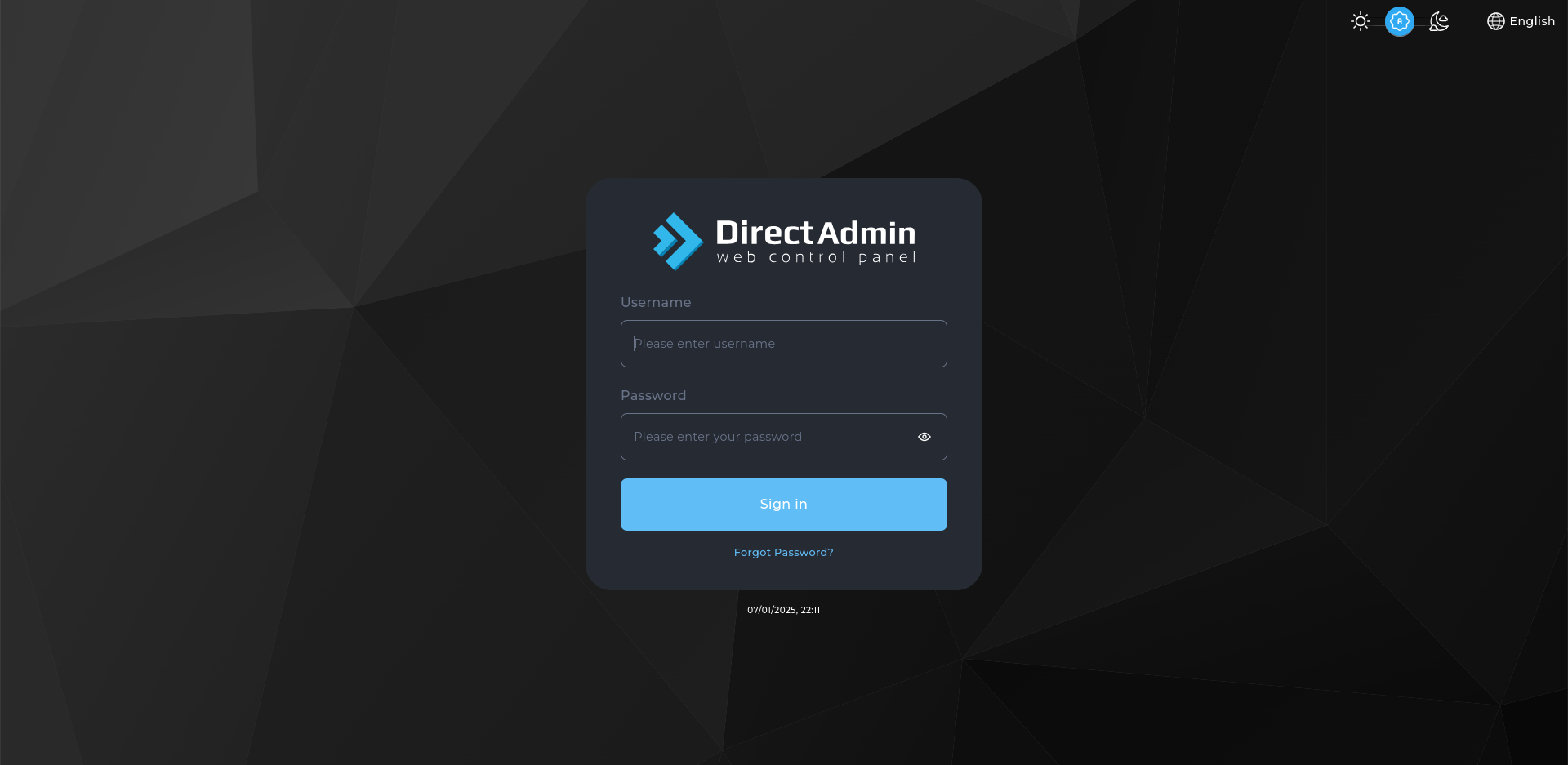
1. Log in to DirectAdmin
Use your admin or reseller credentials to log in to the DirectAdmin control panel.
2. Navigate to Manage User Packages
- Click on Manage User Packages under the Account Manager section.
3. Add a New Package
- Click on the Add Package button.
4. Configure Package Settings
- Package Name: Enter a name for your package (e.g. Gold Plan).
- Bandwidth (MB): Specify the bandwidth limit for the package.
- Disk Space (MB): Set the disk space quota.
- Email Accounts: Define the number of email accounts allowed.
- FTP Accounts: Specify the number of FTP accounts.
- MySQL Databases: Set the limit for MySQL databases.
- Domains: Define the number of domains that can be hosted under this package.
- Subdomains: Set the limit for subdomains.
- Parked Domains: Specify the number of parked domains.
- Email Forwarders: Set the limit for email forwarders.
- Mailing Lists: Specify the number of mailing lists.
- Auto-Responders: Set the number of auto-responders allowed.
- Catch-All Email: Enable or disable the catch-all email option.
- SSL: Enable or disable SSL for accounts under this package.
- CGI Access: Enable or disable CGI access.
- PHP Access: Enable or disable PHP access.
- SSH Access: Enable or disable SSH access.
- Custom DNS Records: Allow or disallow custom DNS records.
5. Save the Package
- After configuring the desired settings, click the Save button to create the package.
6. Assign the Package to Users
- After creating the package, you can assign it to new or existing users when setting up or modifying their accounts.
Next: How to Add a New User in DirectAdmin covers creating the user to assign the package to.