How to Add a New User in DirectAdmin
This article will show you how to add a new user in DirectAdmin.
Before you start: you need a package to assign to the new user, and the domain should already point at this server. Creating a user also creates its DNS zone, which can conflict if a zone for that domain already exists.
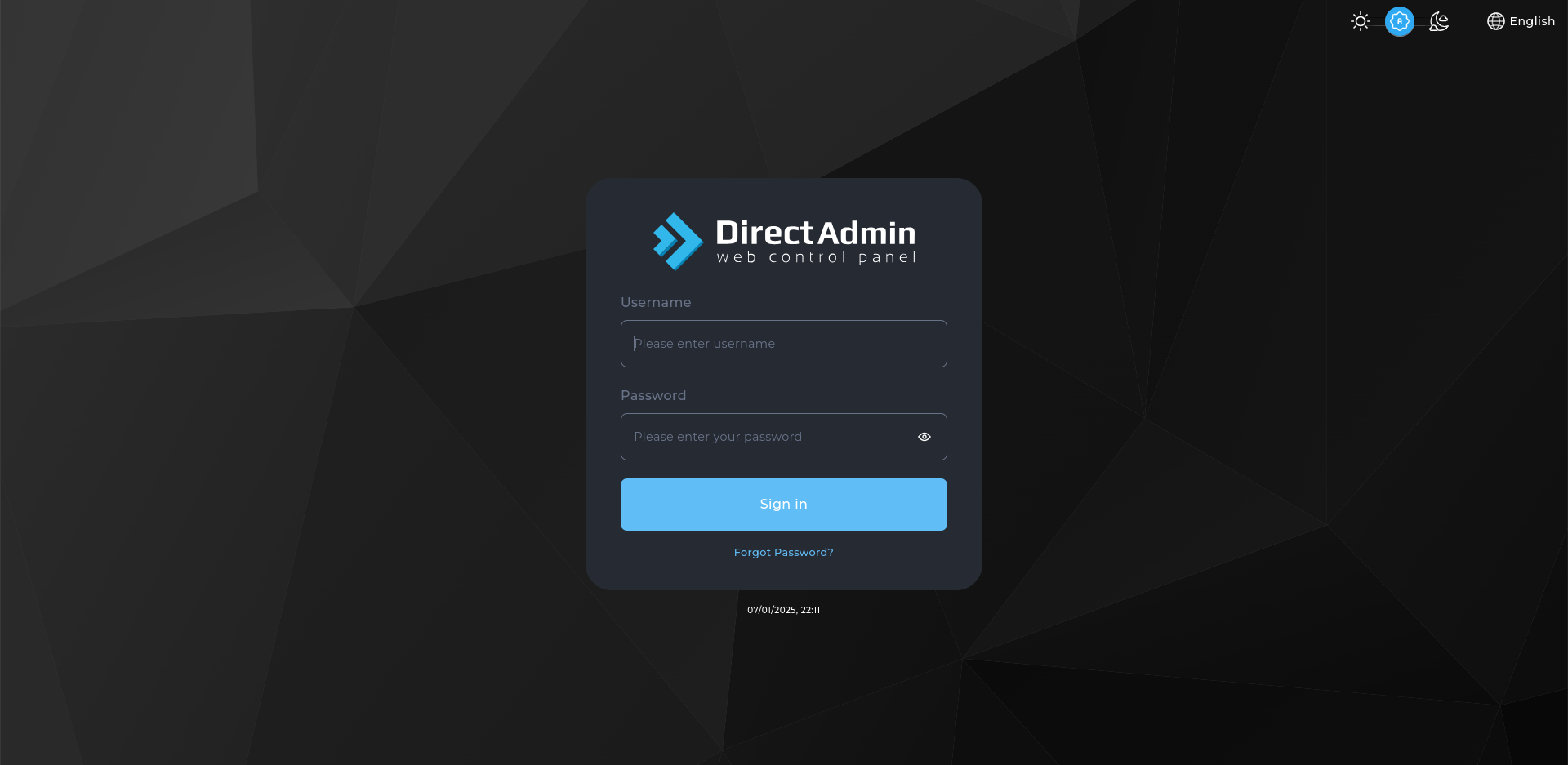
1. Log in to DirectAdmin
Use your admin or reseller credentials to log in to the DirectAdmin control panel.
2. Navigate to Account Manager
- Click on Account Manager in the main menu.
3. Add a New User
Click on the Add New User button.
4. Configure User Details
- Username: Enter the desired username for the new user.
- Email: Provide a valid email address for the user.
- Password: Set a strong password for the user.
- Domain: Specify the primary domain for the user.
- Package: Select an existing user package or create a new one.
- IP: Choose whether to assign a dedicated IP or use a shared IP.
5. Create the User
After entering all the necessary details, click the Create button to add the new user.
Important Notes
Ensure that the domain specified for the new user is not already associated with another user account, as DirectAdmin does not allow multiple users to share the same domain.
6. Verify the User
The new user should appear in Account Manager. Log in to their panel with the credentials you set, and check the domain resolves before handing the details over.
Next: How to Create a Package in DirectAdmin covers creating the package to assign to the new user.