How to Password Protect a Directory in DirectAdmin

This article will show you how to password protect a directory in DirectAdmin.
Before you start: this protects the directory with a username and password prompt, which stops search engines indexing it as well as keeping visitors out. Do not use it on a directory your website needs to load files from.
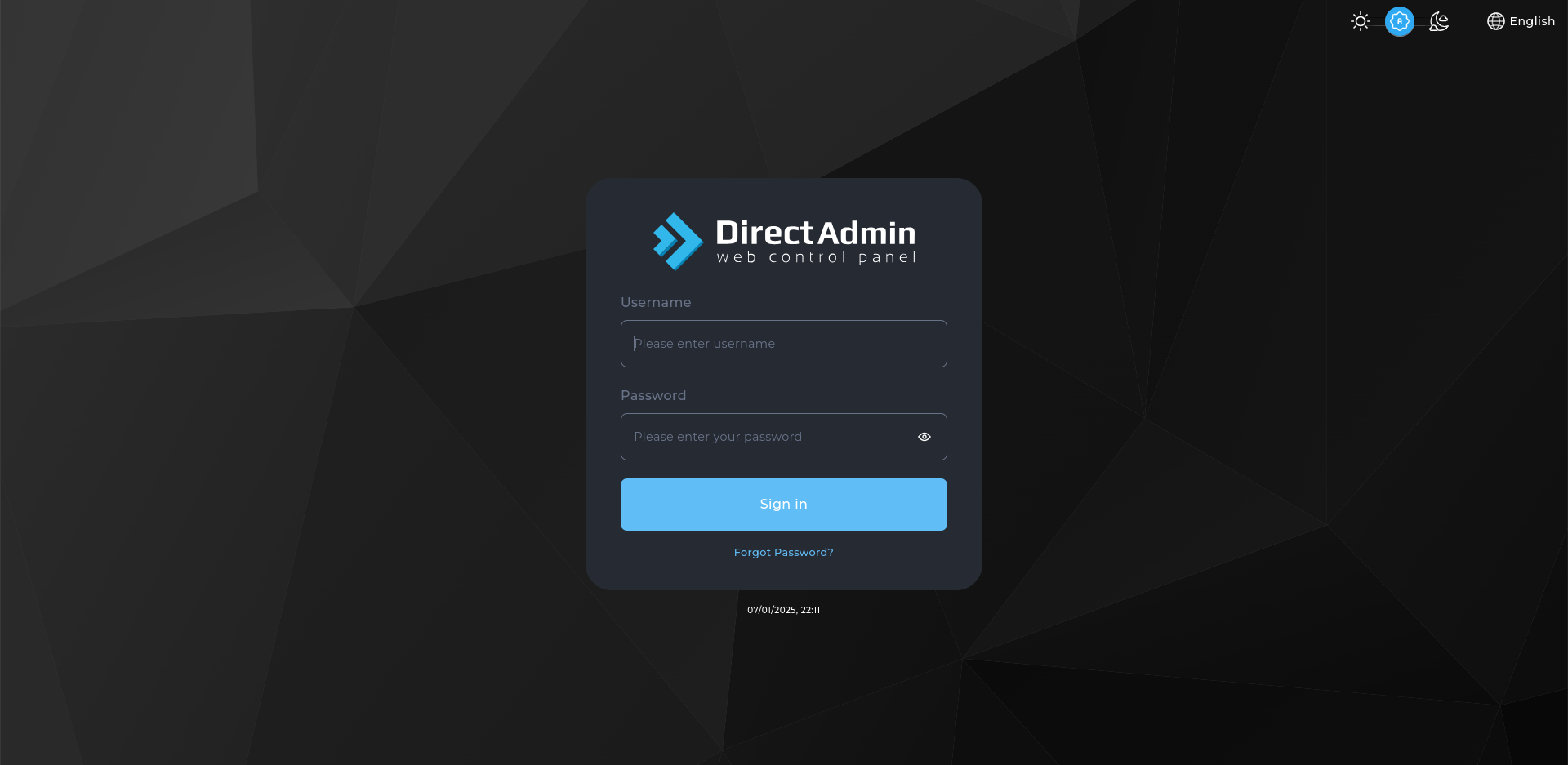
1. Log in to DirectAdmin
Use your user credentials to log in to the DirectAdmin control panel.
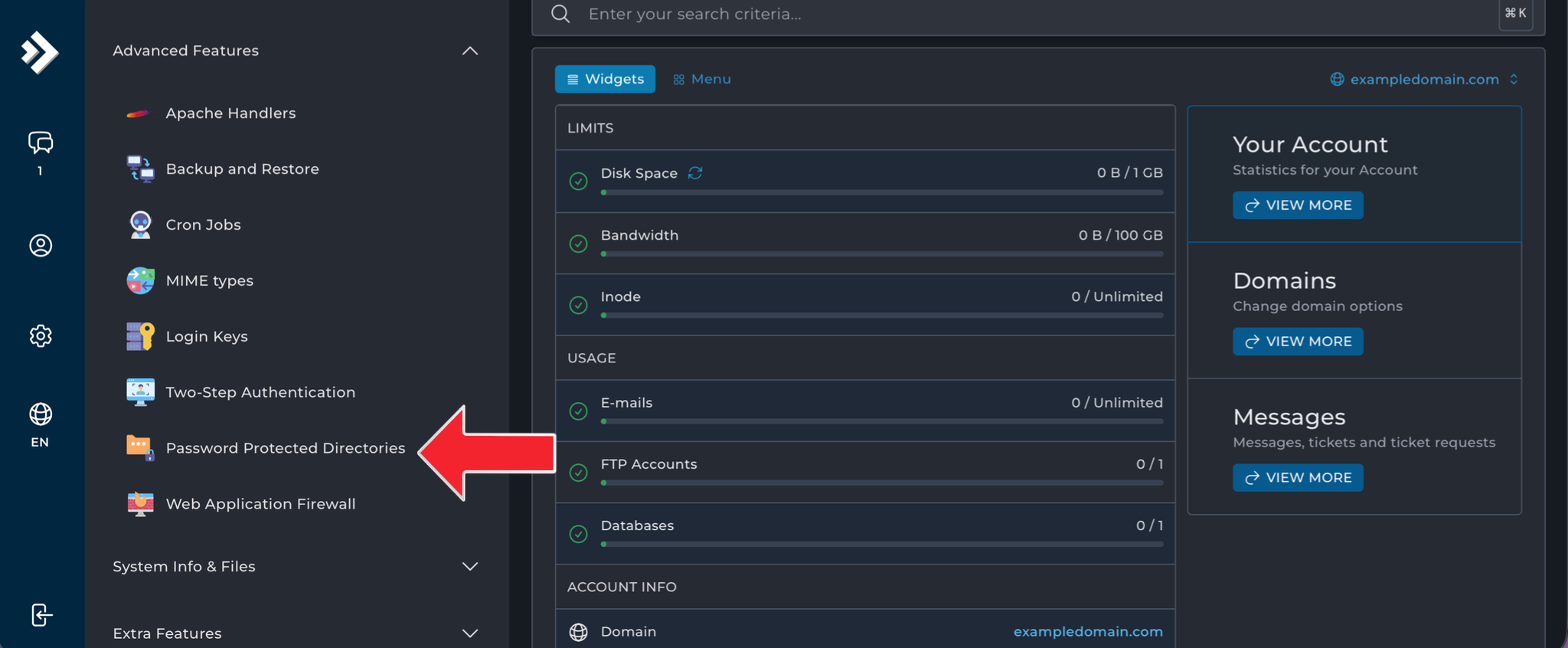
2. Navigate to Password Protected Directories
- Click on Advanced Features in the main menu.
- Select Password Protected Directories.
3. Select the Directory to Protect
- Click on the Add Protected Directory button.
- In the Add Protected Directory window, locate and click on the folder you want to protect.
4. Set Up Protection Details
- Protected Directory Prompt: Enter a name for this protection (e.g. "Private Area").
- Set/Update User: Specify the username for accessing the protected directory.
- Password: Set a strong password for the username.
5. Apply Protection
- Click the PROTECT button to save the settings.
- You will see a confirmation message: "Directory Protection Settings have been saved."
Note: After setting up password protection, accessing the protected directory will prompt users to enter the specified username and password. Ensure that the .htaccess and .htpasswd files are correctly configured in the protected directory to enforce the authentication. If you encounter issues, verify that these files exist and have the appropriate permissions.
6. Verify the Protection
Open the directory in a private browser window. You should be prompted for the username and password before anything loads.
Next: How to Limit Access to Files or Directories Using .htaccess covers the same restriction written by hand in .htaccess.