How to Install Blesta Using Softaculous

This article will show you how to install Blesta using Softaculous.
Before you start: check the PHP version on your account matches what Blesta supports, and decide where the site should live. Installing into a directory places the site at example.com/directory, while leaving the directory blank installs it at the domain root. Installing to a directory that already contains a site will overwrite it. Blesta needs a licence key, which you enter after installation.
1. Log in to the control panel
Use your user details to log in to the control panel.
2. Navigate to the Softaculous Apps Installer
Scroll down until you find the Softaculous Apps Installer section in the control panel.
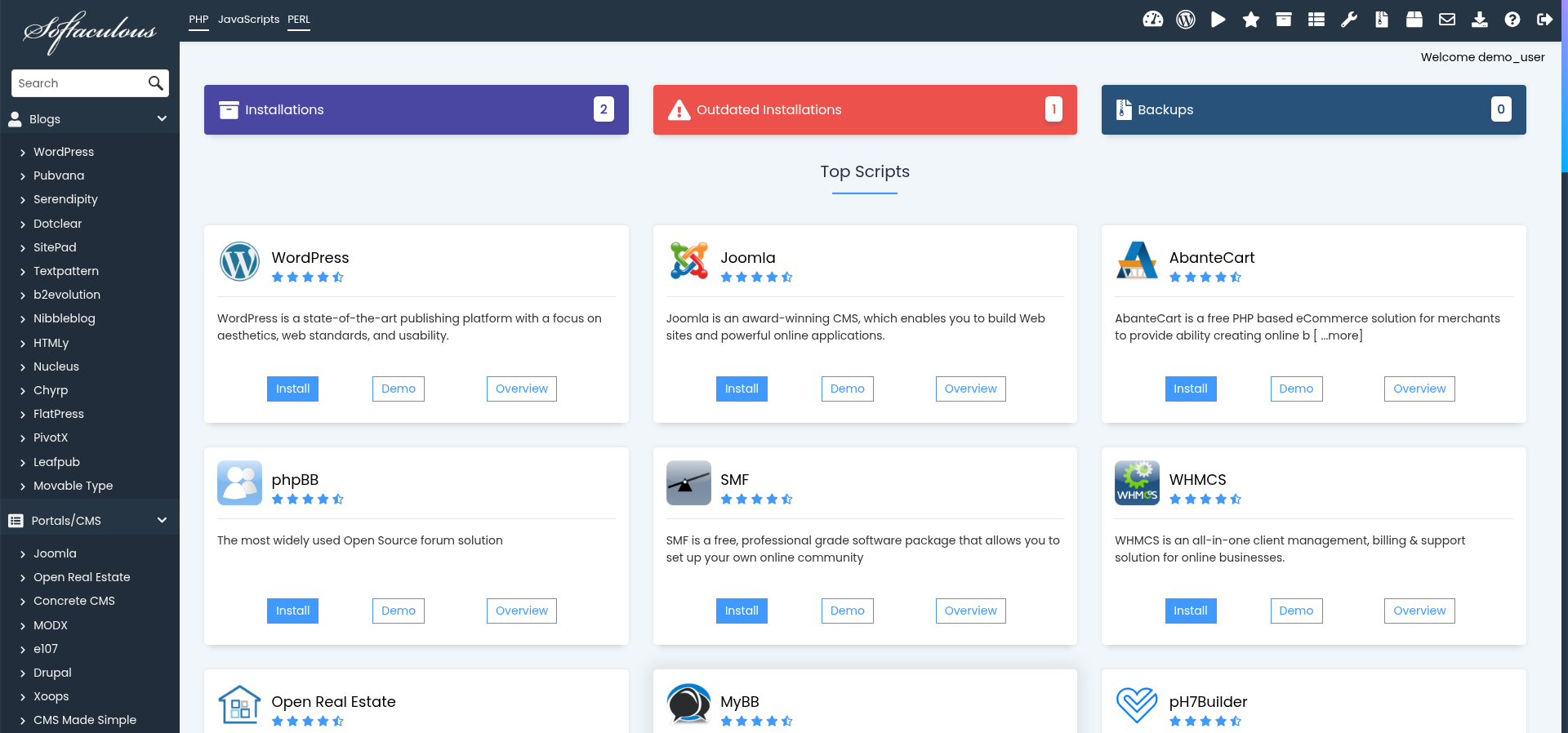
3. Select Blesta
In the Softaculous panel, click on Blesta under the "Billing & Support" category.
4. Click Install
On the Blesta page, click the Install button to begin the installation process.

5. Fill in the Installation Details
Enter your site details, including the domain, site name, and admin login credentials.
6. Complete the Installation
After filling in all necessary details, click the Install button at the bottom of the page to begin the installation.
7. Verify the Installation
Visit the address you installed to and check Blesta loads. Softaculous emails the admin details, but save them somewhere yourself, since that email is easy to lose.
Next: protect the new installation with How to Back Up Your Installation in Softaculous.