How to Back Up Your Installation in Softaculous

This article will show you how to back up your installation in Softaculous.
Before you start: backups are stored on the same account by default, which means they count against your disk quota and disappear if the account does. Download anything you want to keep.
1. Log in to the control panel
Use your user details to log in to the control panel.
2. Navigate to the Softaculous Apps Installer
Scroll down until you find the Softaculous Apps Installer section in the control panel.
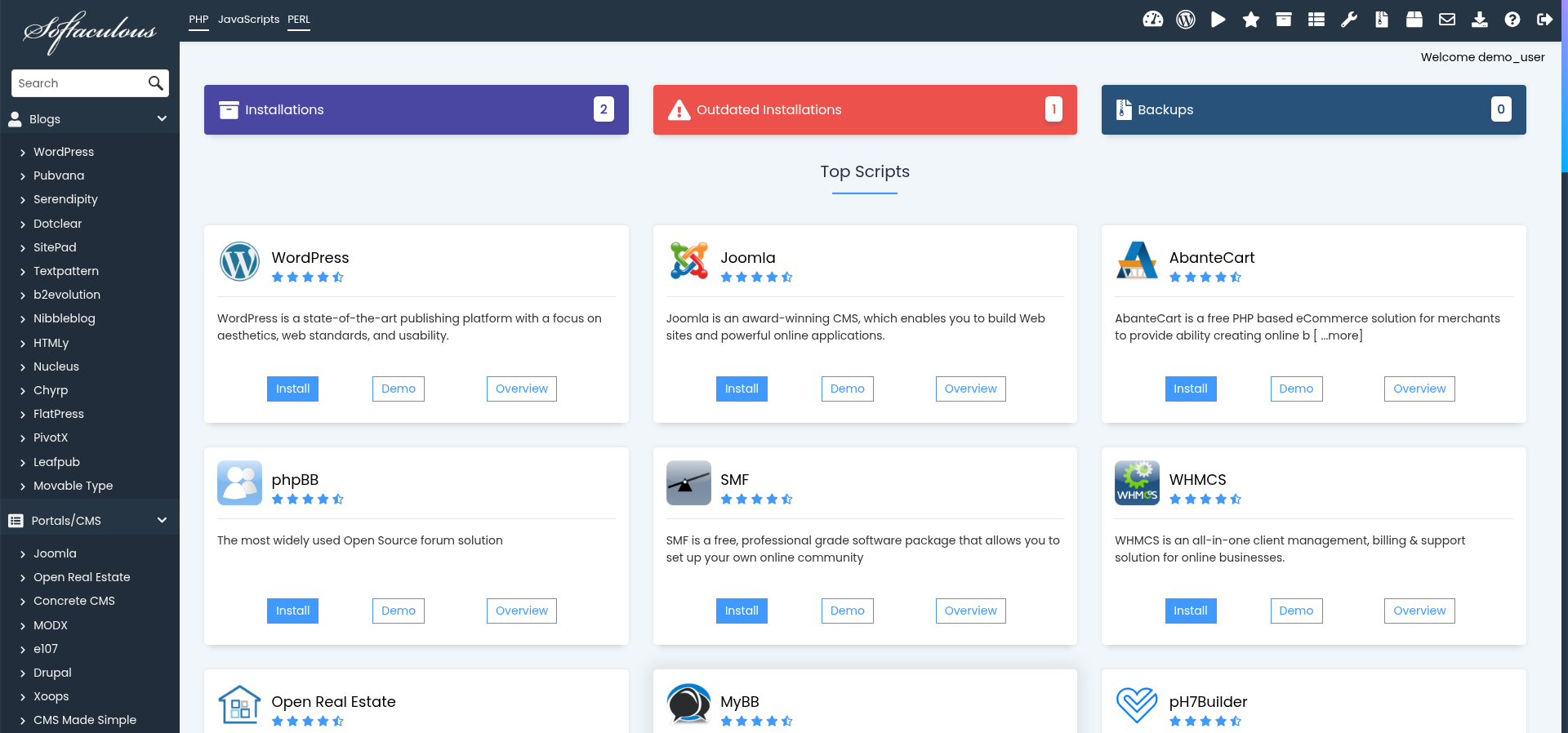
3. Click on "Backups and Restore"
In the Softaculous panel, find and click on the Backups and Restore option.
4. Select the Installation to Backup
You will see a list of your current Softaculous installations. Select the one you want to back up by clicking on the Backup icon next to it.
5. Choose Backup Settings
On the backup page, you can customise the backup options, such as including databases, email accounts, and additional files. Ensure all necessary options are selected.
6. Start the Backup Process
After reviewing the backup settings, click the Backup button to start the backup process.
7. Download the Backup (Optional)
Once the backup is complete, you can choose to download the backup file to your local system for safekeeping.
8. Verify the Backup
The backup should appear in the backups list with its date and size. Download a copy if it matters, and check the file is not zero bytes.
Next: How to Restore a Backup in Softaculous covers putting a backup back when you need it.