How to Restore a Backup in Softaculous

This article will show you how to restore a backup in Softaculous.
Before you start: restoring replaces the current site with the backup. Anything added since that backup was taken is lost, including orders, posts and comments. Take a fresh backup first so you can get back to where you are now.
1. Log in to the control panel
Use your user details to log in to the control panel.
2. Navigate to the Softaculous Apps Installer
Scroll down until you find the Softaculous Apps Installer section in the control panel.
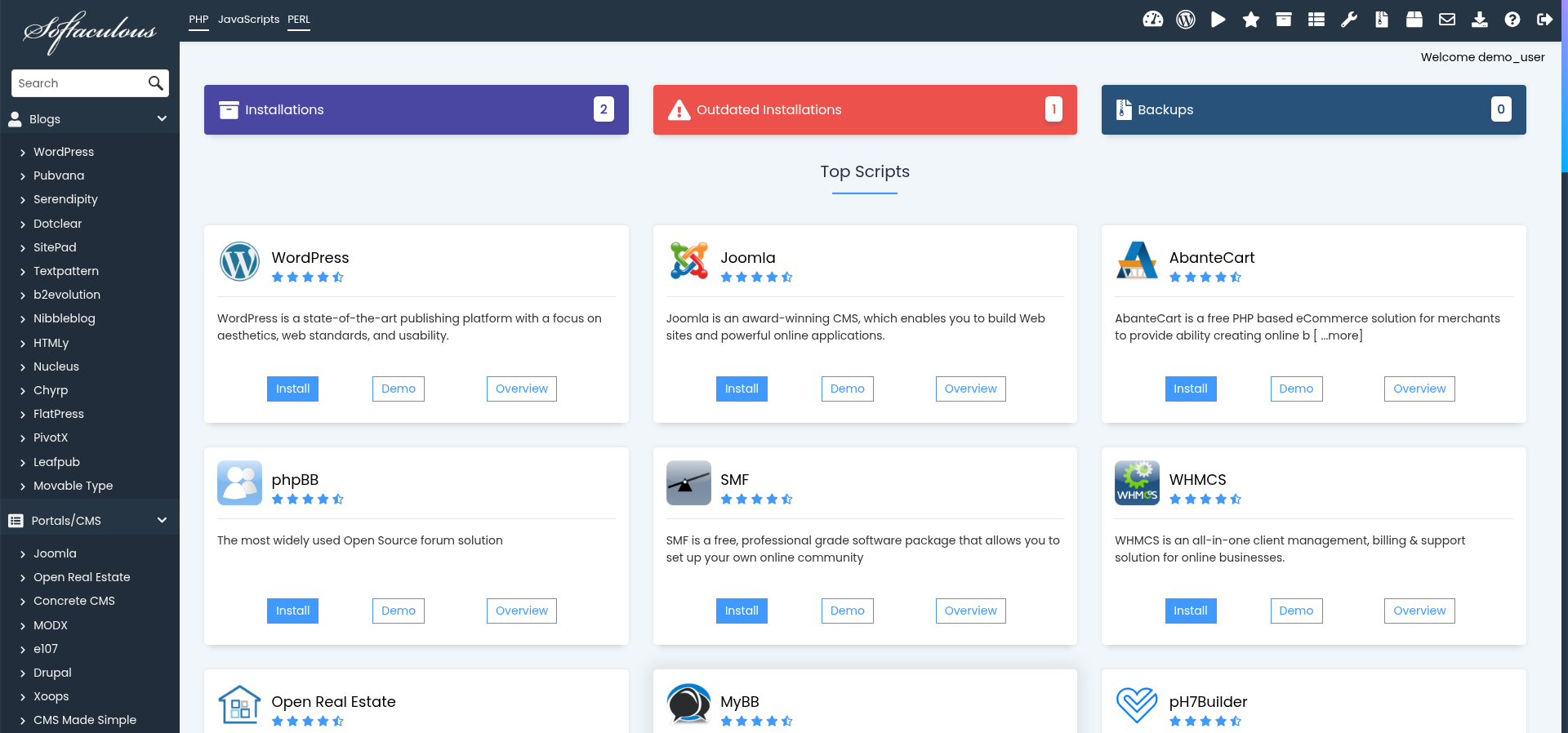
3. Click on "Backups and Restore"
In the Softaculous panel, find and click on the Backups and Restore option.
4. Select the Backup to Restore
You will see a list of your existing backups. Locate the backup you wish to restore and click on the Restore icon next to it.
5. Review Restoration Settings
Review the settings for the restoration process, such as including databases and email accounts. You may choose to restore to the same installation or a new location.
6. Start the Restore Process
Warning: the current site is replaced by the backup. Anything created since that backup was taken is lost and cannot be recovered.
After confirming the settings, click the Restore button to begin restoring your backup.
7. Wait for the Restoration to Complete
The restoration process may take a few moments. Once it's complete, you will receive a confirmation message.
8. Verify the Restoration
After the process is complete, check your website to ensure everything has been restored properly.
Next: How to Back Up Your Installation in Softaculous covers taking backups so there is always one to restore.