How to Add an FTP User in Enhance

This article will show you how to add an FTP user in Enhance.
Before you start: an FTP user is separate from your Enhance login and gets its own password. The directory you choose becomes the only part of the site that user can reach, so set it deliberately.
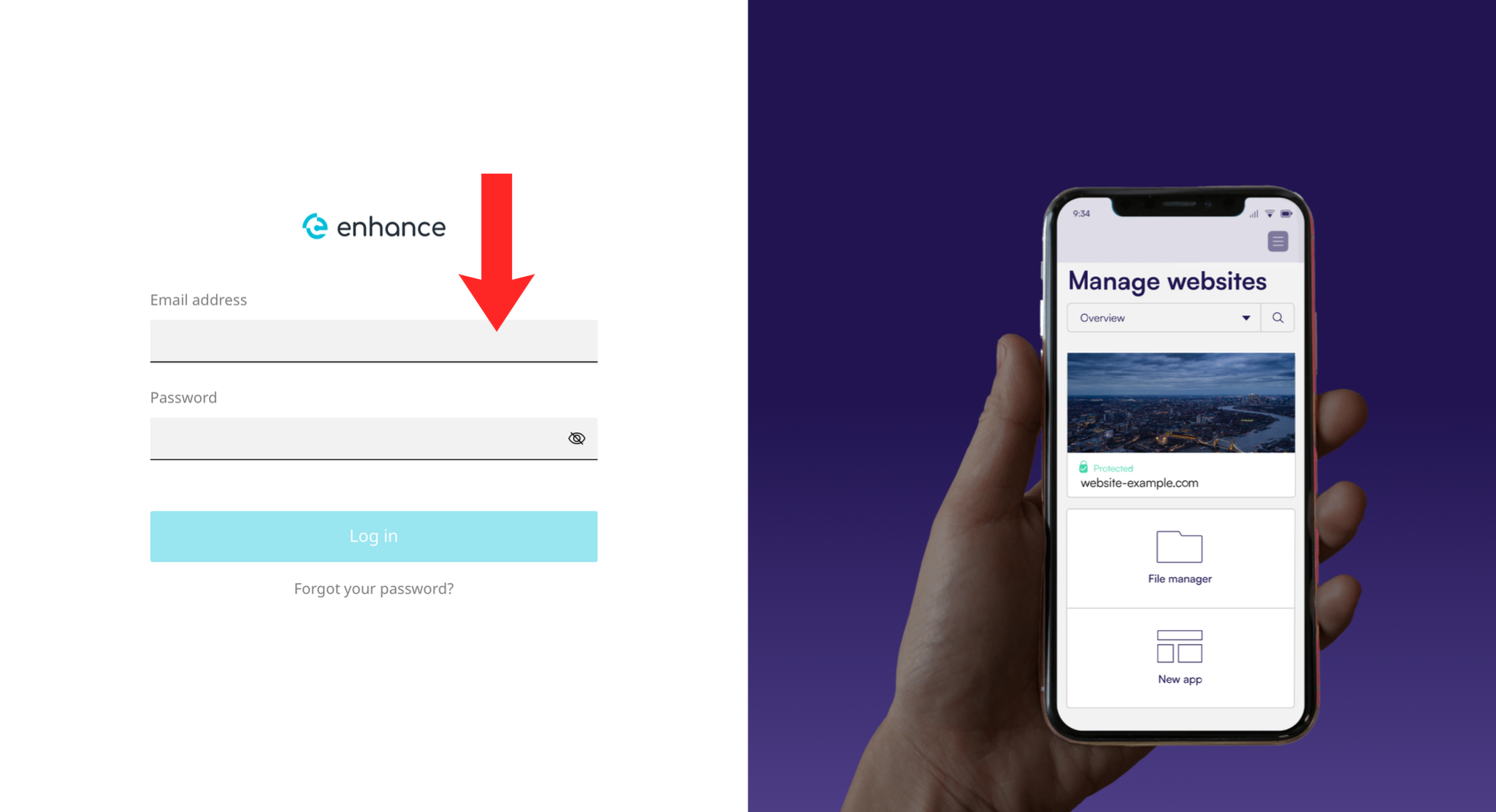
1. Log in to the Enhance Control Panel
Use your credentials to log in to your Enhance control panel.
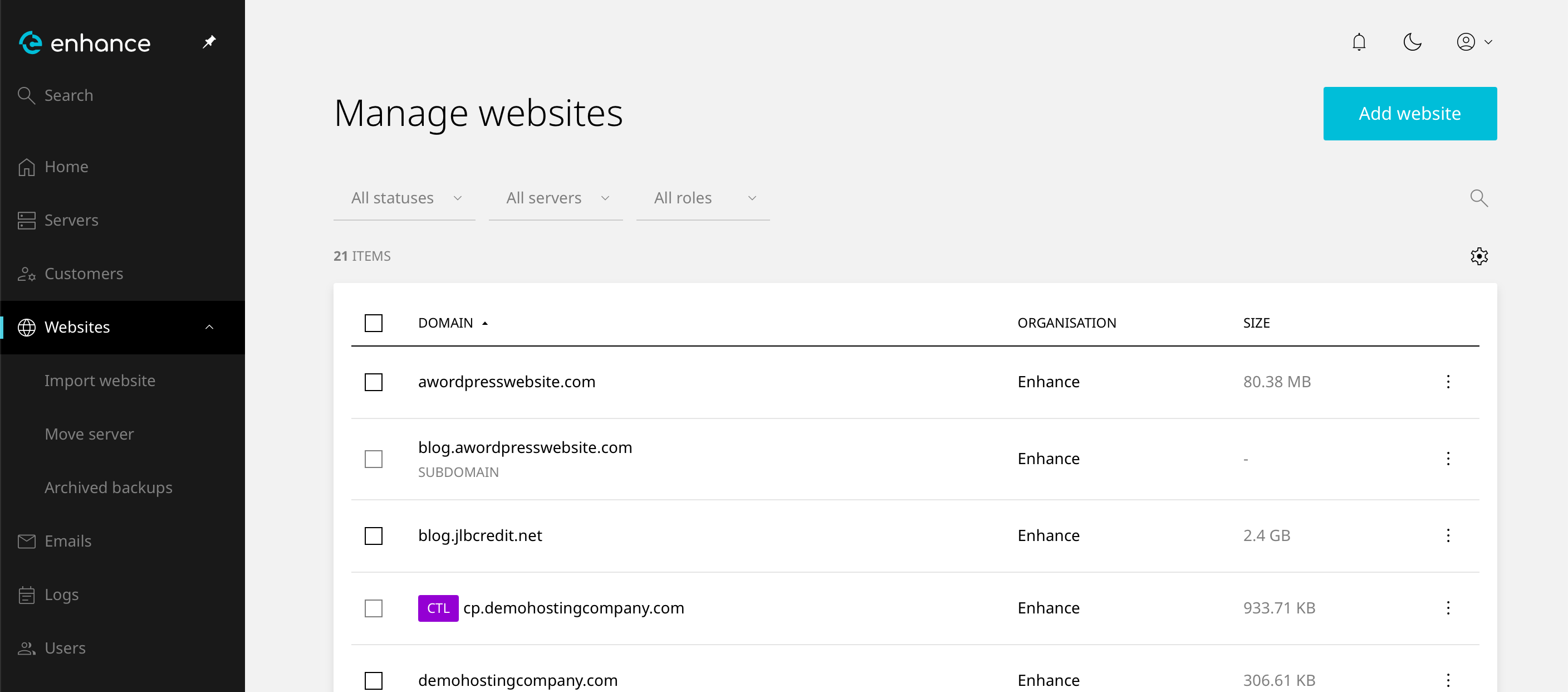
2. Navigate to Websites
Click on Websites in the left-hand navigation menu and select your website.
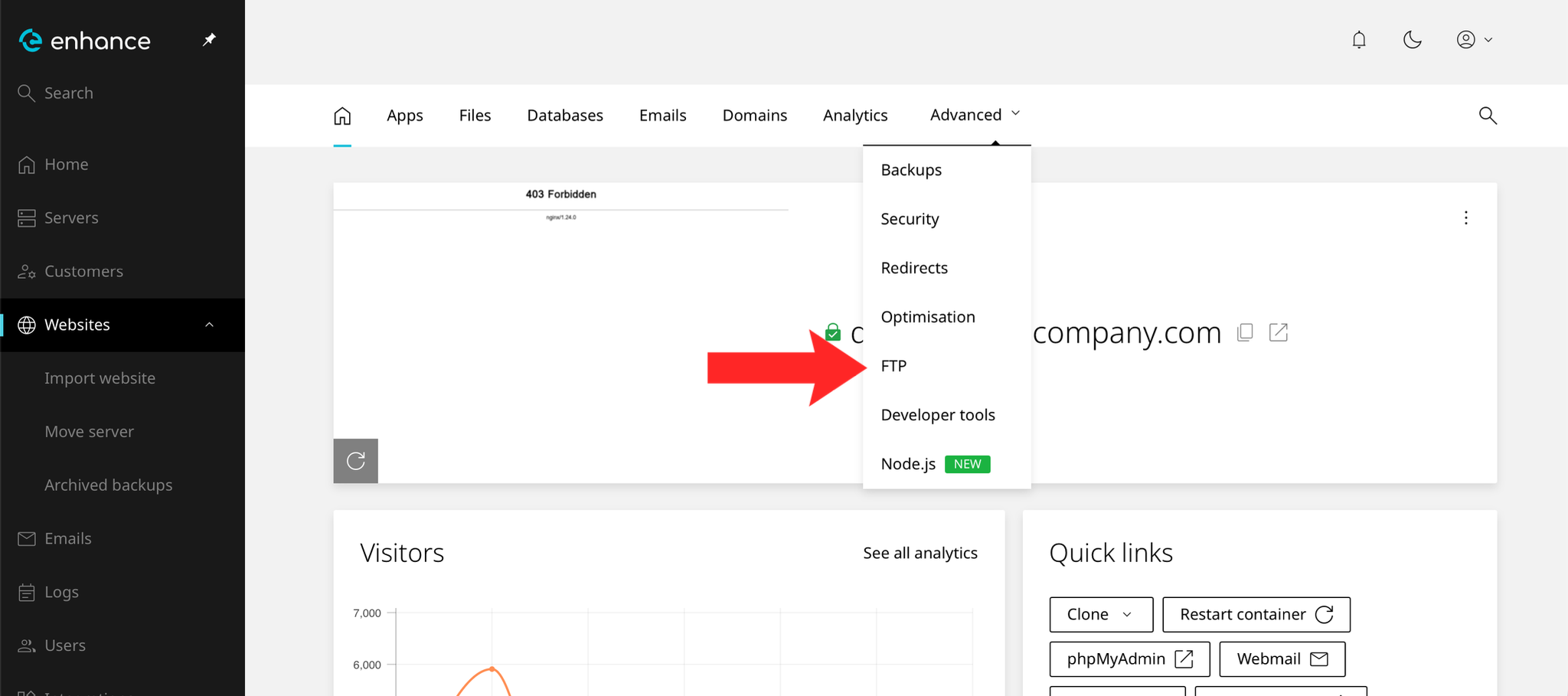
3. Open the FTP Tab
Click the FTP tab within your website's Advanced Settings dropdown menu.
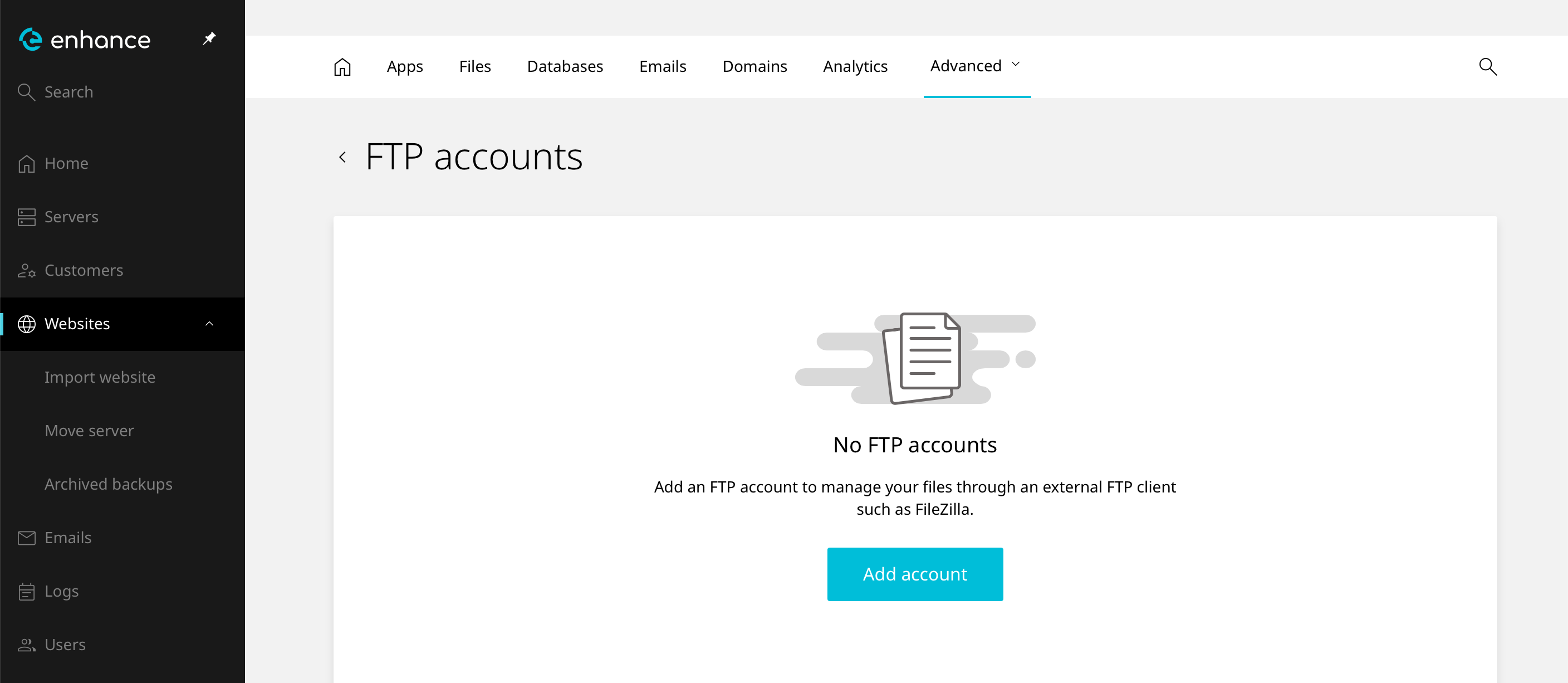
4. Add a New FTP User
Click the Add Account button.
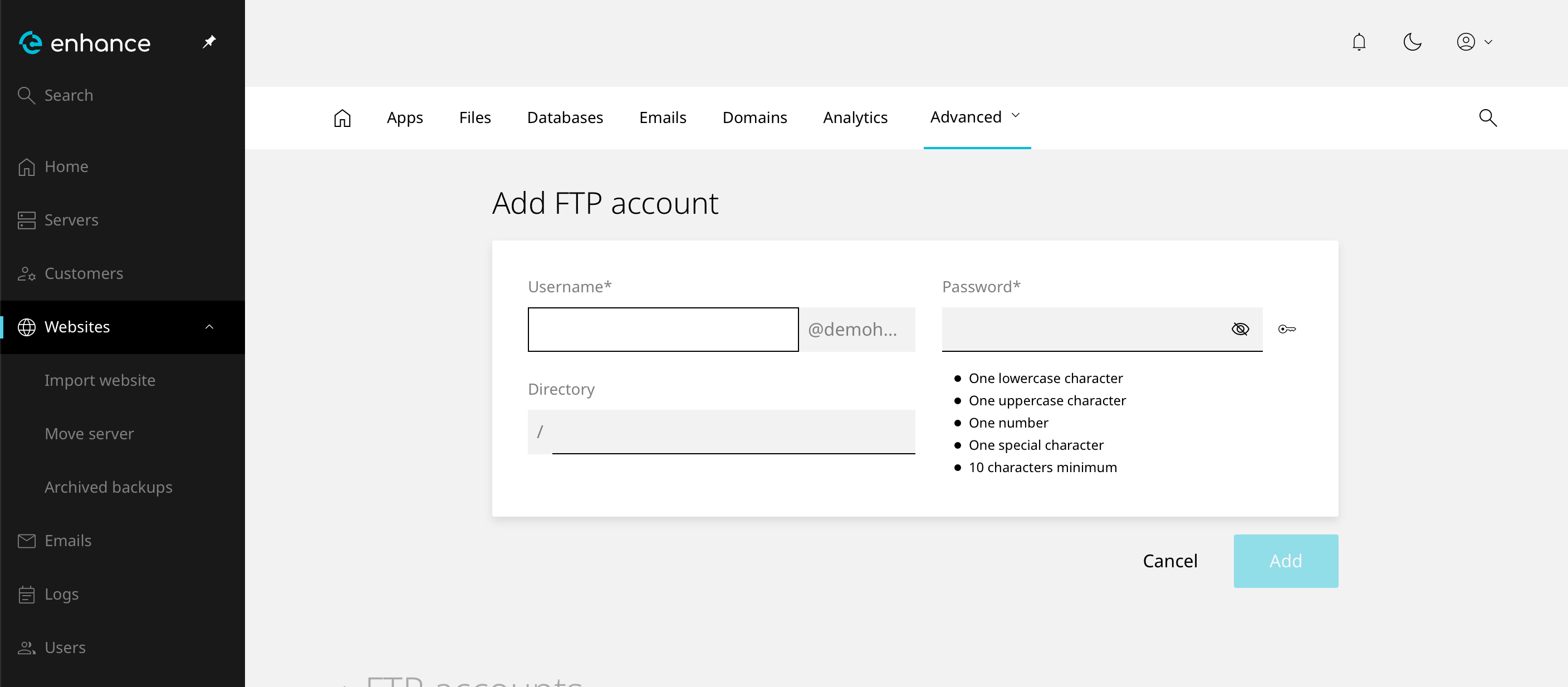
5. Enter FTP User Details
Enter the username and password for the FTP user. You may also specify a directory to restrict access to.
6. Save the FTP User
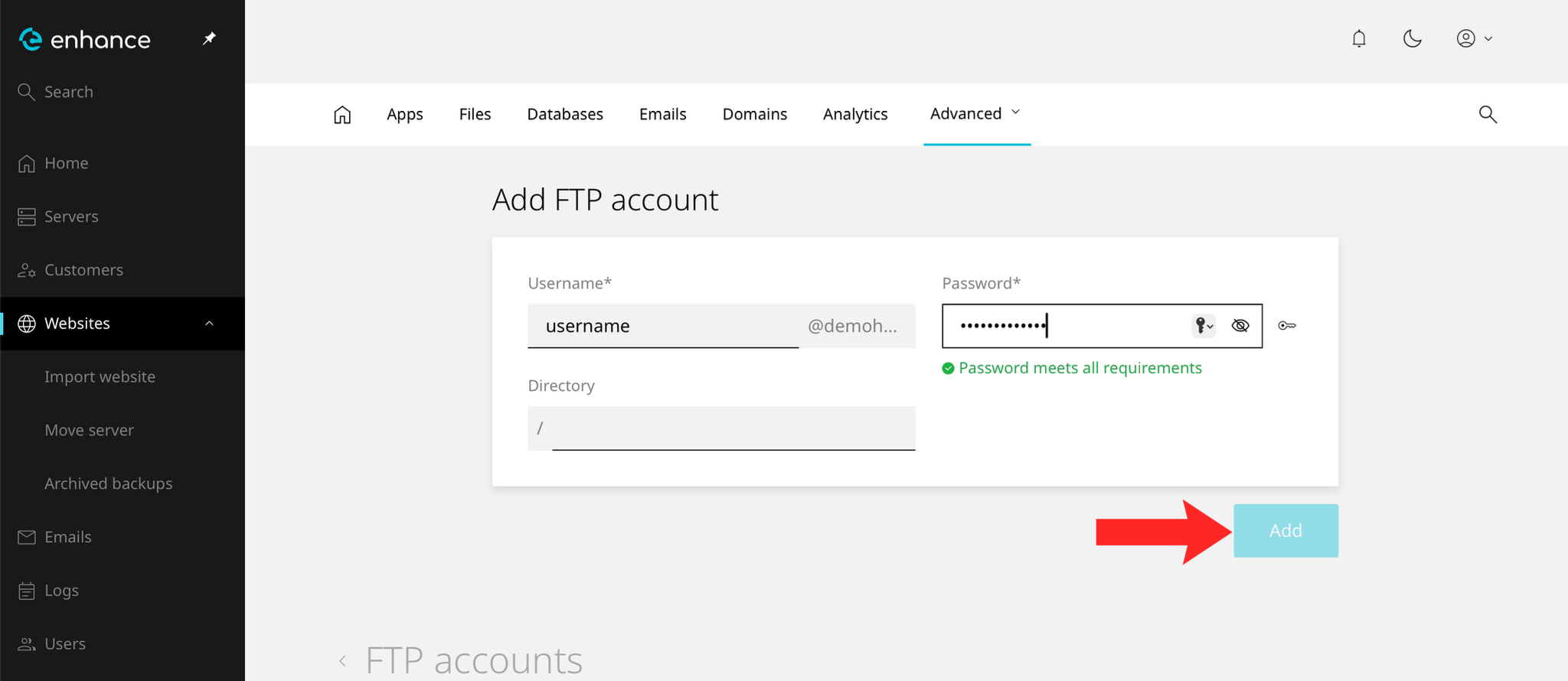
Click Add to create the FTP user.
7. Verify the FTP User
The new user should appear in the FTP list. Test it with an FTP client before handing the details over.
Next: How to Use the File Manager in Enhance covers the same job through the browser.