How to Use the File Manager in Enhance

This article will show you how to use the File Manager in Enhance.
Other ways to do this: everything here can also be done with an FTP client, which is faster for large numbers of files. See How to Add an FTP User in Enhance.
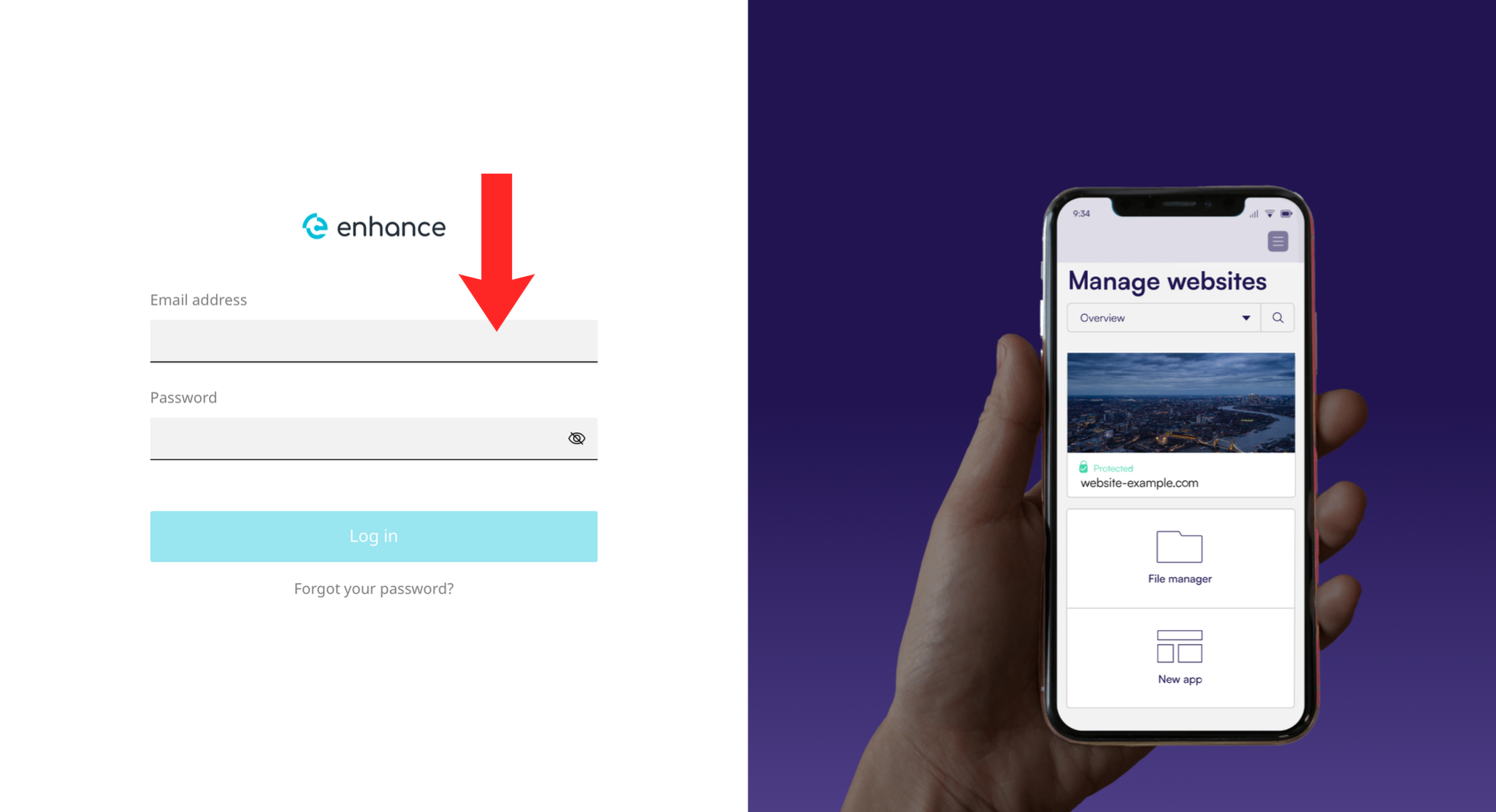
1. Log in to the Enhance Control Panel
Use your credentials to log in to your Enhance control panel.
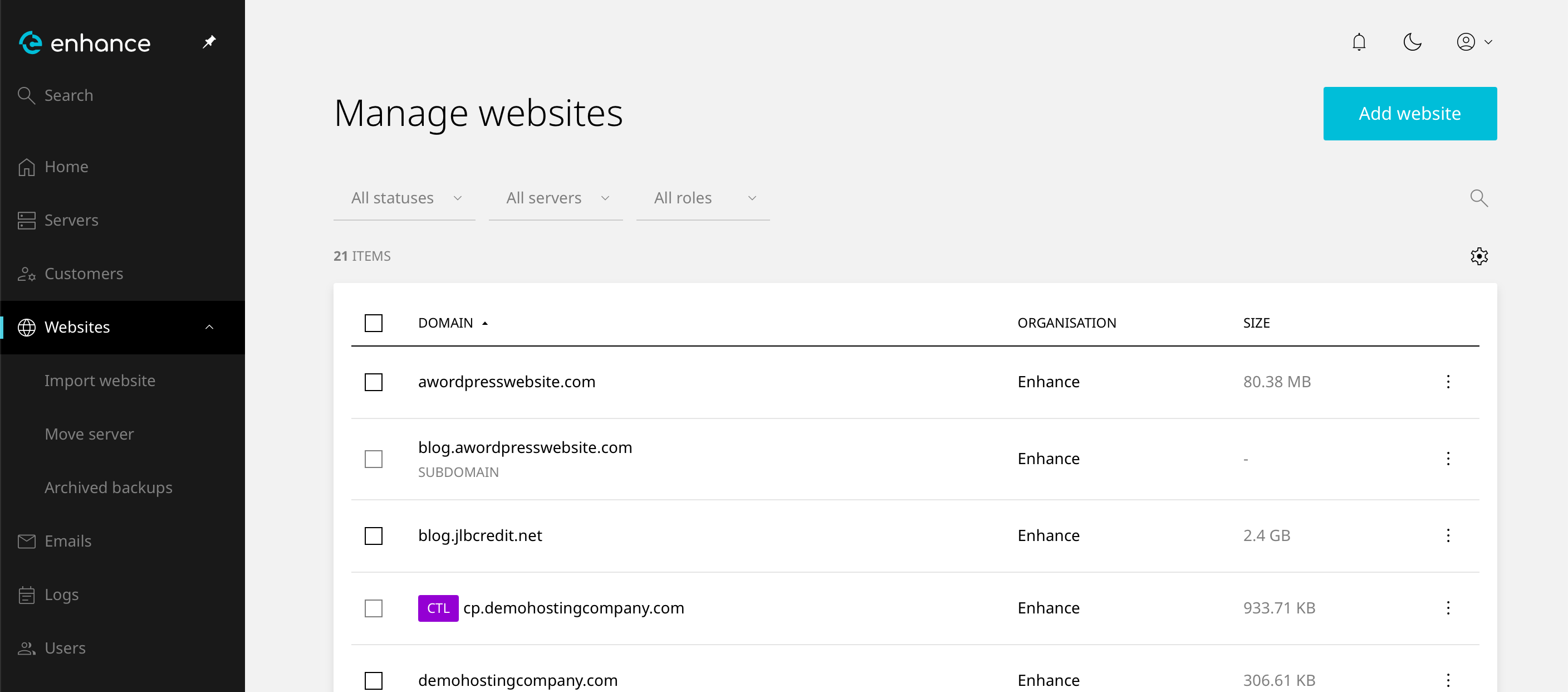
2. Navigate to Websites
Click on Websites in the left-hand navigation menu and select your website.
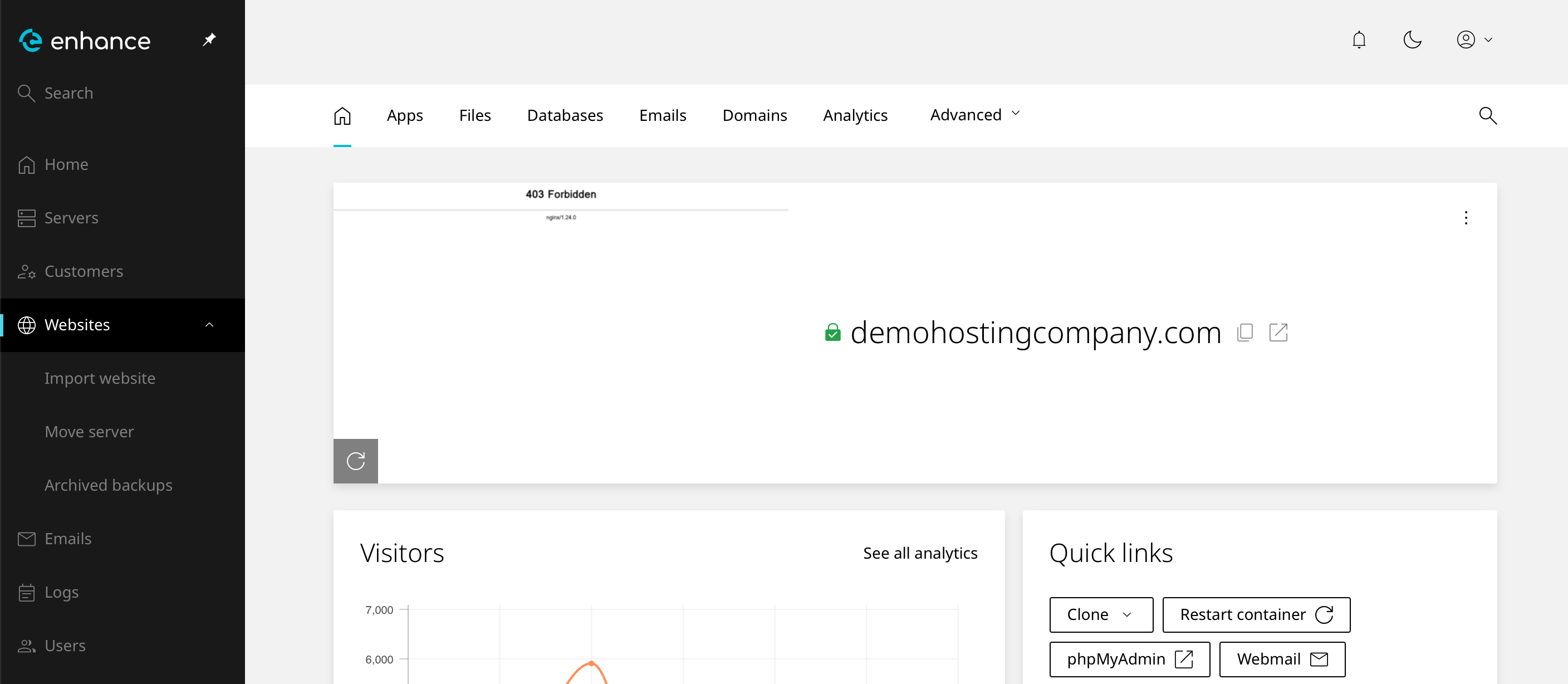
3. Open the File Manager
Click the Files tab within your website settings.
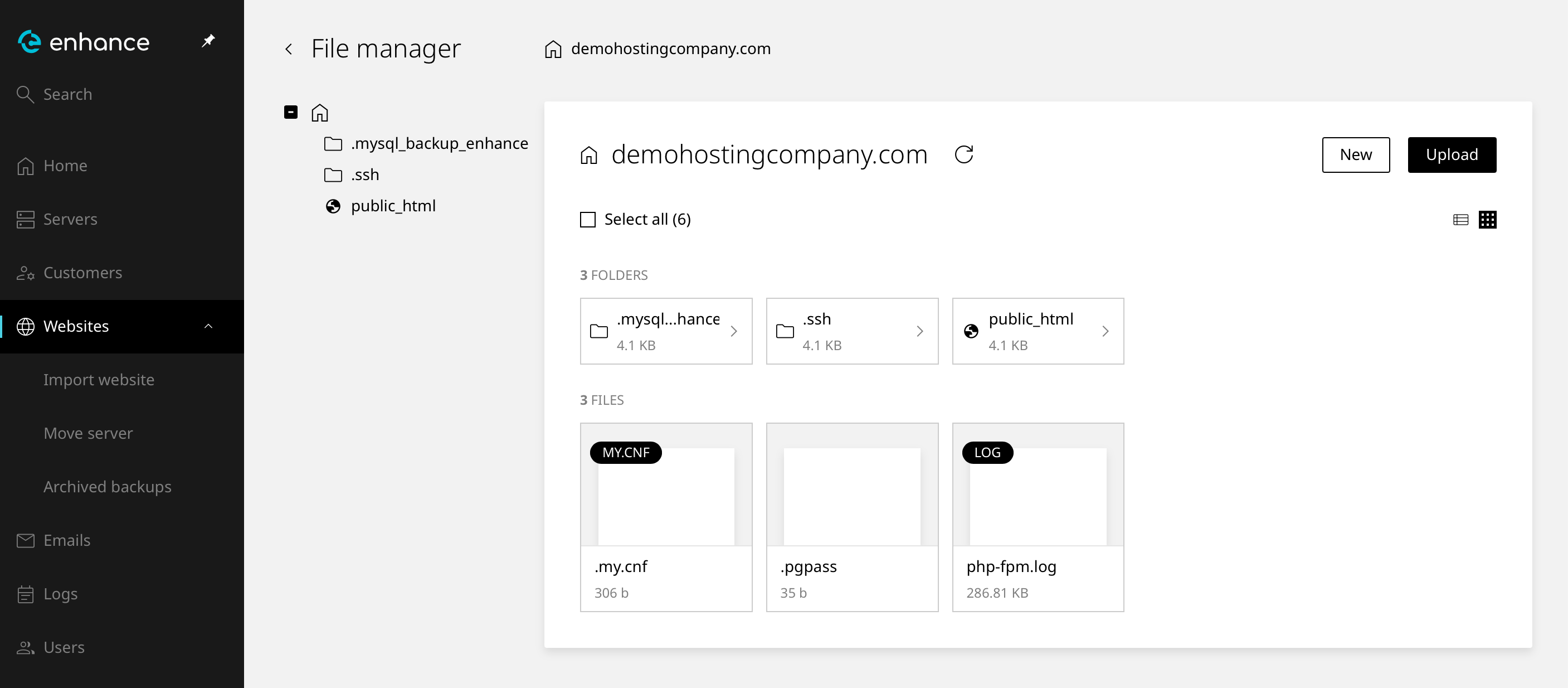
4. Browse Your Files
Use the file tree on the left to navigate your directory structure. Click any file to view or edit it.
5. Upload Files
Use the upload control to add files to the directory you are currently viewing.
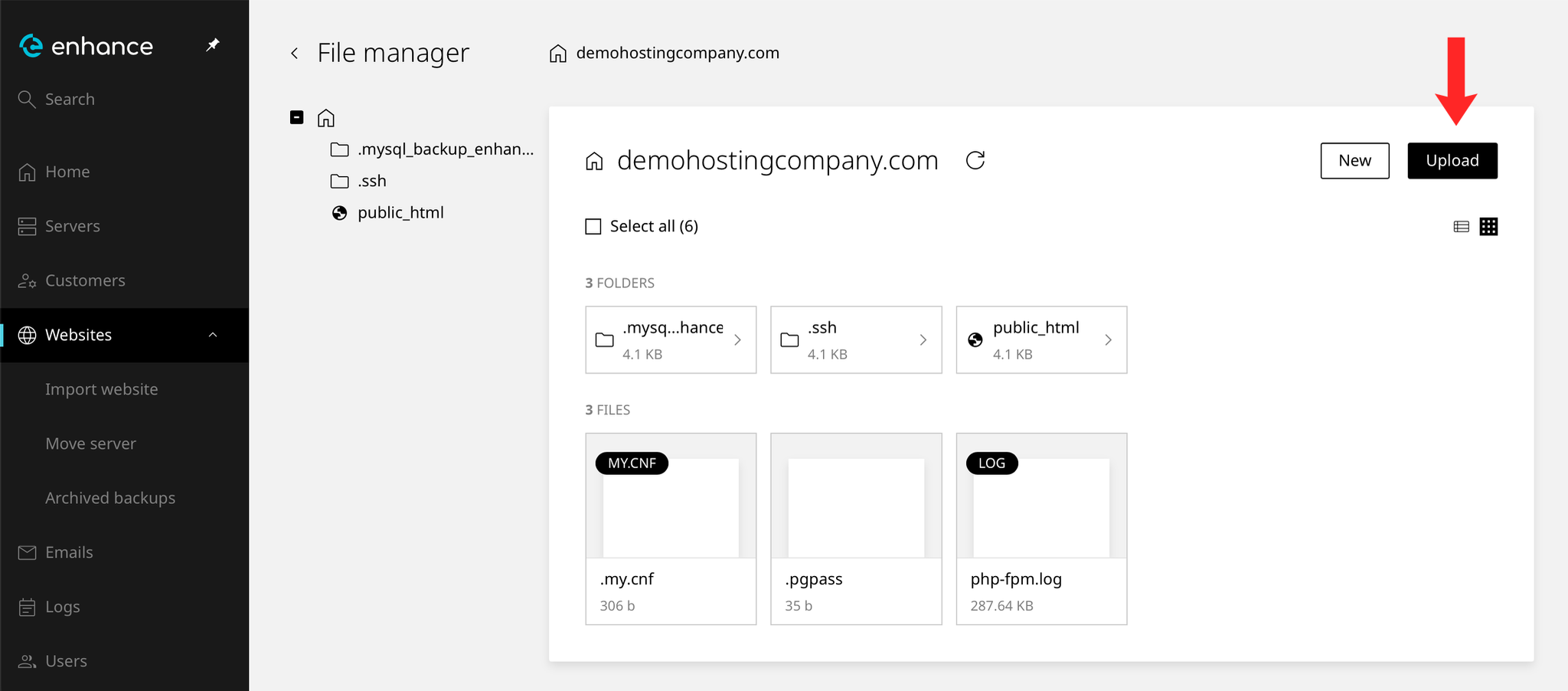
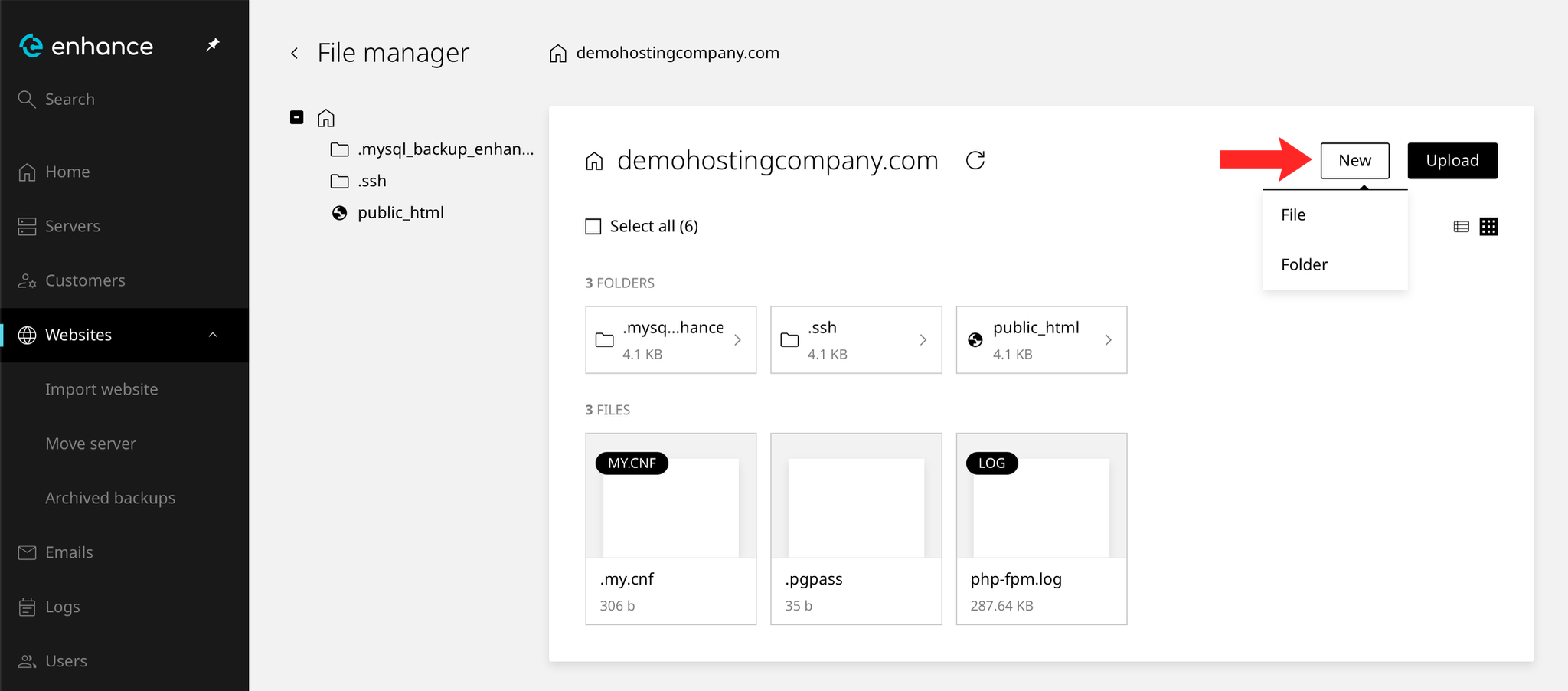
6. Create a New File or Folder
Create files and folders directly in the panel rather than uploading them.
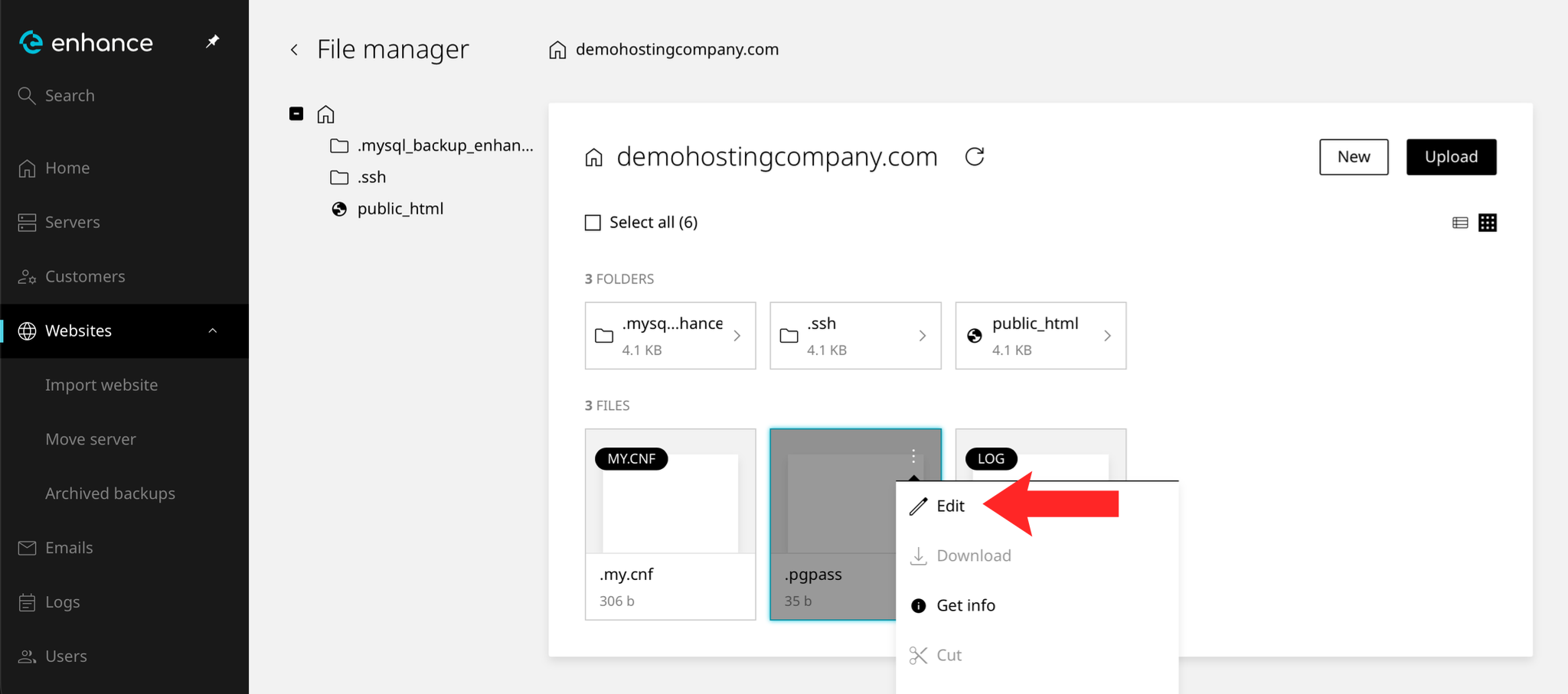
7. Edit a File
Open a file in the built-in editor to make changes without downloading it first.
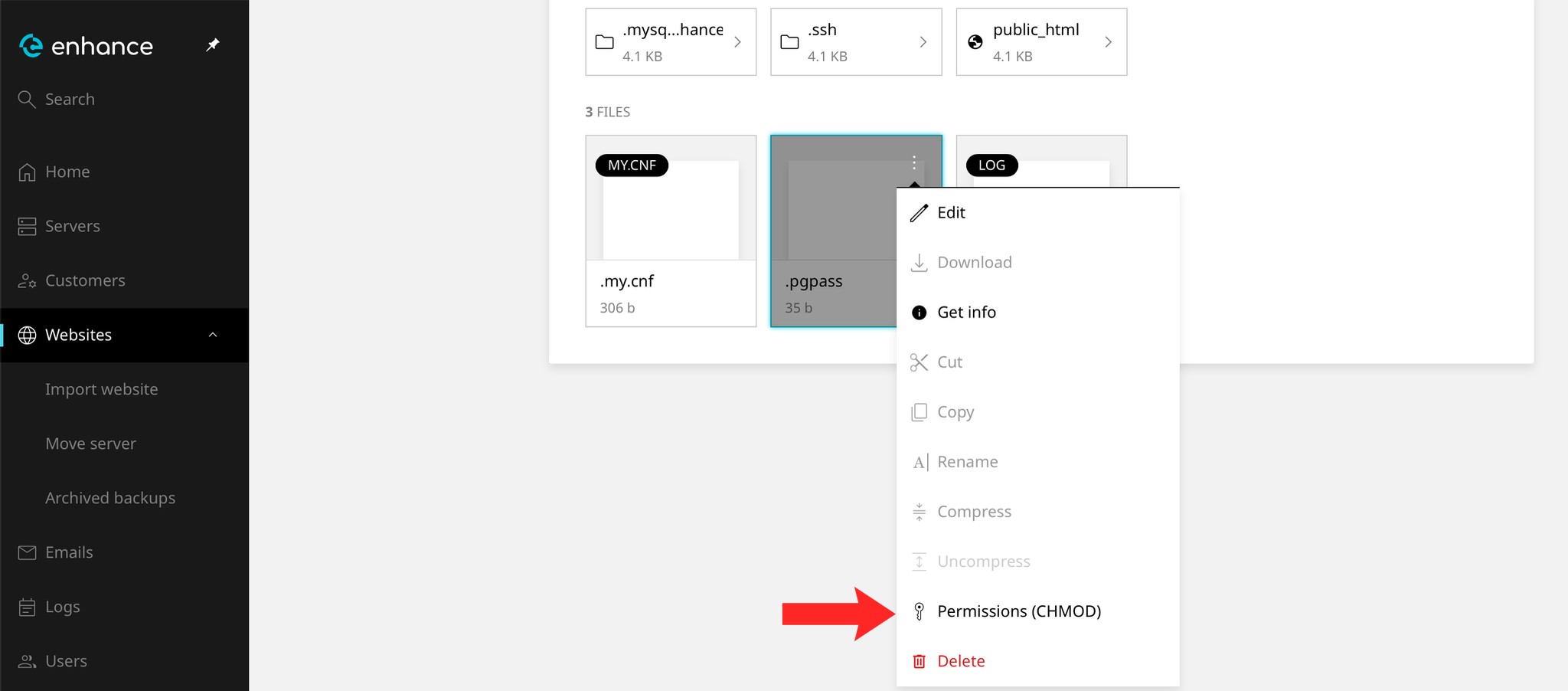
8. Set File Permissions
Adjust read, write and execute permissions on a file or folder. Most files should be 644 and most folders 755.
9. Check Your Work
Files you have uploaded should appear at the expected path, and the site should load normally. If a page returns a 403 after an upload, permissions are the usual cause.
Next: How to Add an FTP User in Enhance covers connecting with an FTP client instead.