How to Create a Subdomain in Enhance

This article will show you how to create a subdomain in Enhance.
Before you start: a subdomain needs its own SSL coverage, so plan to issue a certificate for it once it exists. Without one, visitors get a security warning.
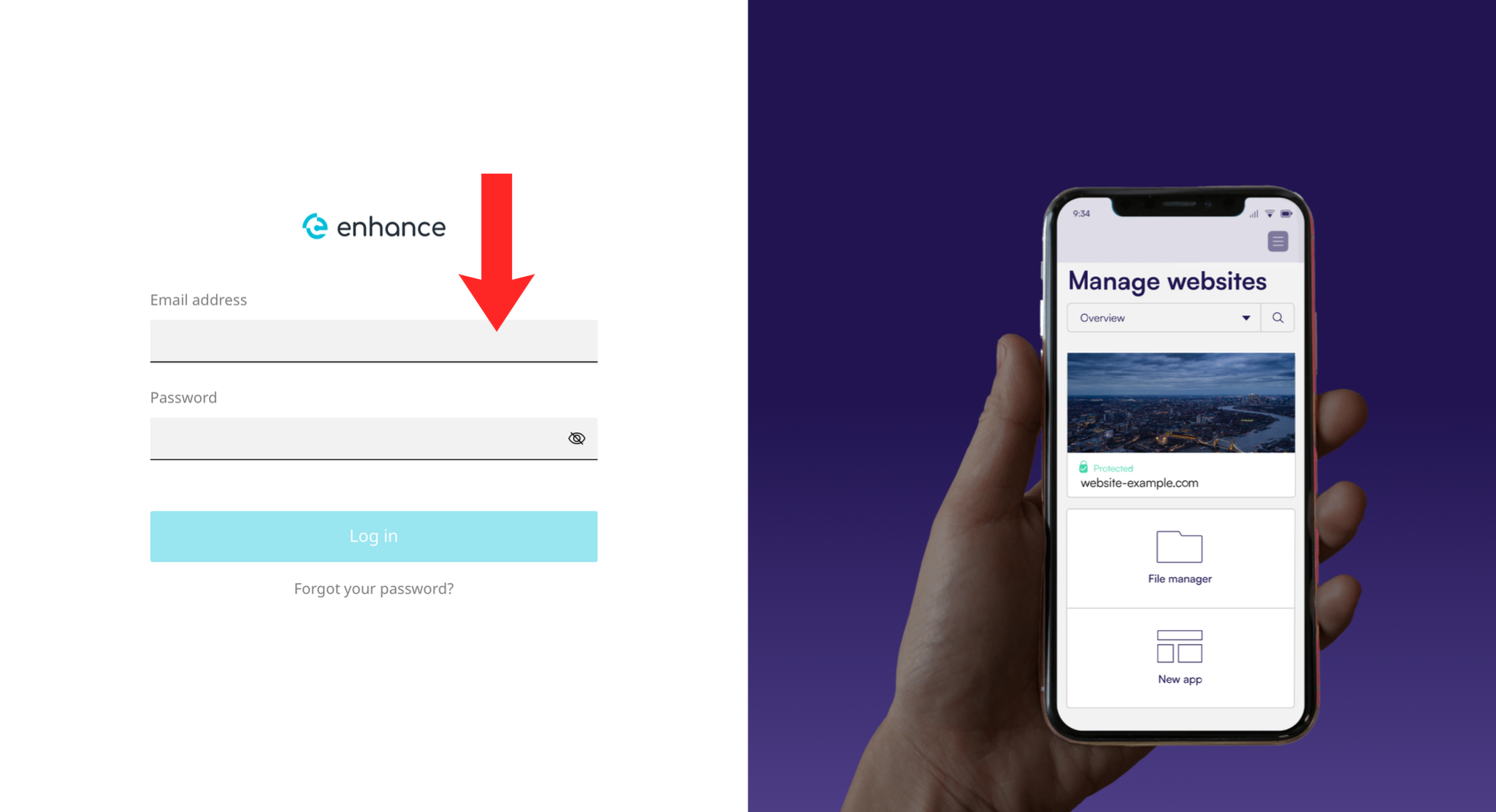
1. Log in to the Enhance Control Panel
Use your credentials to log in to your Enhance control panel.
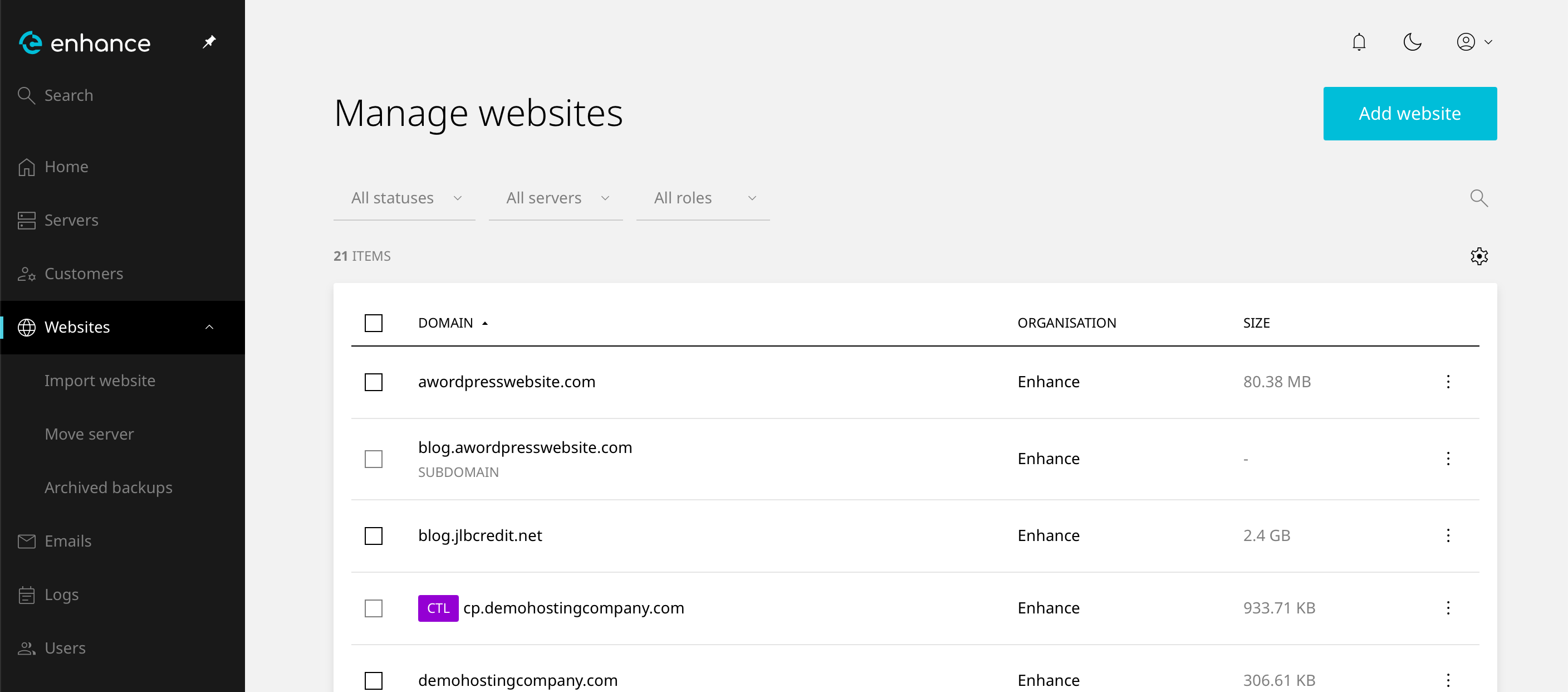
2. Navigate to Websites
Click on Websites in the left-hand navigation menu and select your website.
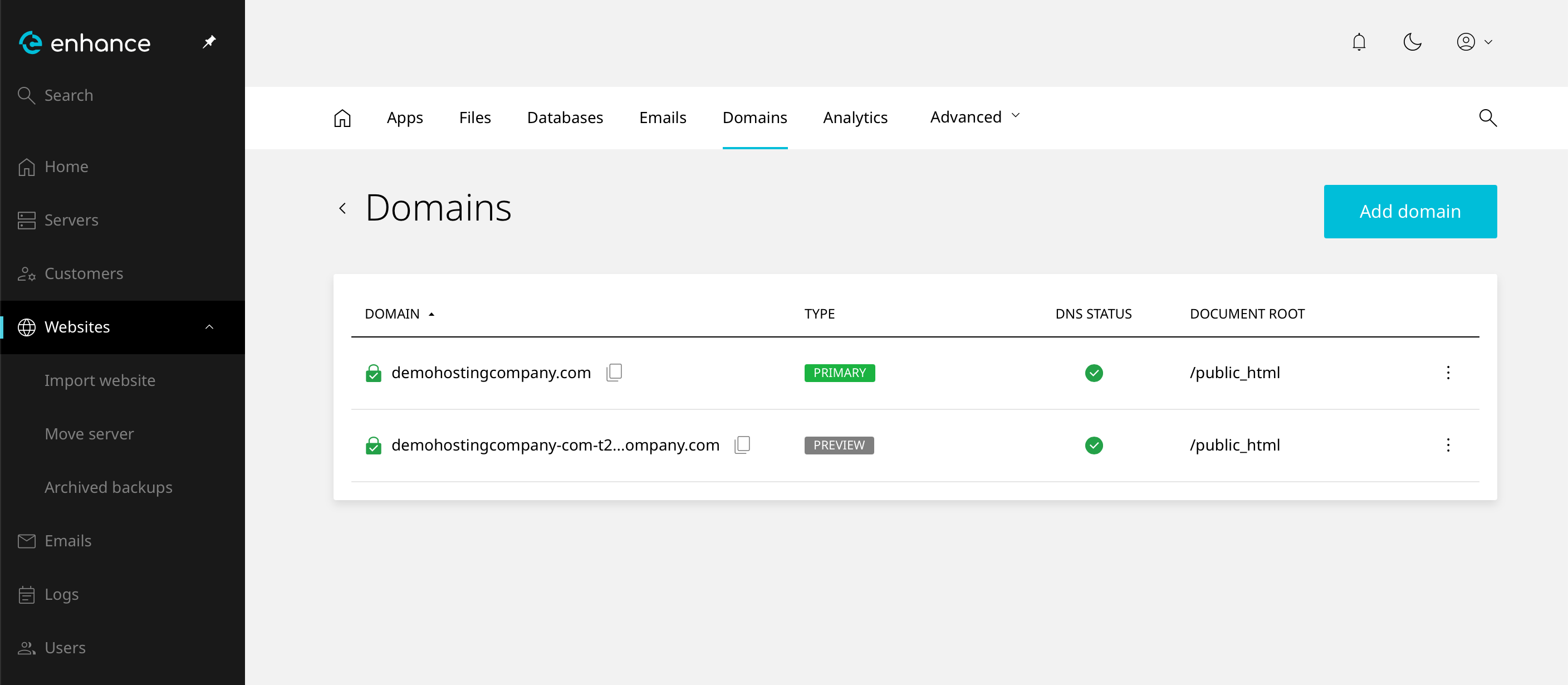
3. Open the Domains Tab
Click the Domains tab within your website settings.
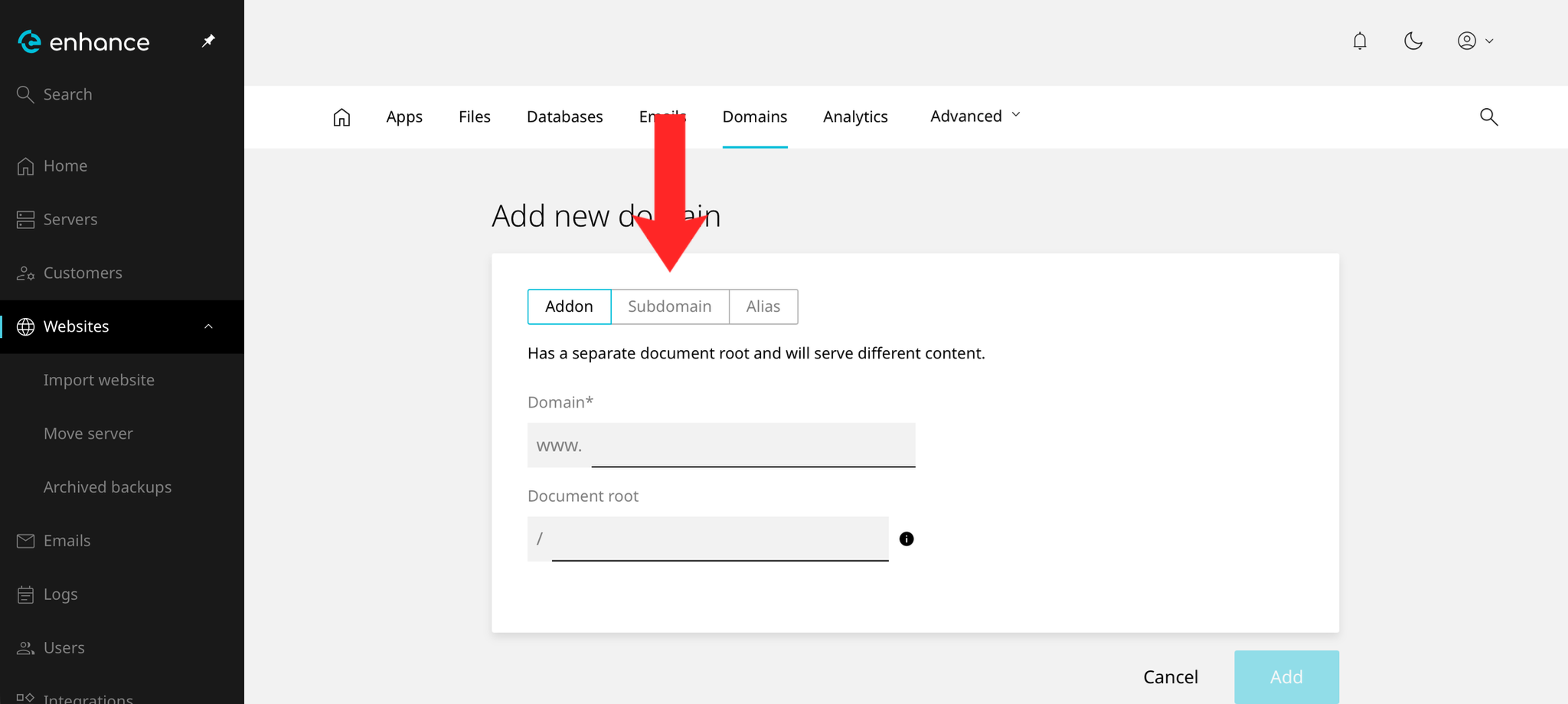
4. Navigate to Subdomains
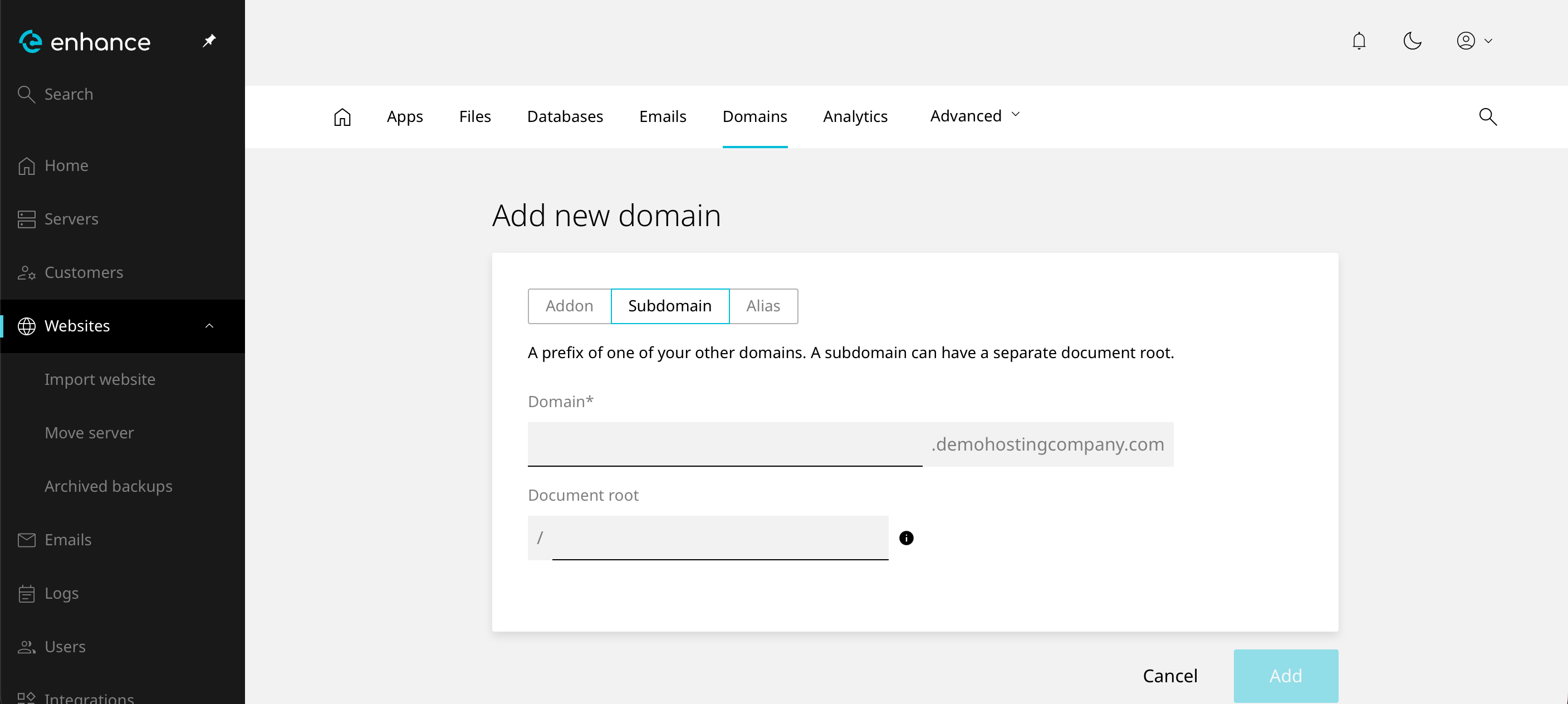
Click the Add Domain button and then navigate to the Subdomain tab.
5. Enter Your Subdomain
Enter your subdomain in the format sub.yourdomain.com and set the directory the subdomain should point to, or leave it as the default.
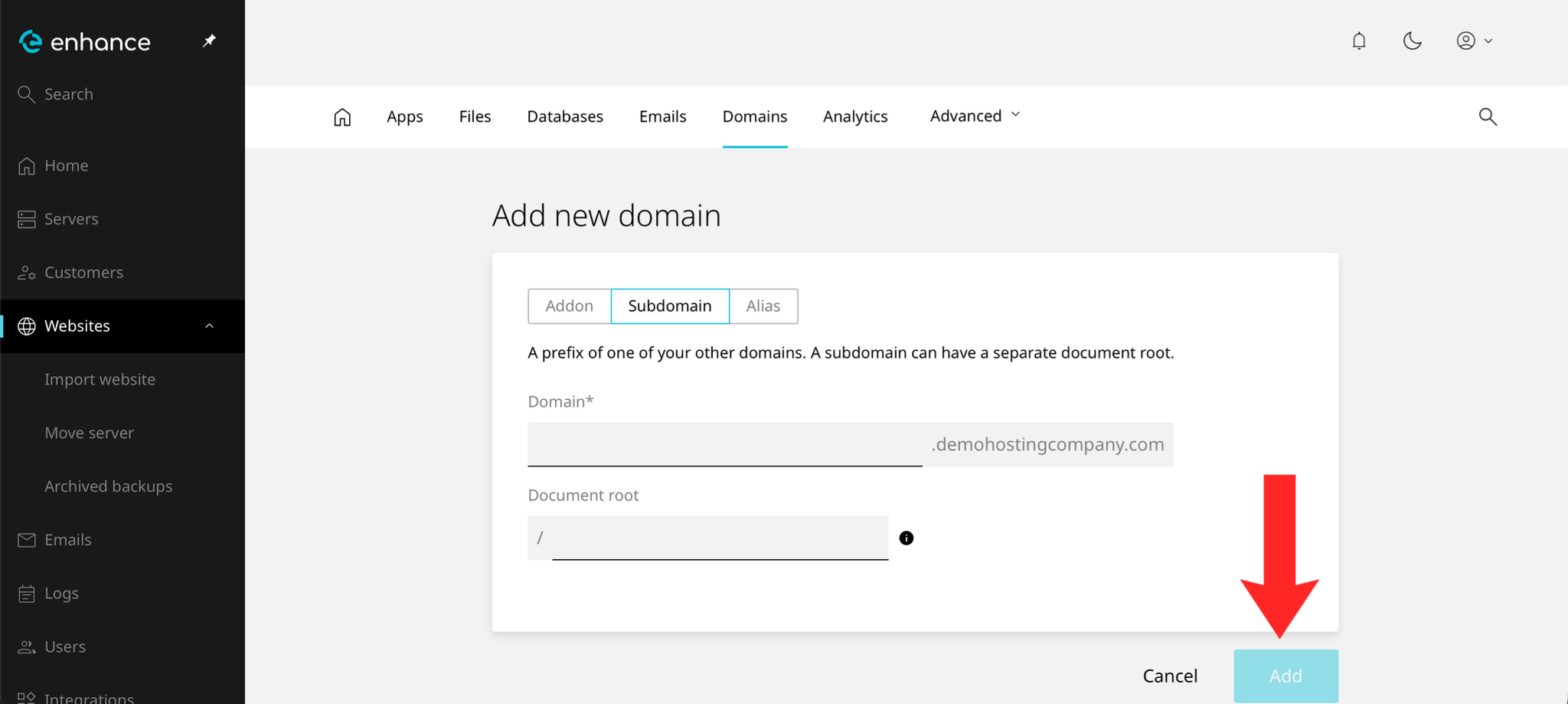
6. Save the Subdomain
Click Confirm to create the subdomain.
7. Verify the Subdomain
The subdomain should appear in the list and resolve in a browser within a few minutes.
Next: secure the subdomain with How to Install an SSL Certificate in Enhance.