How to Update an Installation in Softaculous

This article will show you how to update an installation in Softaculous.
Before you start: take a backup before updating. Updates are usually uneventful, but a failed one on a live site is much easier to recover from with a backup than without.
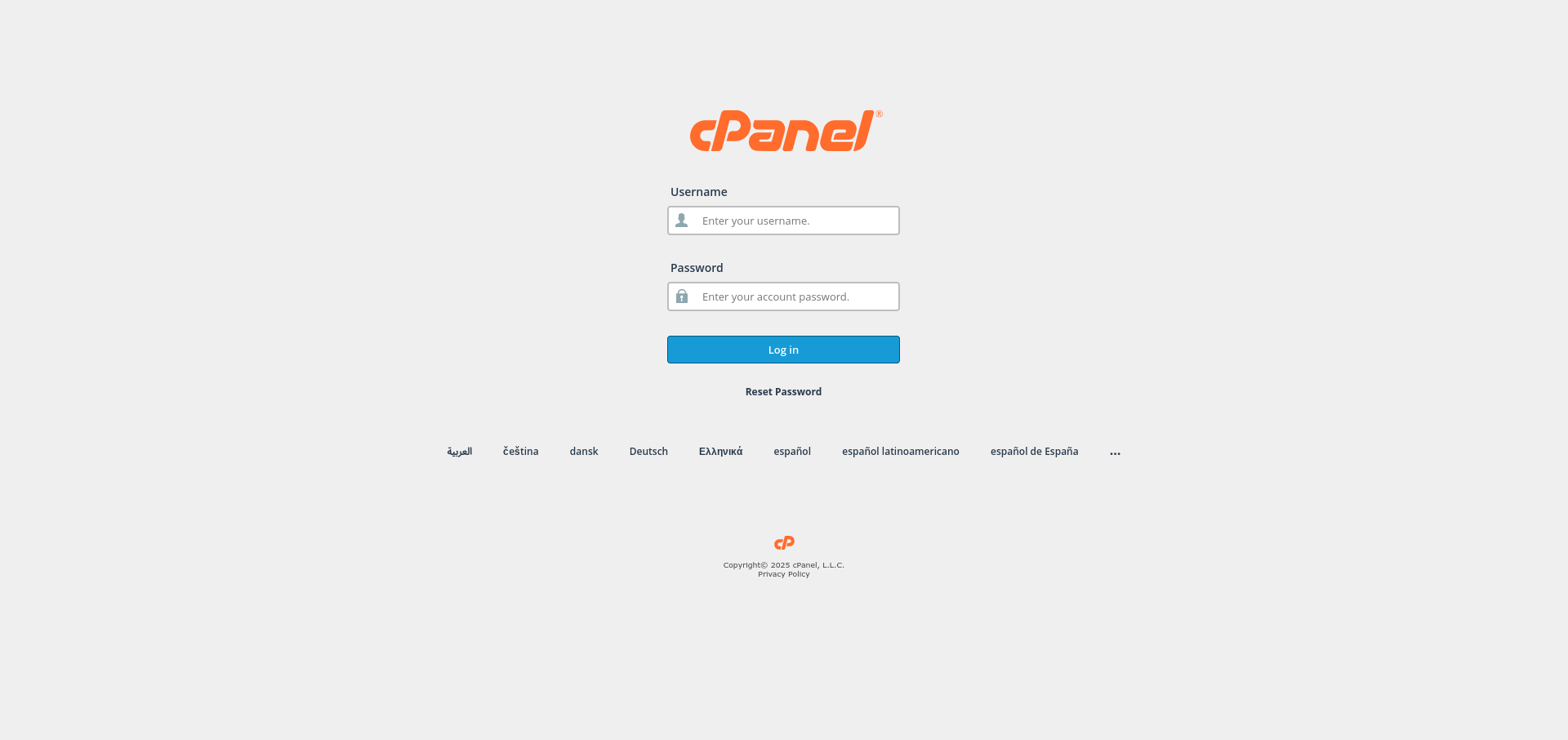
1. Log in to Your Control Panel
Use your credentials to log in to your hosting control panel.
2. Open Softaculous
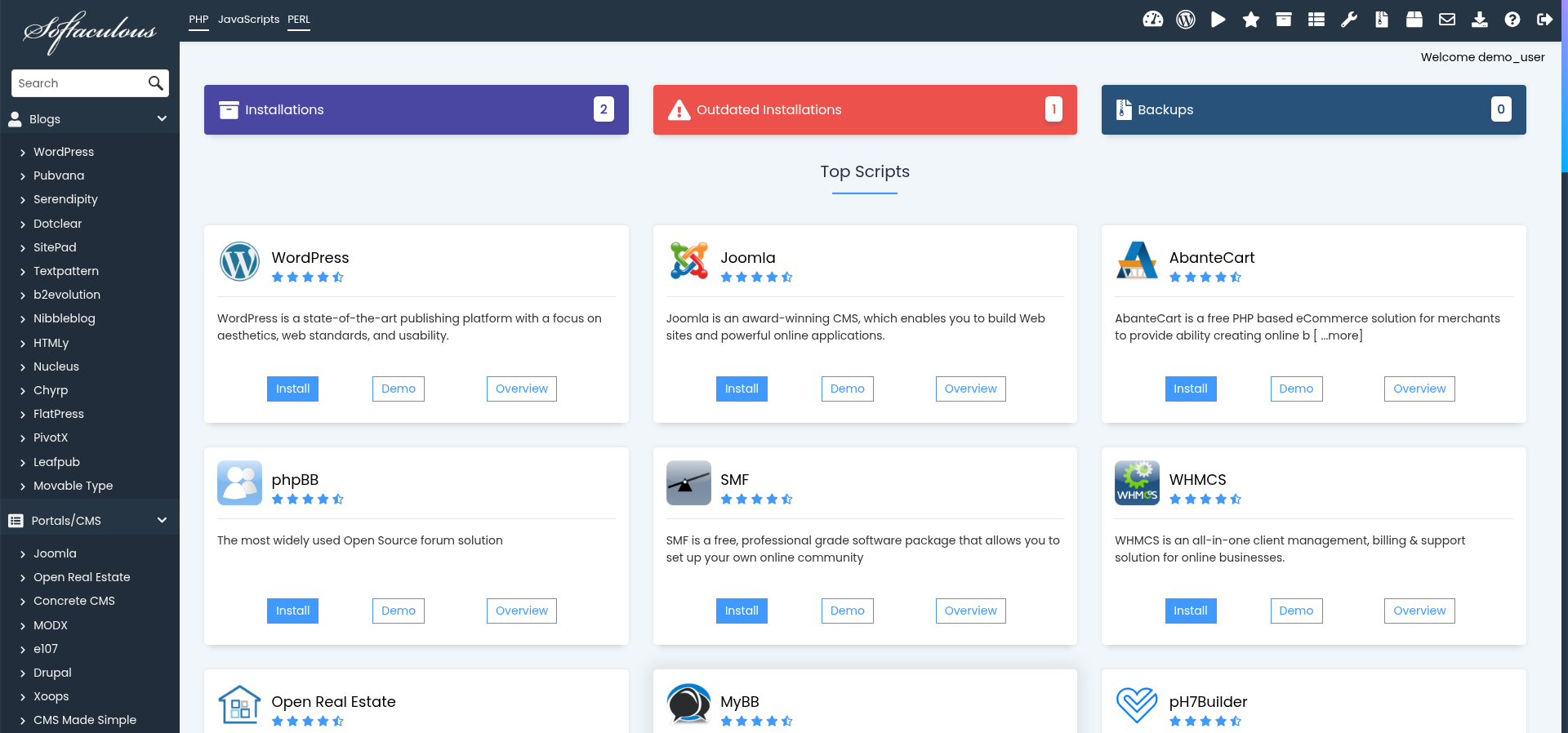
Locate and click on Softaculous Apps Installer in your control panel.
3. Navigate to All Installations
Click on All Installations in the Softaculous dashboard to view your installed applications.
4. Find the Installation to Update
Locate the installation you want to update. If an update is available, an update icon will be displayed next to it.
5. Update the Installation
Click the Update icon next to the installation and confirm the action when prompted.
6. Verify the Update
Load the site and check the pages that do the most work, such as checkout or admin, rather than just the home page. Confirm the version number has changed.
Next: take a backup first with How to Back Up Your Installation in Softaculous if you have not already.