How to Clone an Installation in Softaculous

This article will show you how to clone an installation in Softaculous.
Before you start: a clone is a full copy, so it needs as much disk space again as the original. Clone to a subdomain or a directory rather than over a live site.
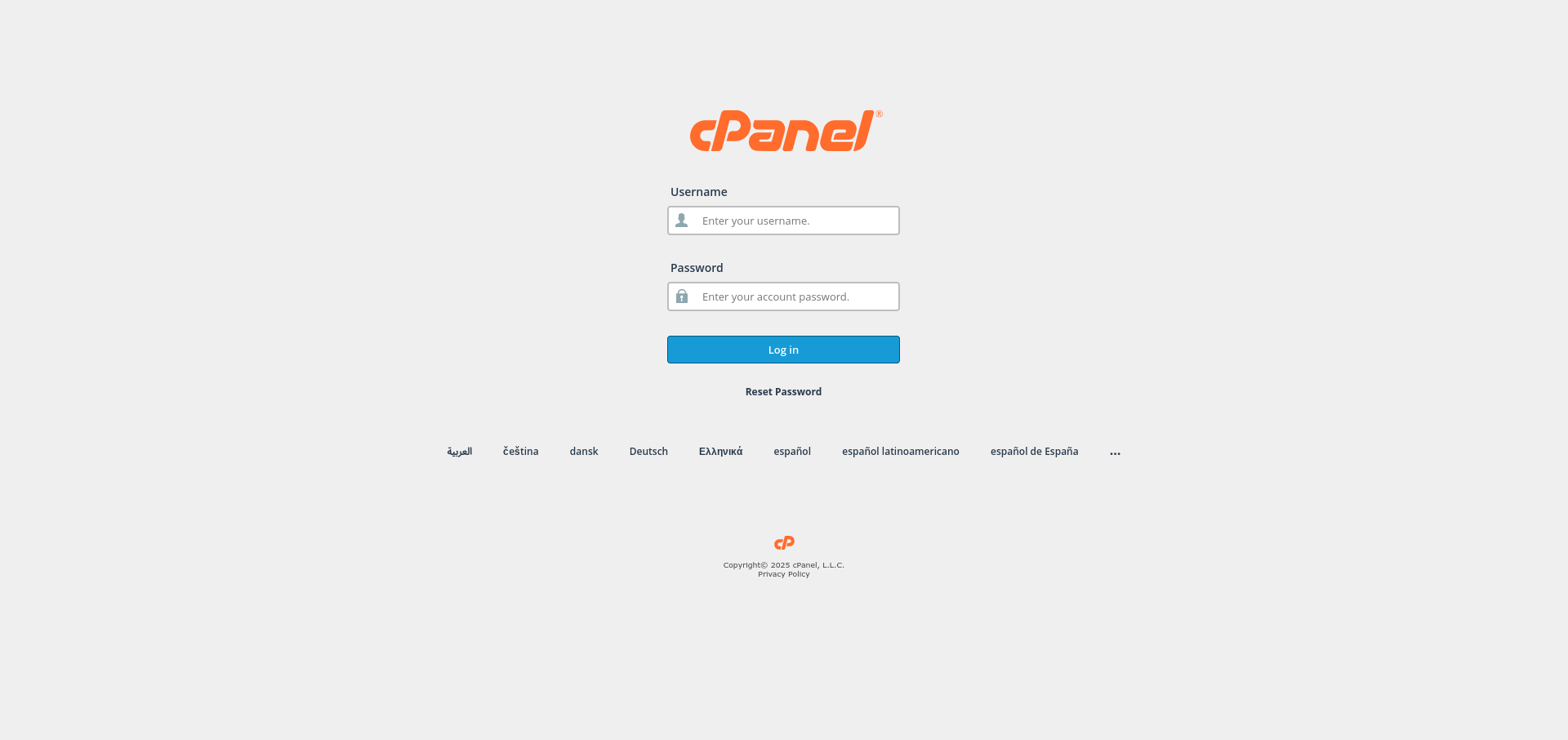
1. Log in to Your Control Panel
Use your credentials to log in to your hosting control panel.
2. Open Softaculous
Locate and click on Softaculous Apps Installer in your control panel.
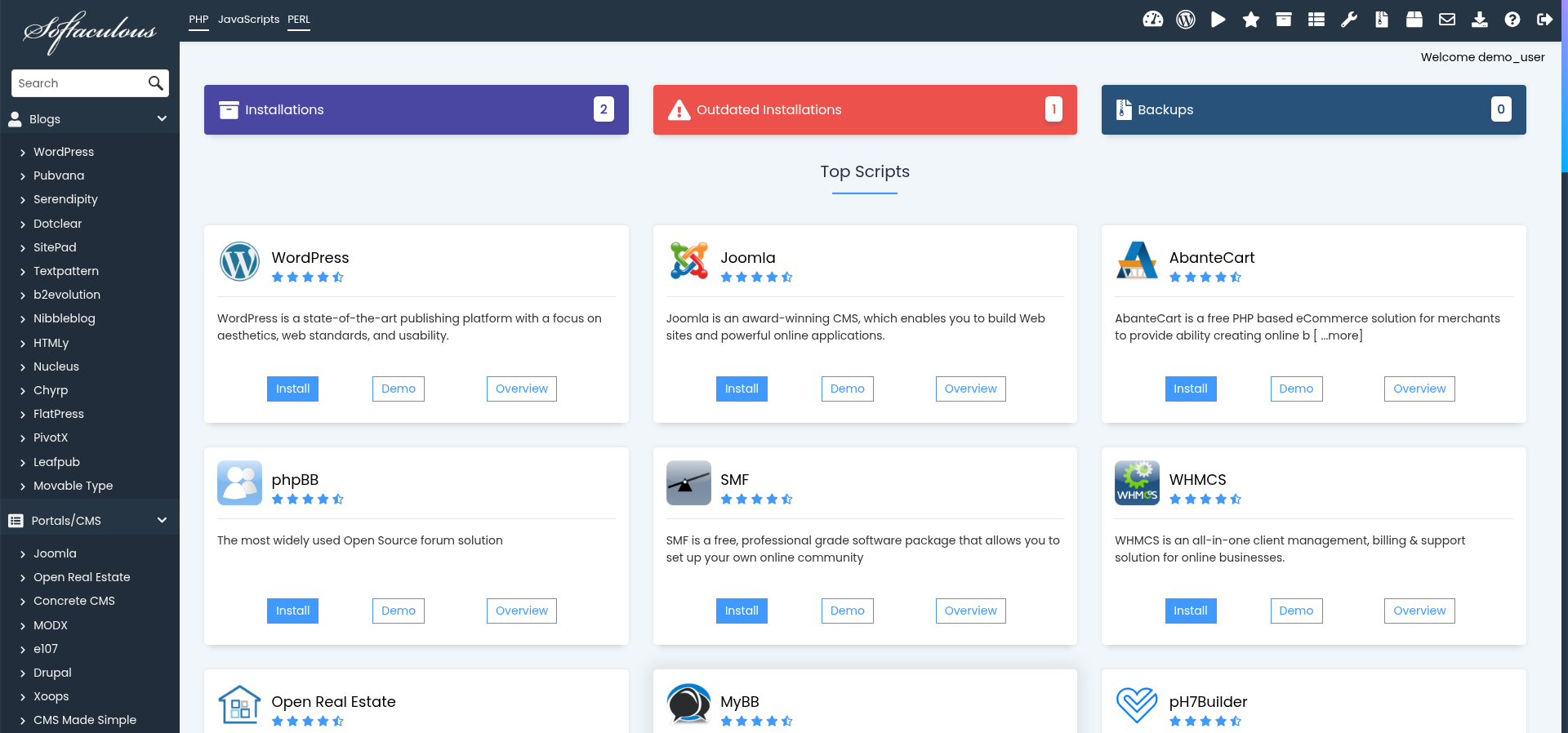
3. Navigate to All Installations
Click on All Installations in the Softaculous dashboard to view your installed applications.
4. Find the Installation to Clone
Locate the installation you want to clone and click the Clone icon next to it.
5. Configure the Clone
Enter the destination domain and directory for the cloned installation.
6. Complete the Clone
Warning: cloning over an existing installation overwrites it. Check the destination directory is empty before you continue.
Click Clone Installation to create the copy. Once complete, you will be provided with a link to the cloned installation.
Next: How to Password Protect an Installation in Softaculous covers keeping the copy out of public view while you work on it.