How to Password Protect an Installation in Softaculous

This article will show you how to password protect an installation in Softaculous.
Before you start: this adds a browser password prompt in front of the whole installation. Useful for a staging site, but it will stop search engines and any external service that needs to reach the site.
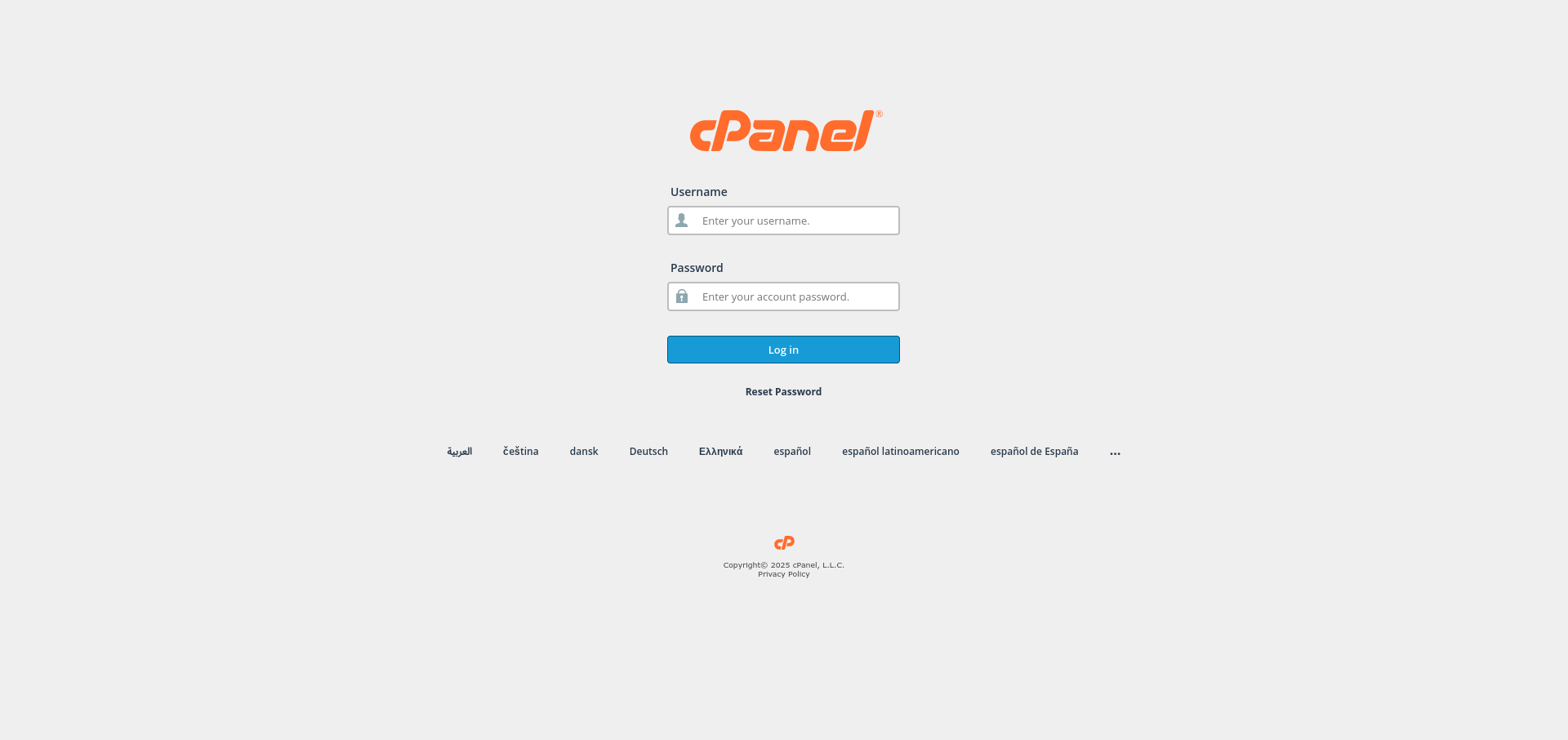
1. Log in to Your Control Panel
Use your credentials to log in to your hosting control panel.
2. Open Softaculous
Locate and click on Softaculous Apps Installer in your control panel.
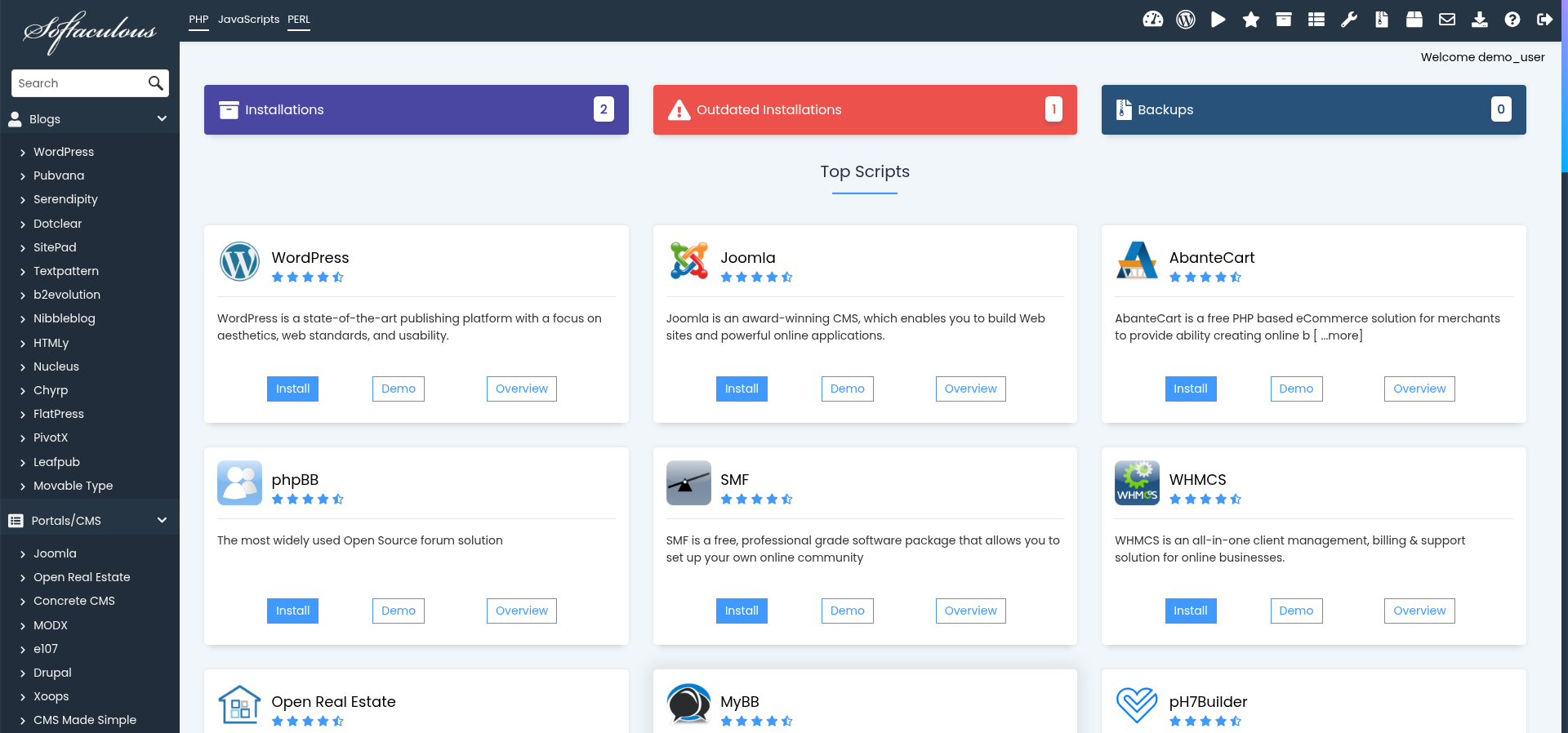
3. Navigate to All Installations
Click on All Installations in the Softaculous dashboard to view your installed applications.
4. Find the Installation to Password Protect
Locate the installation you want to password protect and click the Edit icon next to it.
5. Enable Password Protection
Scroll down to the Password Protect Directory section and toggle the option to enable it.
6. Set a Username and Password
Enter a username and password for the protected directory and click Save Installation to apply the changes.
7. Verify the Protection
Open the installation in a private browser window. You should be prompted for the username and password before anything loads.
Next: How to Limit Access to Files or Directories Using .htaccess covers the same restriction written by hand in .htaccess.