How to Update Your Contact Details in Blesta
This article will show you how to update your contact details in Blesta.
Before you start: the email address on your account is where invoices, renewal reminders and password resets are sent. Changing it means future messages go to the new address only, so make sure you can receive mail there first.
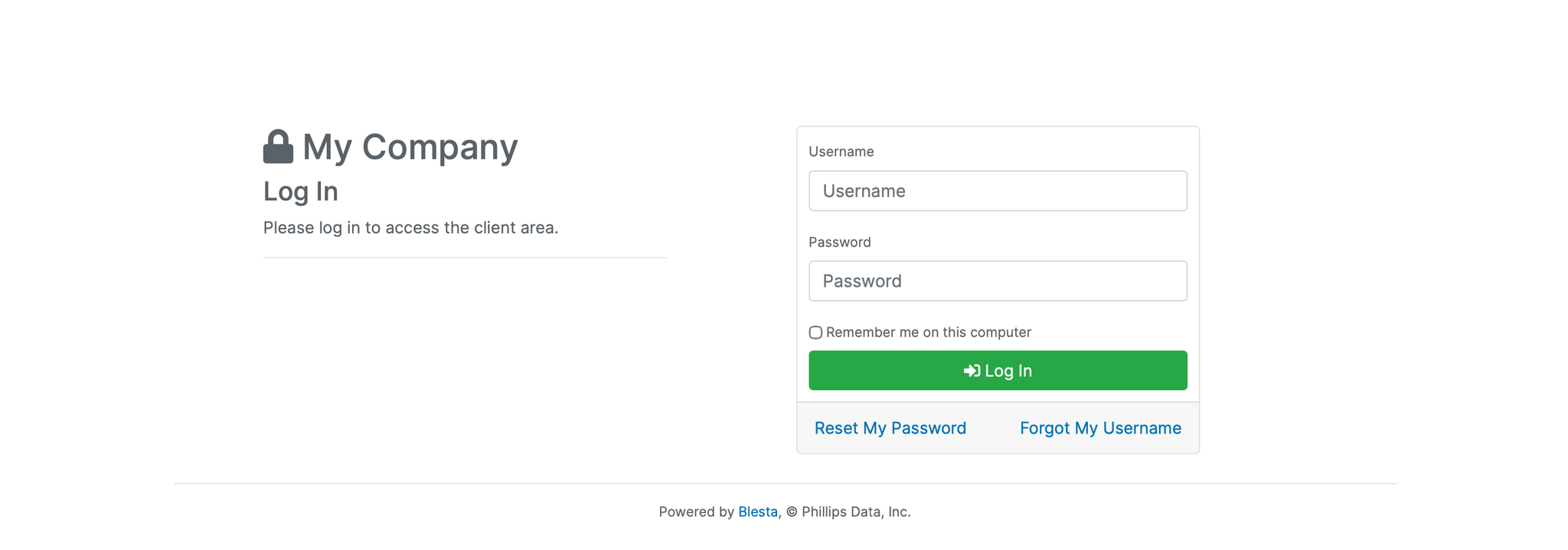
1. Log in to the Blesta Client Area
Use your credentials to log in to your Blesta client area.
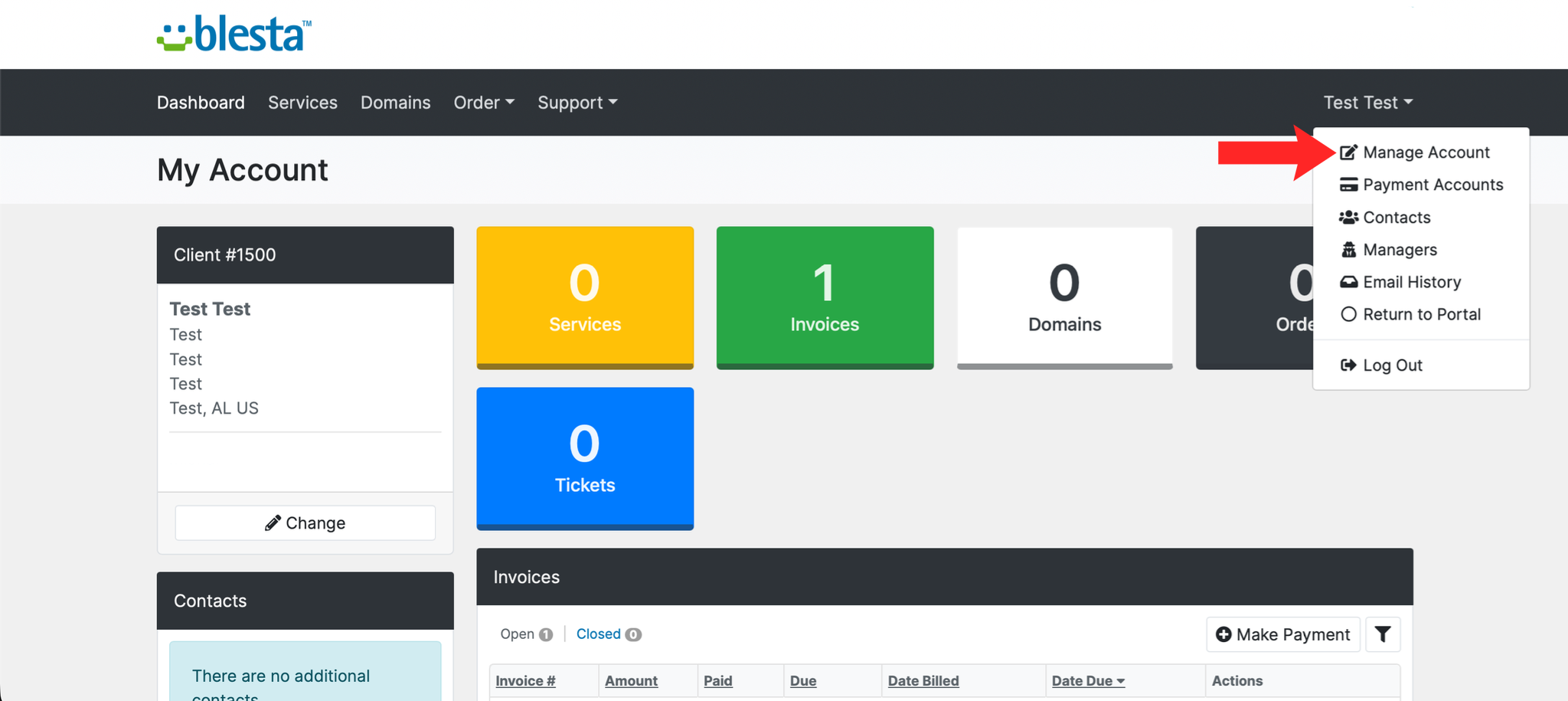
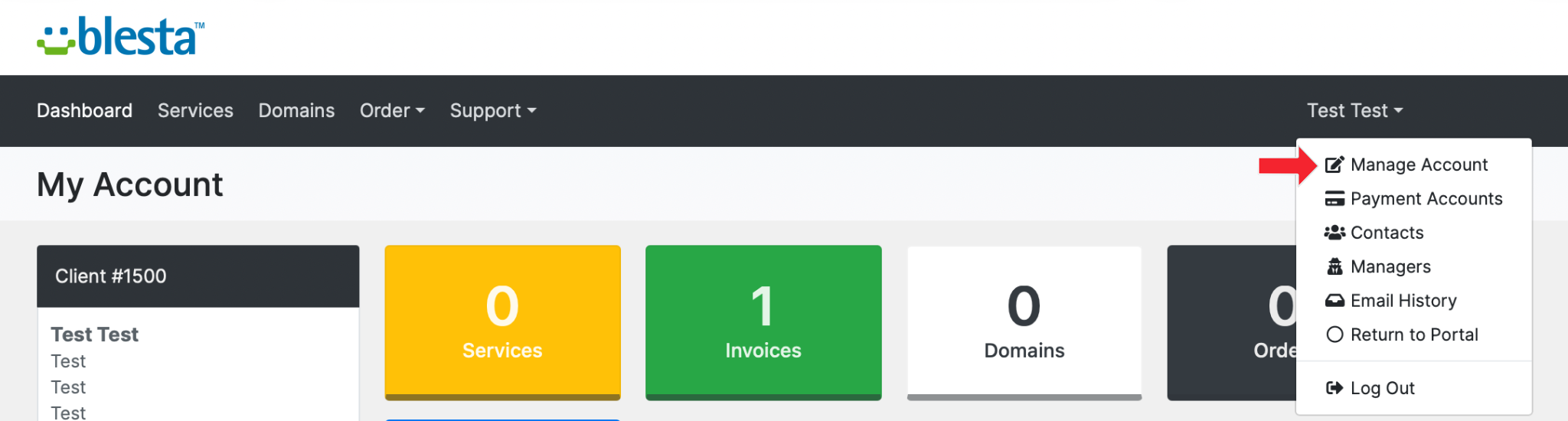
2. Navigate to Manage Account
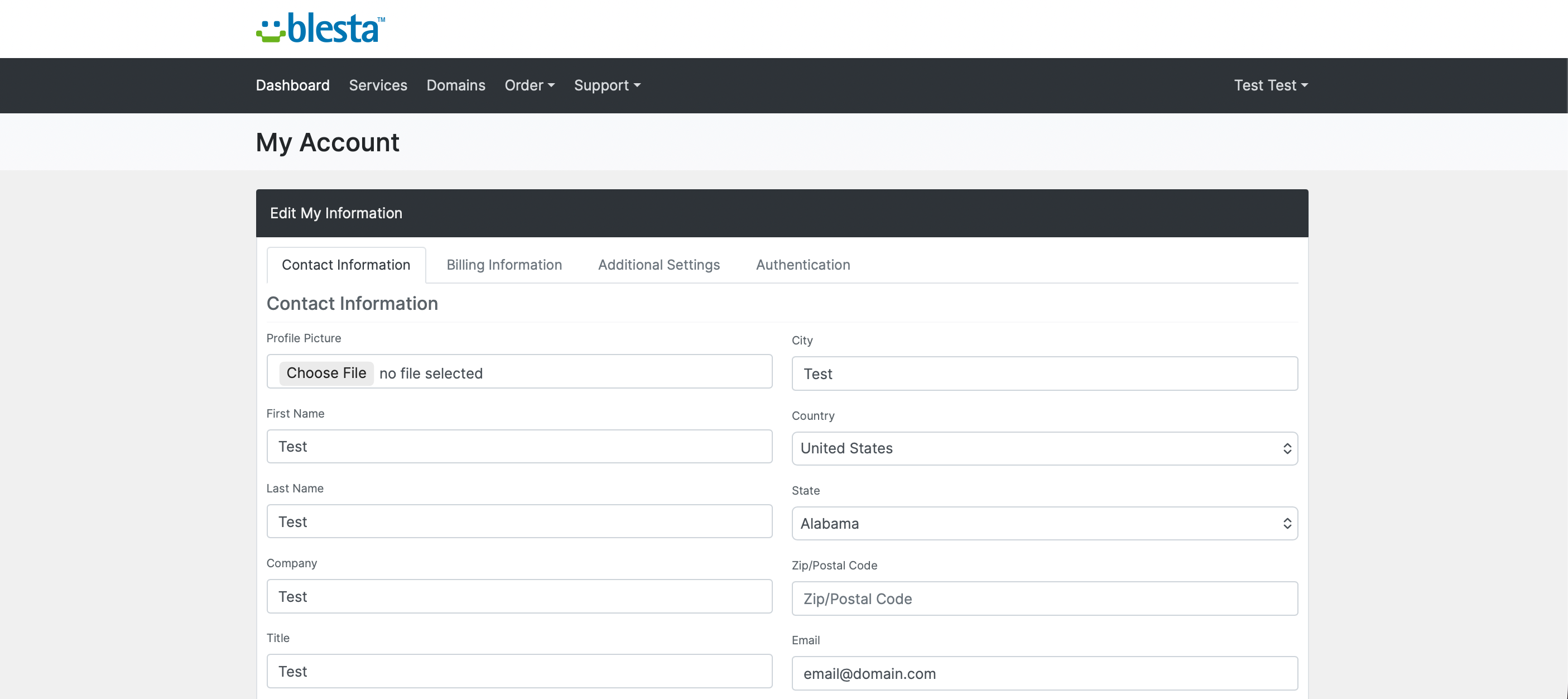
Click on your name in the top right corner and select Manage Account.
3. Update Your Details
Edit your first name, last name, email address, phone number, or address in the fields provided. Double-check your email address in particular, since this is where invoices, service notifications, and support ticket replies are sent.
4. Save Your Changes
Click the Update My Information button to save your updated contact details.
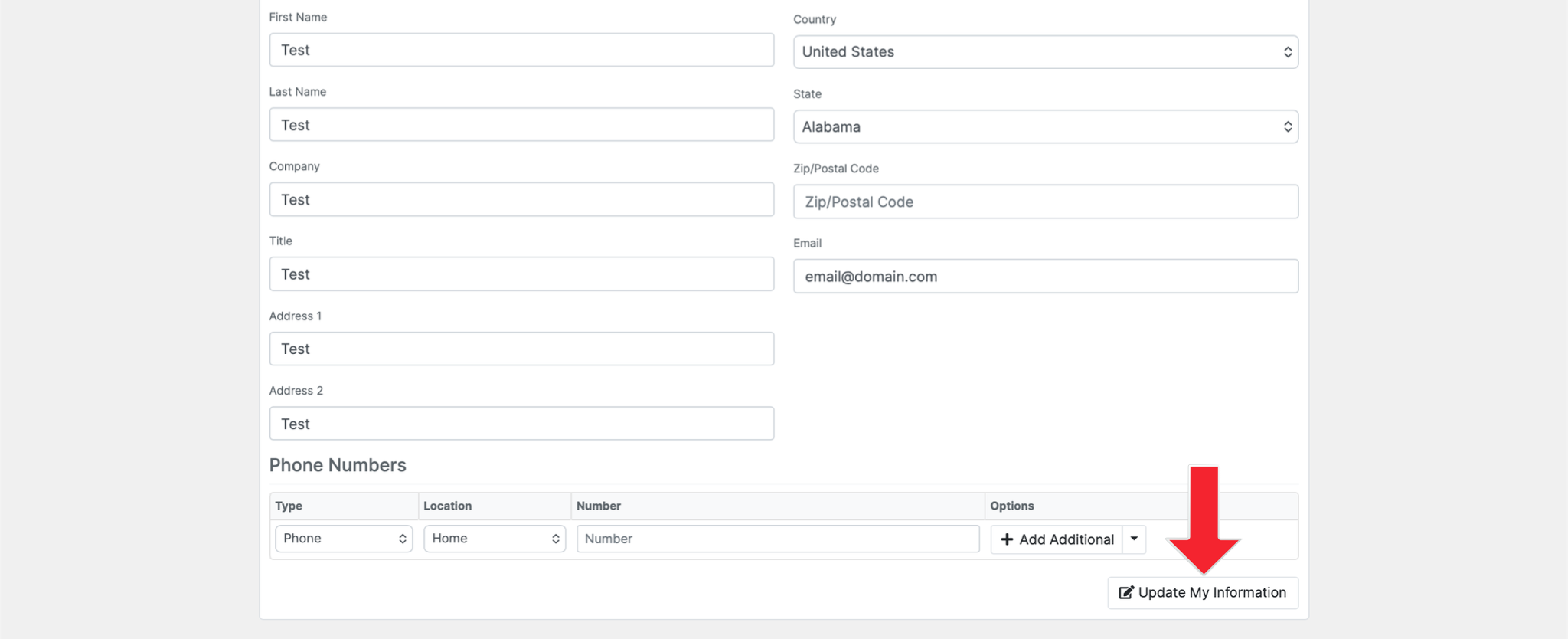
You've successfully updated your contact details in Blesta. Your account will now reflect your latest information, and any future communications will be sent to your updated details.
5. Verify the Change
Your updated details should show in Manage Account. If you changed the email address, check that a message arrives there before relying on it.
Next: How to Manage Notification Preferences in Blesta controls which messages reach the address you just set.