How to Add a Payment Method in Blesta
This article will show you how to add a payment method in Blesta.
Before you start: a stored payment method is used to pay invoices automatically on their due date. Adding one does not pay anything immediately, and does not settle invoices already outstanding.
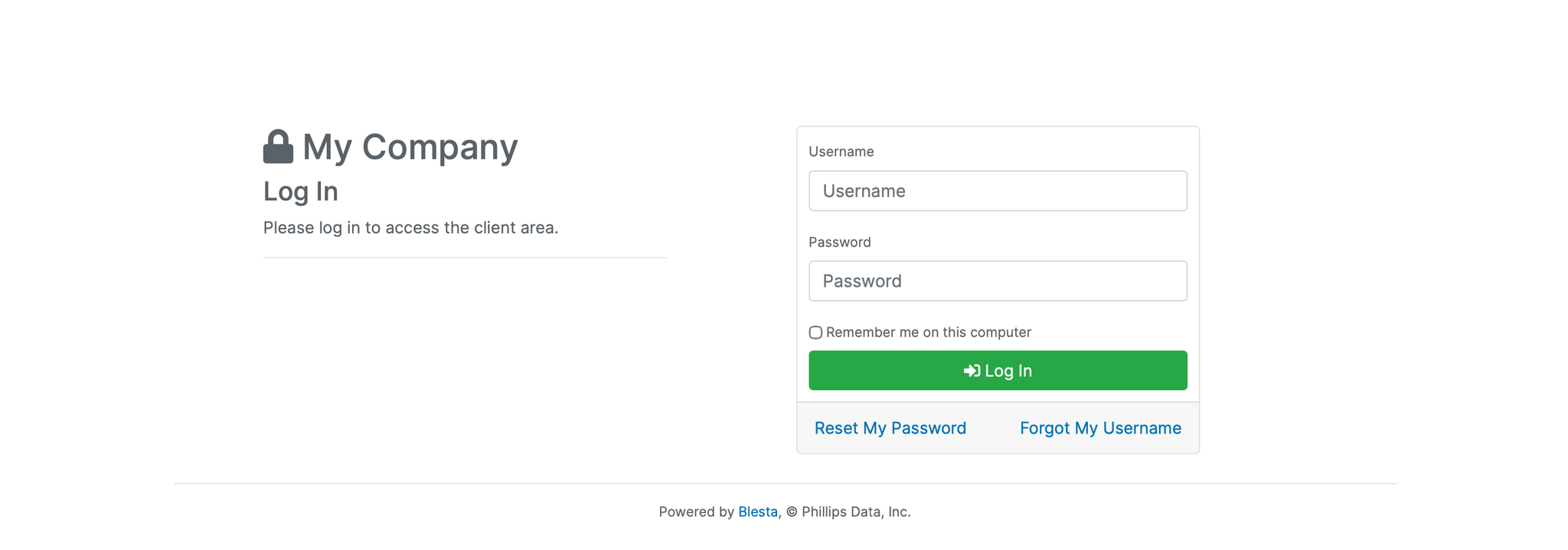
1. Log in to the Blesta Client Area
Use your credentials to log in to your Blesta client area.
2. Navigate to Manage Account
Click on your name in the top right corner and select the dropdown arrow.
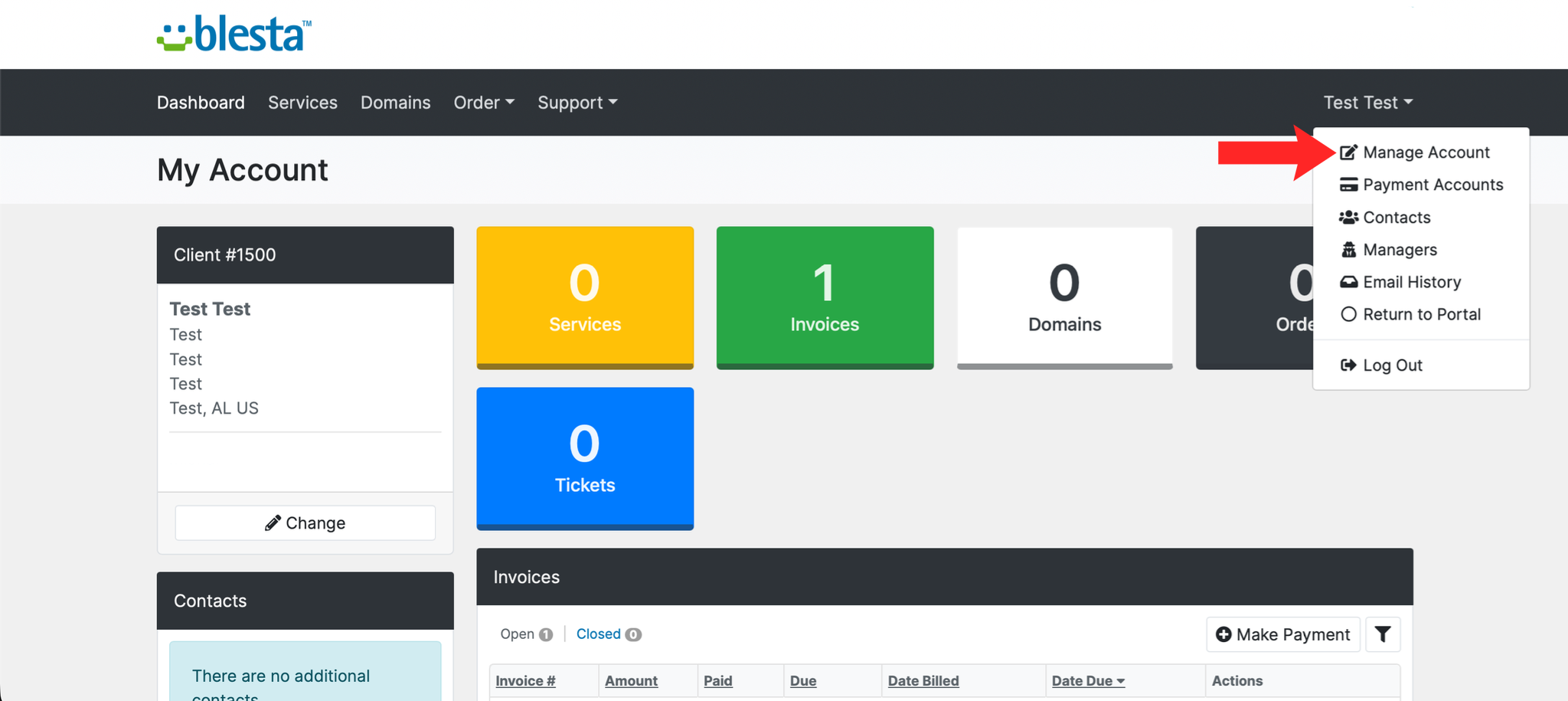
3. Open the Payment Methods Tab
Click the Payment Methods tab within your account dropdown.
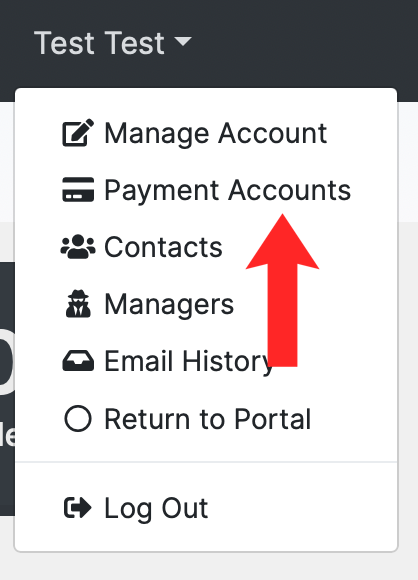
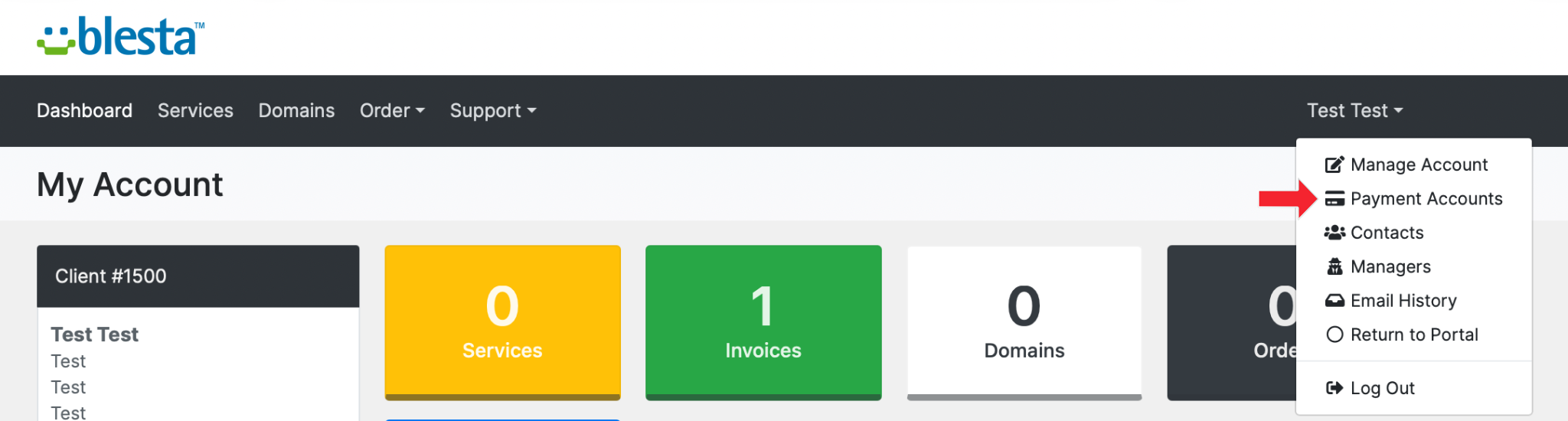
4. Add a New Payment Account
Select the account type from the Add Payment Account page and click Continue
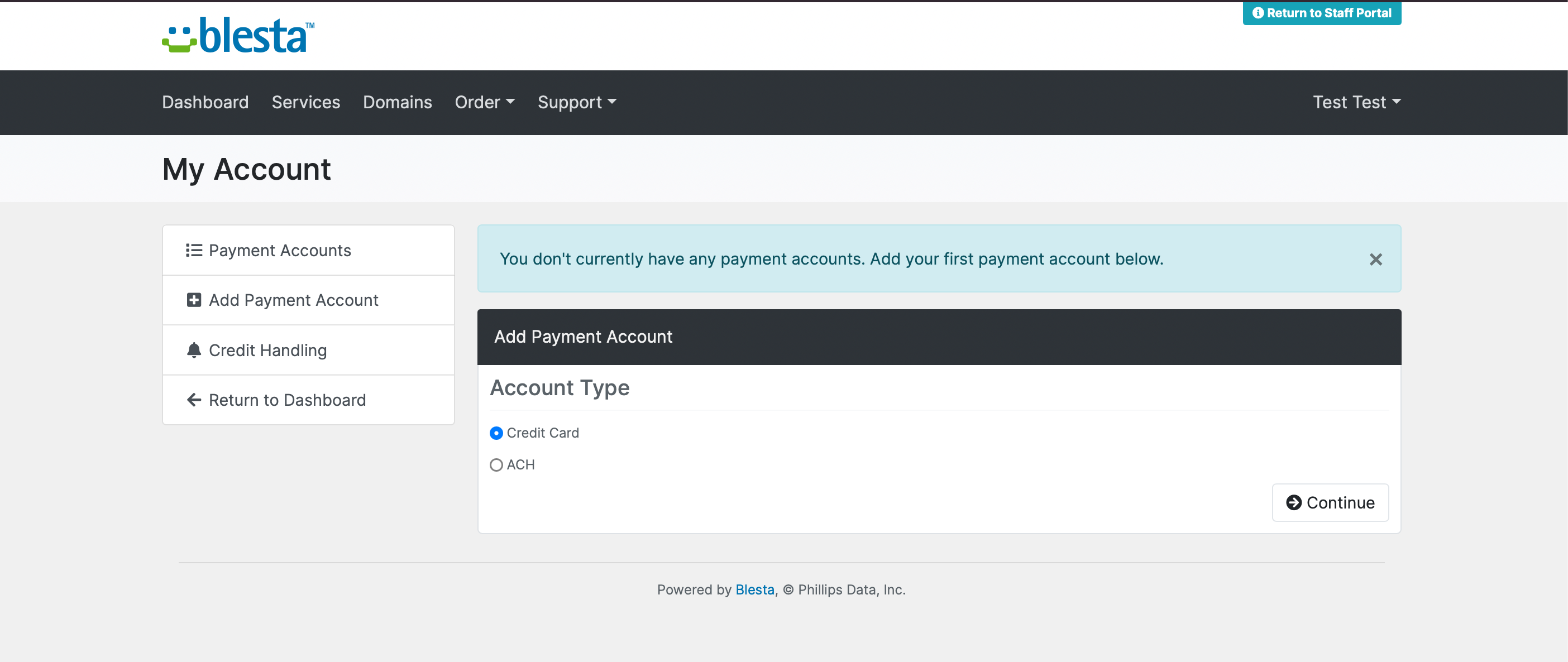
5. Enter Payment Details
Enter your payment details in the fields provided and click Create Account to store the payment method on your account.
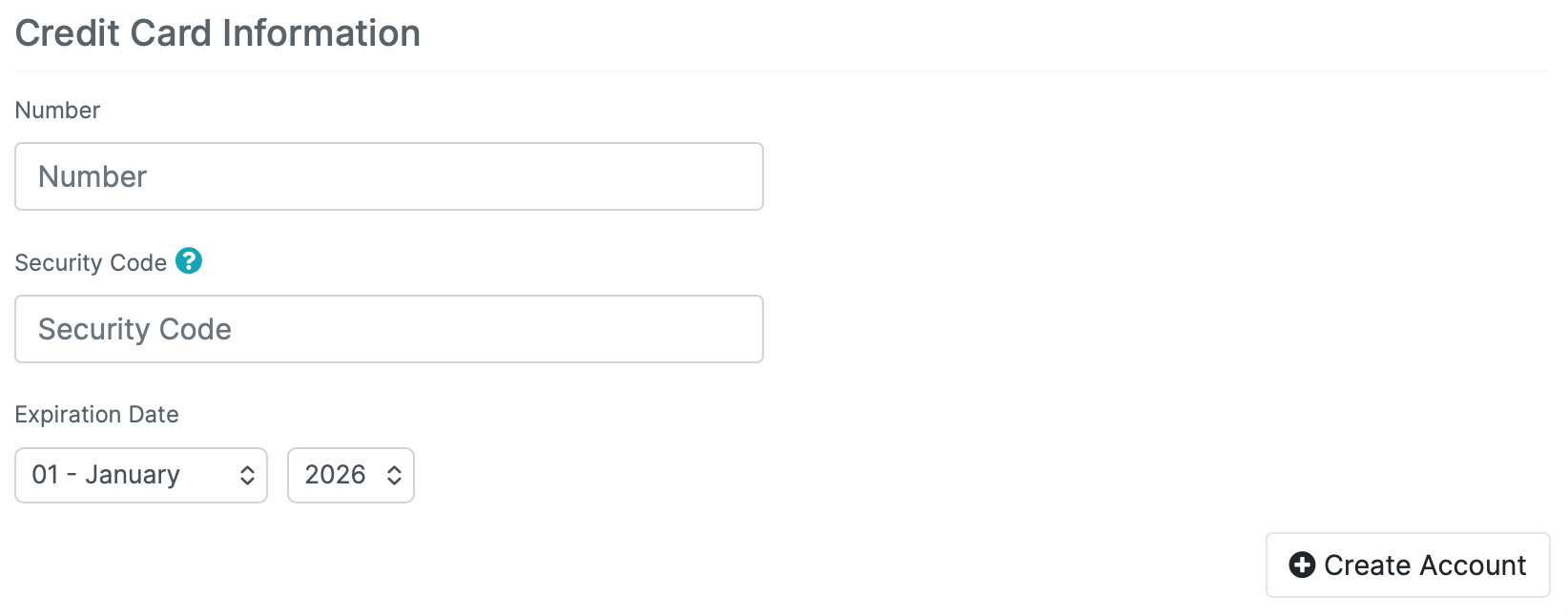
6. Verify the Payment Method
The method should appear in your payment accounts list. It will be used automatically on the next invoice due date.
Next: How to Pay an Invoice in Blesta covers using it.