How to Pay an Invoice in Blesta

This article will show you how to pay an invoice in Blesta.
Before you start: paying an invoice for a service that is already suspended usually restores it automatically, though reactivation can take a few minutes.
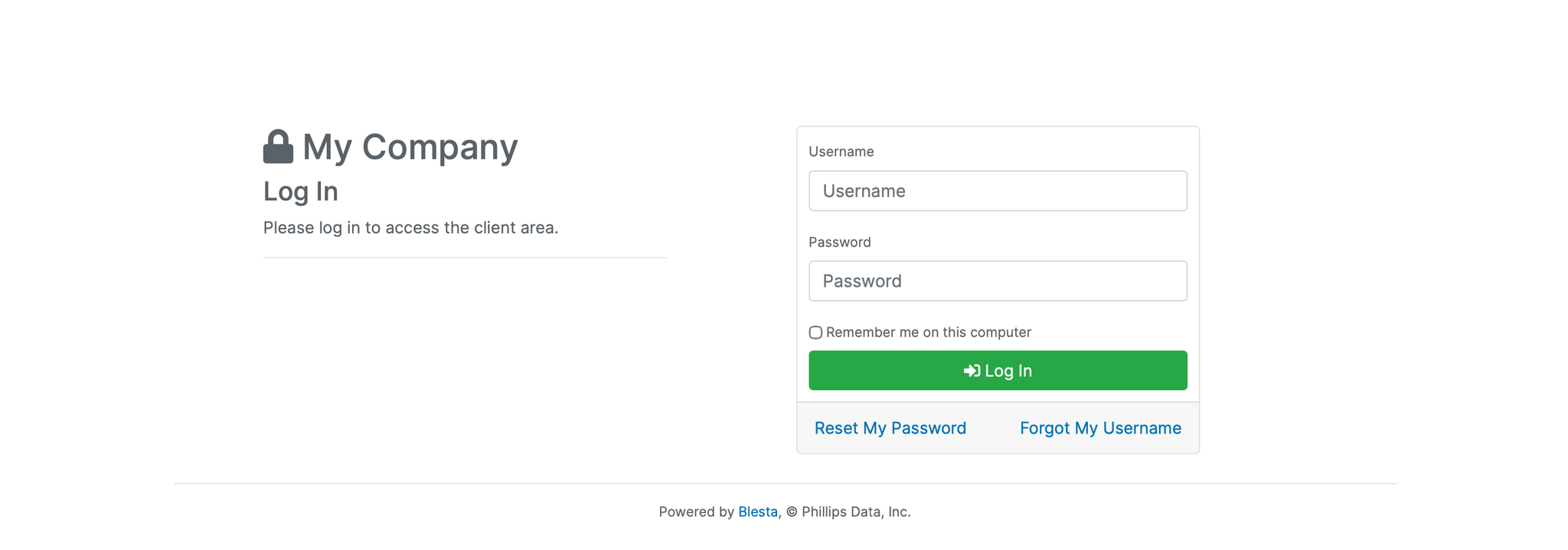
1. Log in to the Blesta Client Area
Use your credentials to log in to your Blesta client area.
2. Navigate to Invoices
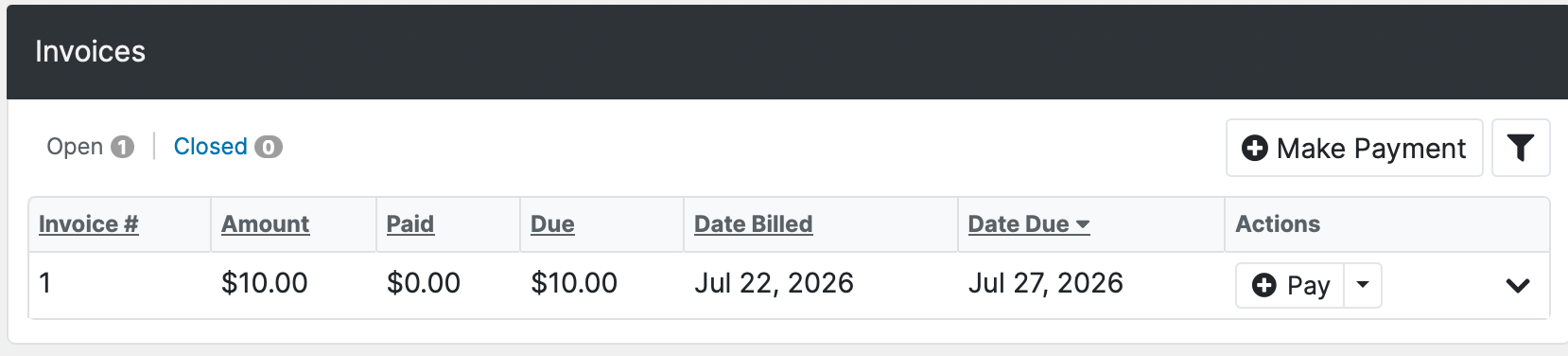
From the Client Area, scroll down until you find the Invoices section.
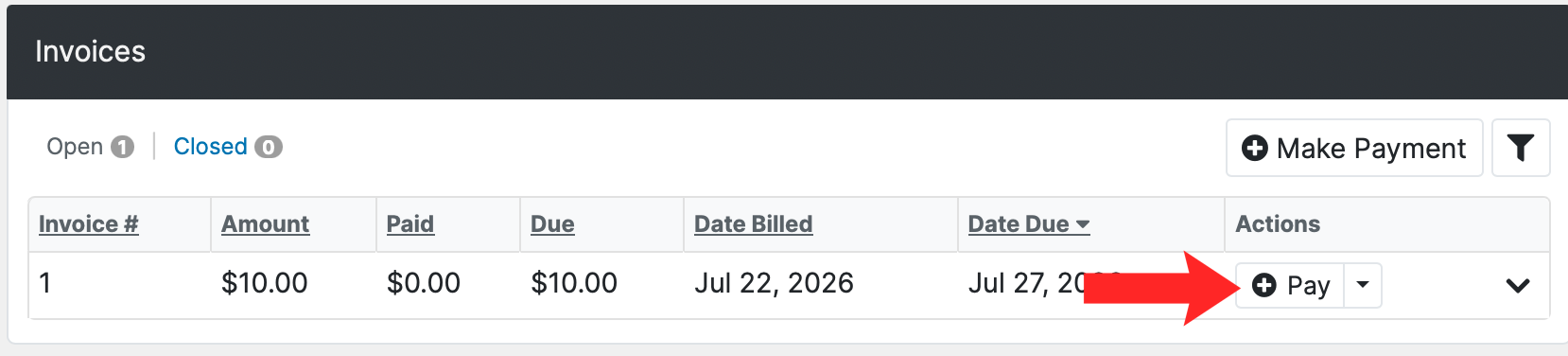
3. Click Pay
Click the Pay button next to the relevant invoice.
4. Select a Payment Method
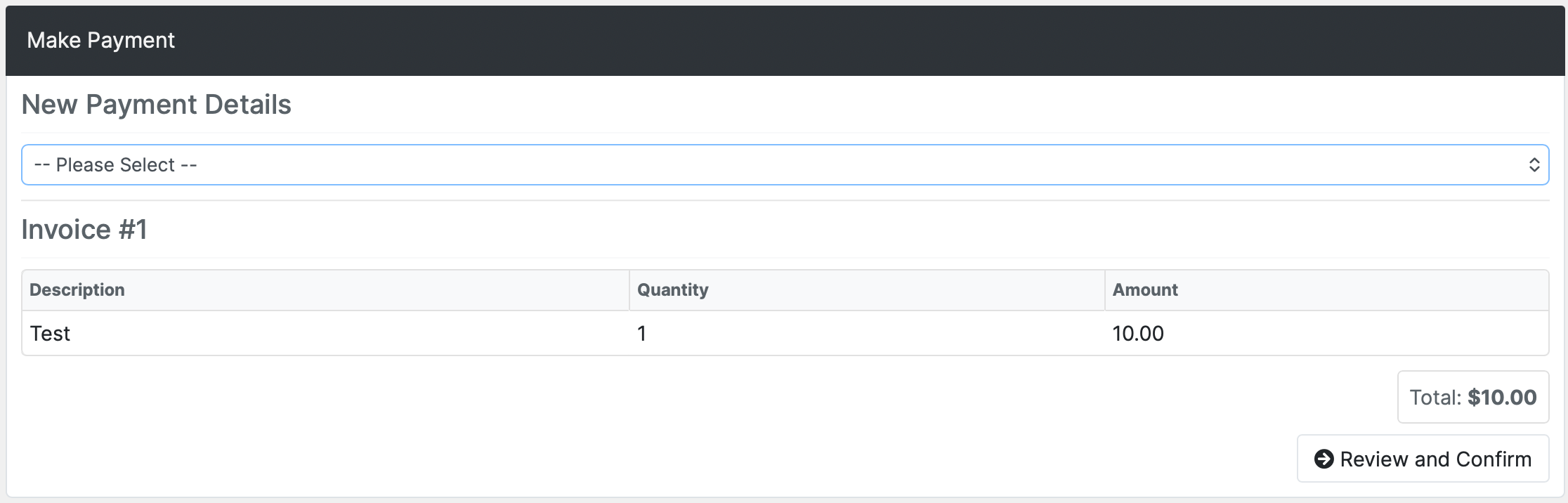
Select your preferred payment method from the options available.
5. Confirm the Payment
Review the payment details and click Review and Confirm to complete the transaction.
6. Verify the Payment
The invoice should show as paid, and a receipt is emailed to you. A suspended service usually reactivates within a few minutes.
Next: How to Download an Invoice in Blesta covers getting a copy for your records.