How to Change Your Password in Blesta

This article will show you how to change your password in Blesta.
Before you start: this changes your client area password only. Your hosting control panel, email and FTP passwords are separate and are not affected.
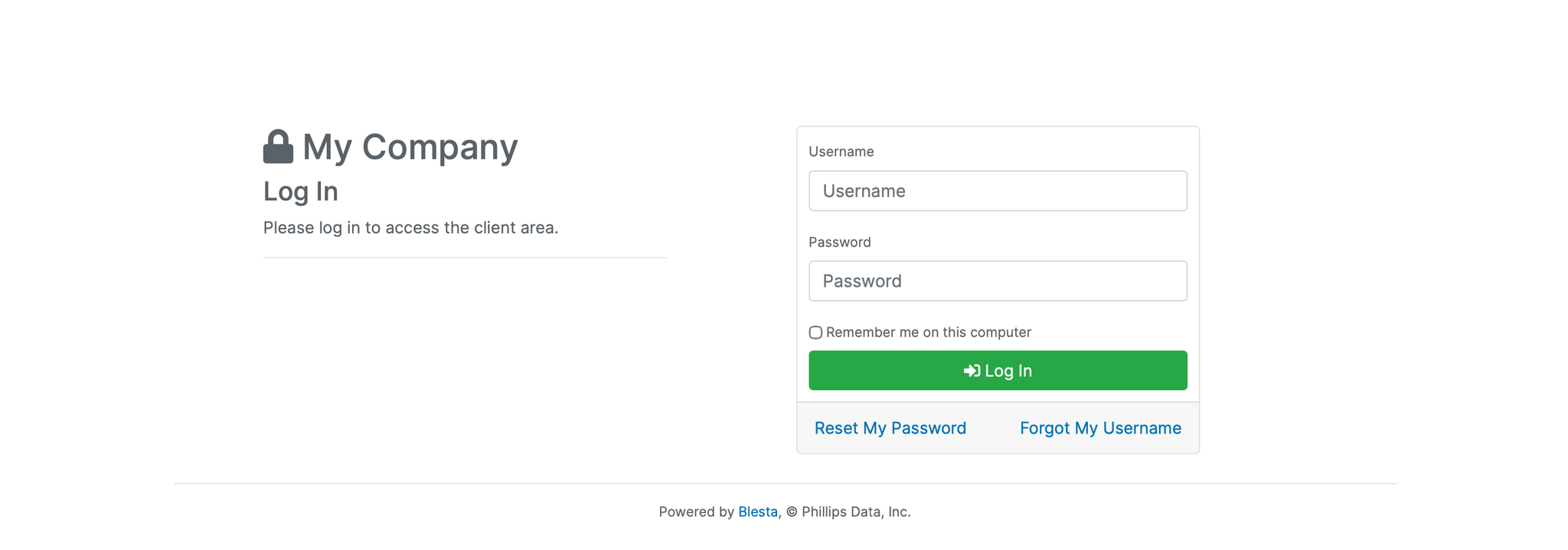
1. Log in to the Blesta Client Area
Use your credentials to log in to your Blesta client area.
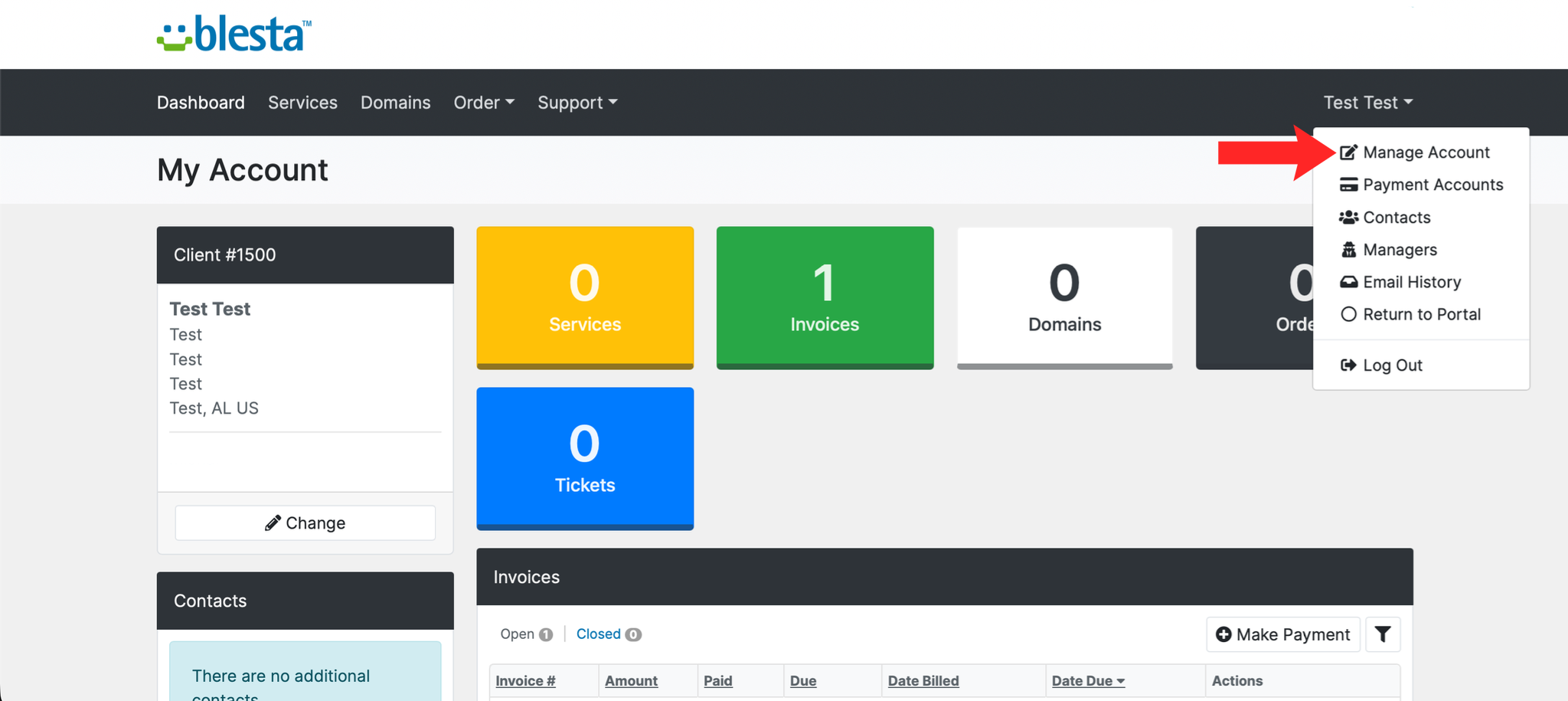
2. Navigate to My Info
Click on your name or account menu in the top right corner and select Manage Account.
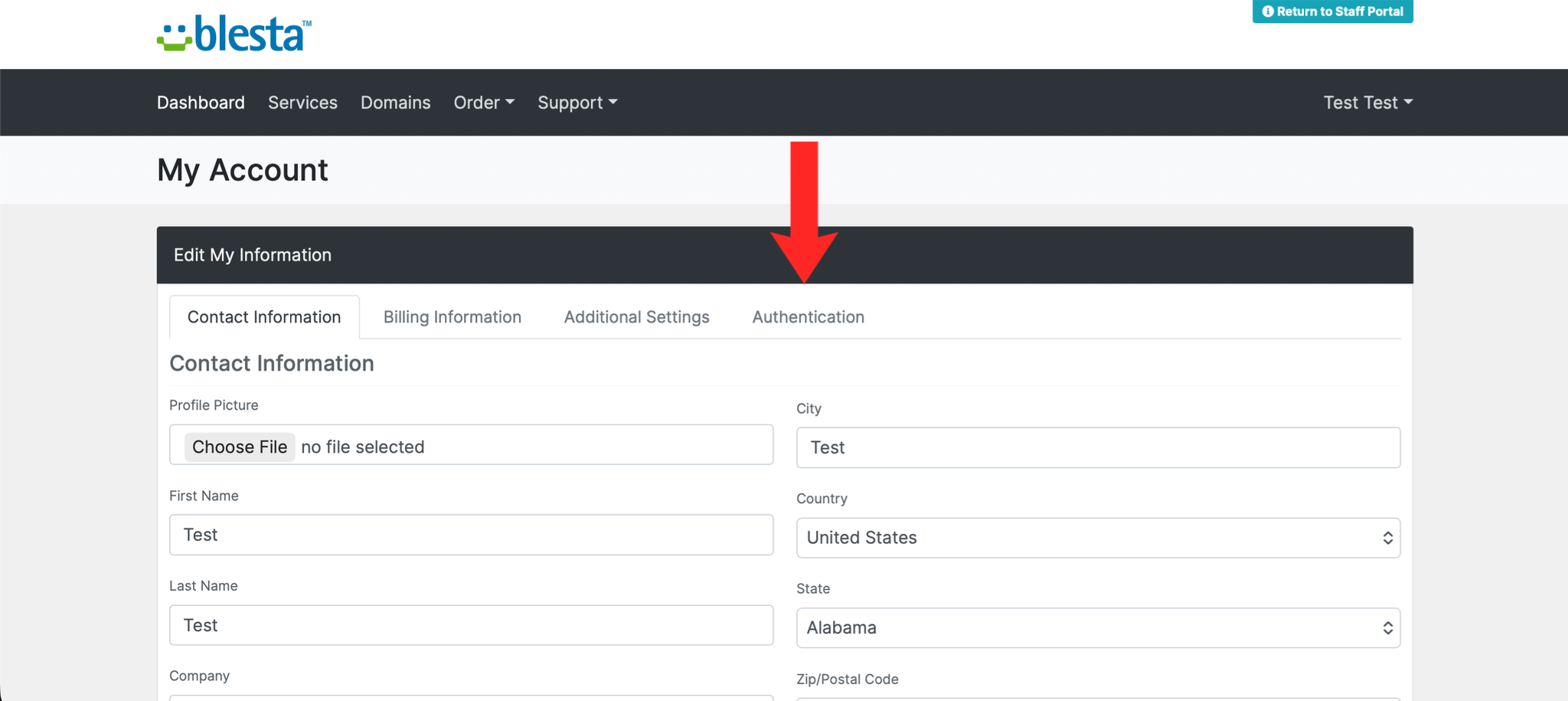
3. Open the Authentication Tab
Click the Authentication tab within your account settings.
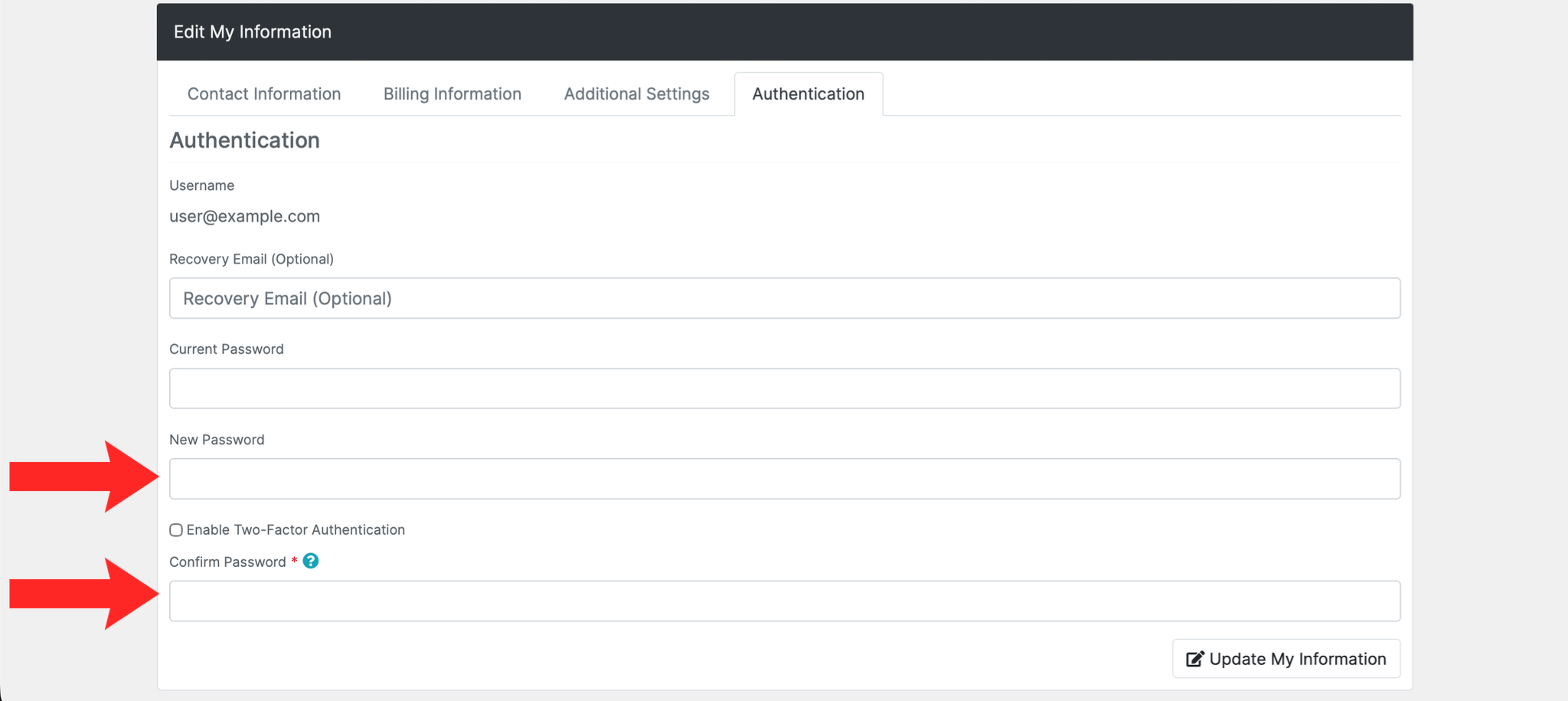
4. Enter Your Current Password
Enter your current password in the Current Password field.
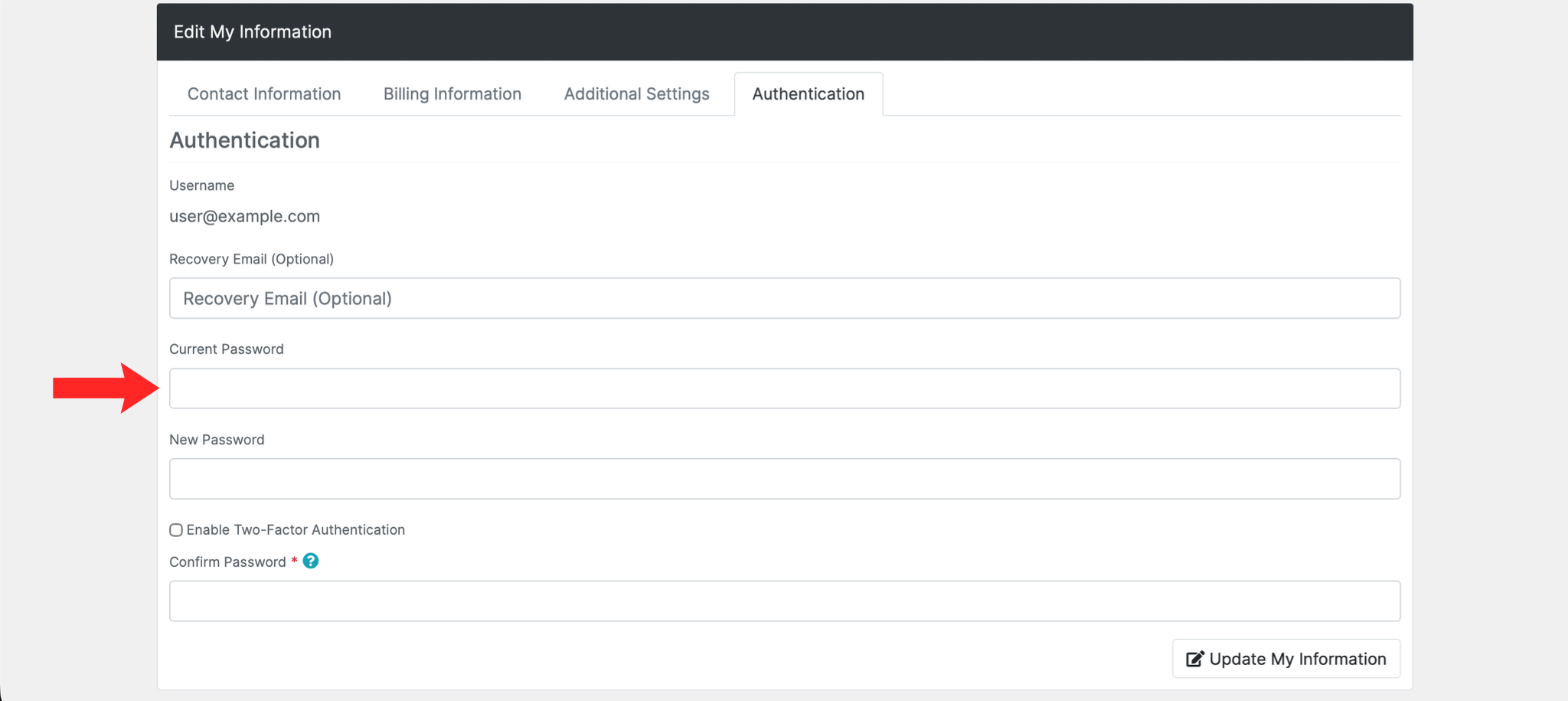
5. Enter Your New Password
Enter your new password in the New Password field and confirm it in the Confirm Password field.
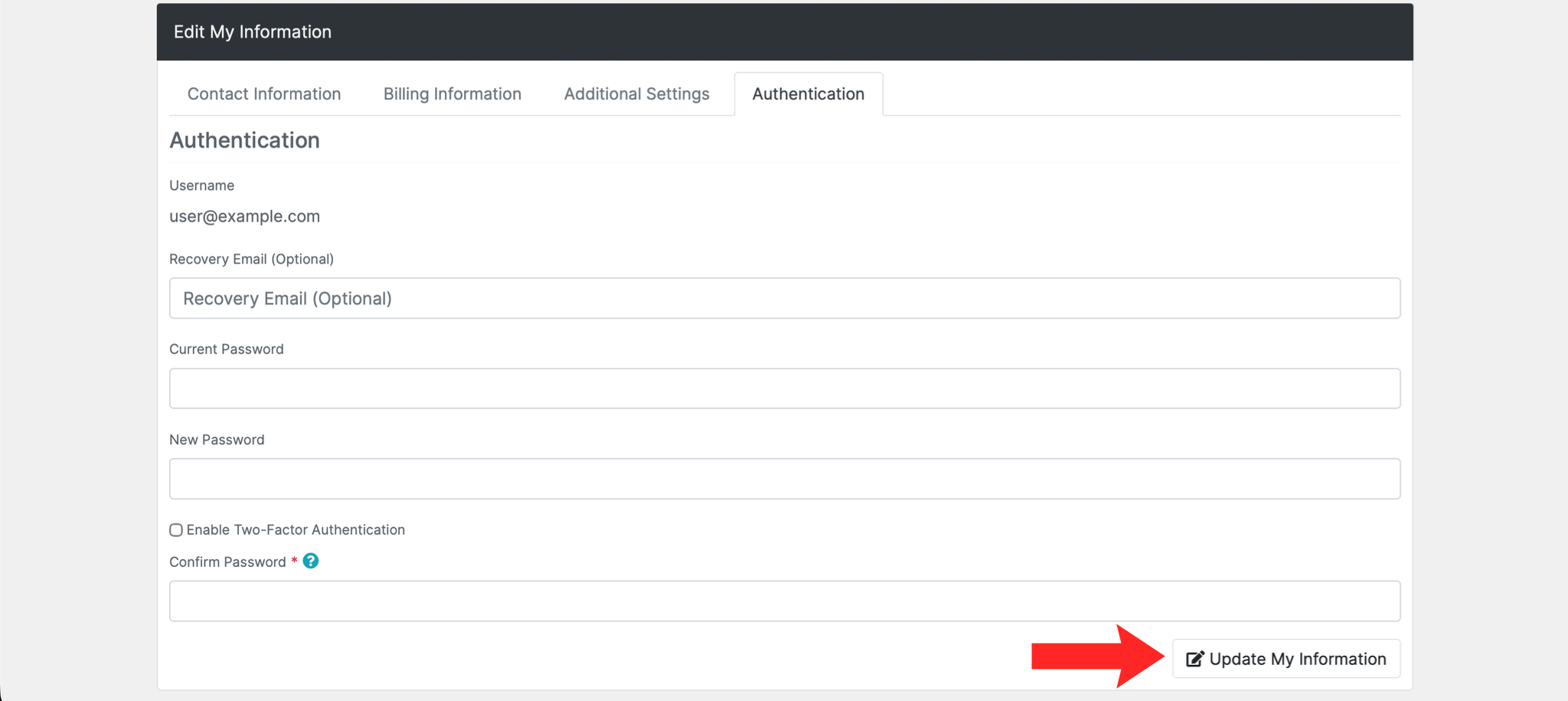
6. Save Your Changes
Click the Update My Information button to save your new password.
7. Verify the Change
Log out and back in with the new password to confirm it works.
Next: How to Enable Two-Factor Authentication in Blesta adds a second layer on top of the new password.