How to Check Disk Usage and Free Up Space in cPanel

This article will show you how to check your disk usage and free up space in cPanel.
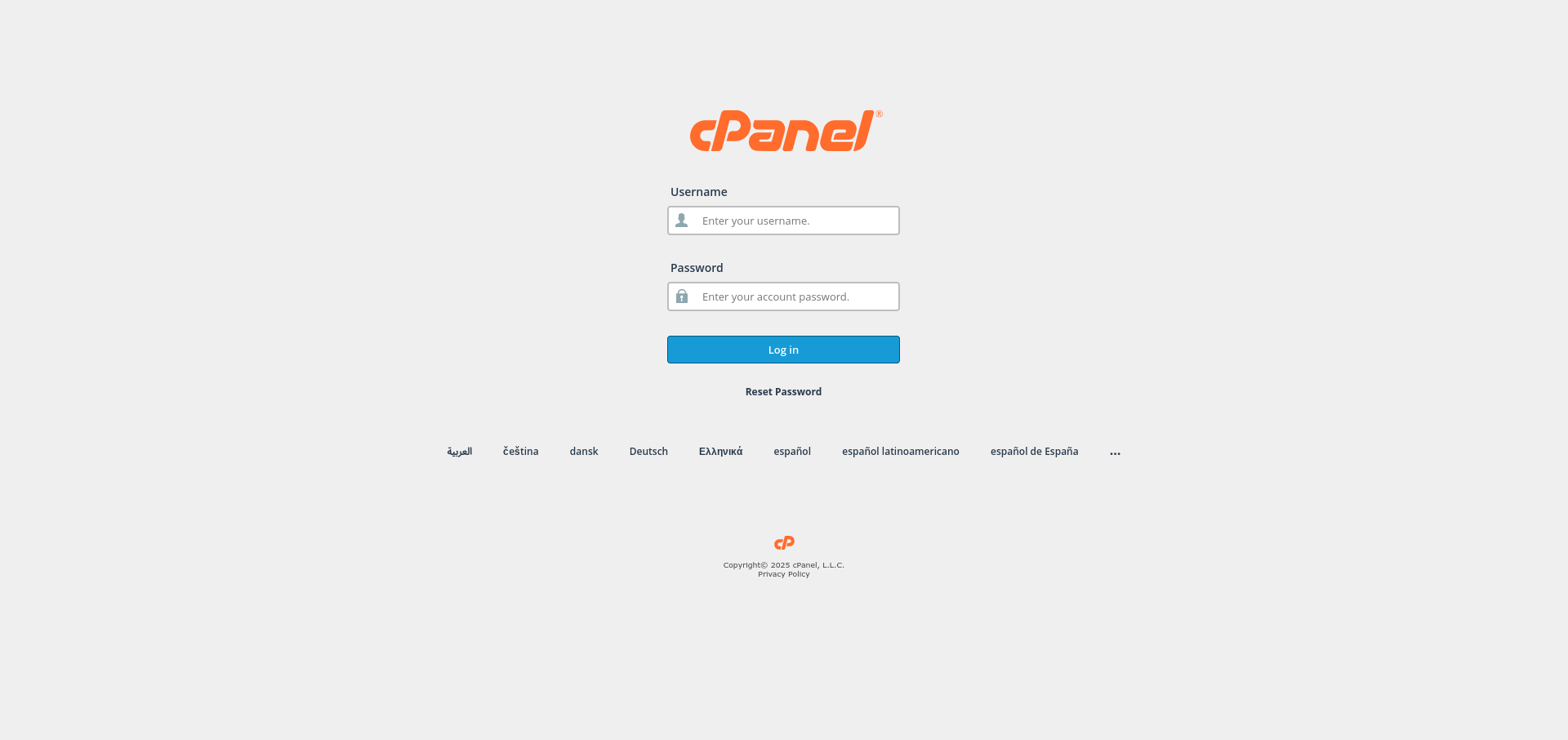
1. Log In to cPanel
Your current usage is shown in the statistics panel on the left of the home screen.
2. Open Disk Usage
Find it in the Files section. It breaks usage down by folder so you can see where the space has gone.
3. Look at the Largest Folders
Work down from the biggest. Backups, logs and old email are the usual culprits rather than the website itself.
4. Clear Out Old Backups
Backup files stored in your home directory count against your quota. Download anything worth keeping, then delete it from the server.
5. Check Your Email Storage
Mailboxes that have never been cleared can be larger than the site. Delete old mail, and empty the trash and spam folders afterwards.
6. Remove Old Logs and Unused Installations
Error logs, raw access logs and applications you no longer use all take space. Delete them once you are sure they are not needed.
Next: if space keeps filling up, How to Back Up Your Installation in Softaculous covers storing backups off the server.