How to Upload Files Using cPanel File Manager

This article will show you how to upload files using the cPanel File Manager, which is useful when you do not have an FTP client to hand.
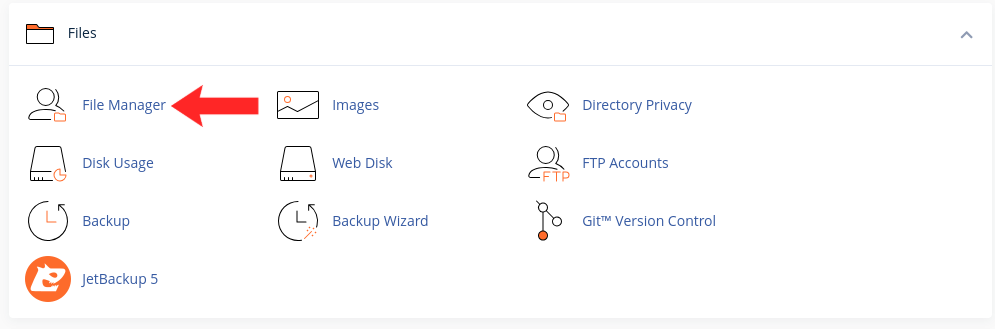
1. Open File Manager
Find it in the Files section of cPanel.
2. Navigate to the Destination
Open the folder you want the files to land in. For your main website that is usually public_html. Uploading to the wrong folder is the most common mistake here.
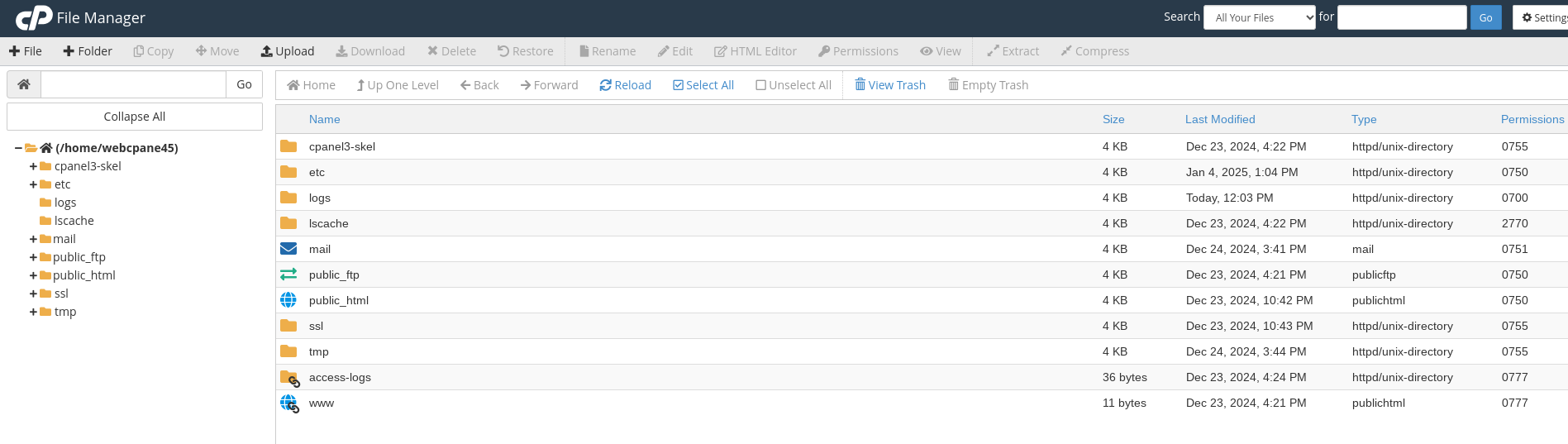
3. Click Upload
The upload page opens in a new view showing the destination path. Check that path before continuing.

4. Select Your Files
Drag files in or browse for them. You can upload several at once, and each shows its own progress.
5. Watch the File Size Limit
Large files can hit the server upload limit or time out. For anything substantial, upload a zip archive and extract it on the server instead.
6. Extract an Archive
Right-click a .zip and choose Extract. This is faster and more reliable than uploading hundreds of individual files.
7. Check Permissions
Uploaded files occasionally arrive with permissions that stop the server reading them. Files should be 644 and folders 755.
Next: How to Change File Permissions in cPanel covers fixing that.