How to Check Disk Usage in Enhance

This article will show you how to check your disk usage in Enhance and what to do when it is running high.
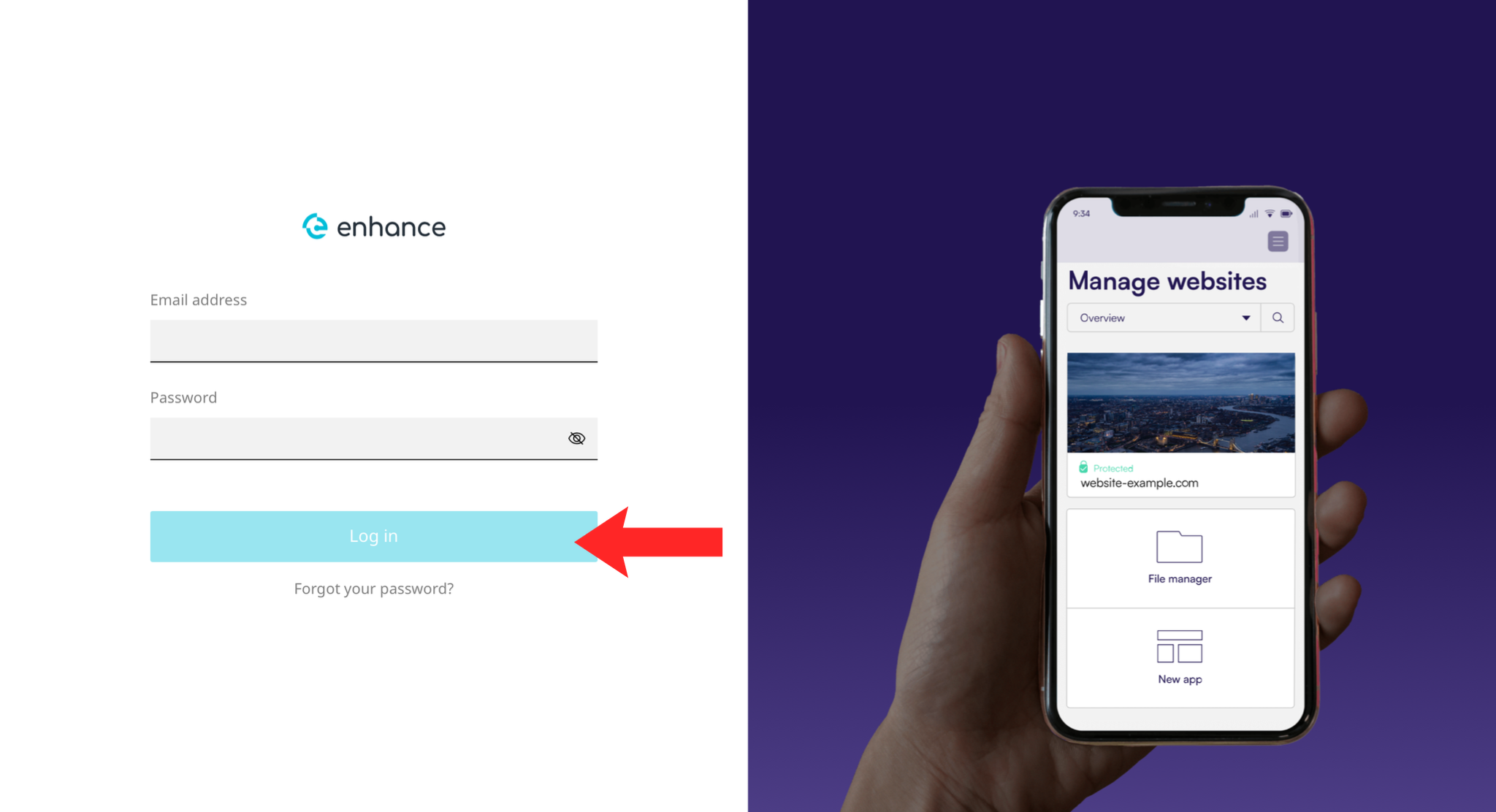
1. Log in to the Enhance Control Panel
Use your credentials to log in to your Enhance control panel.
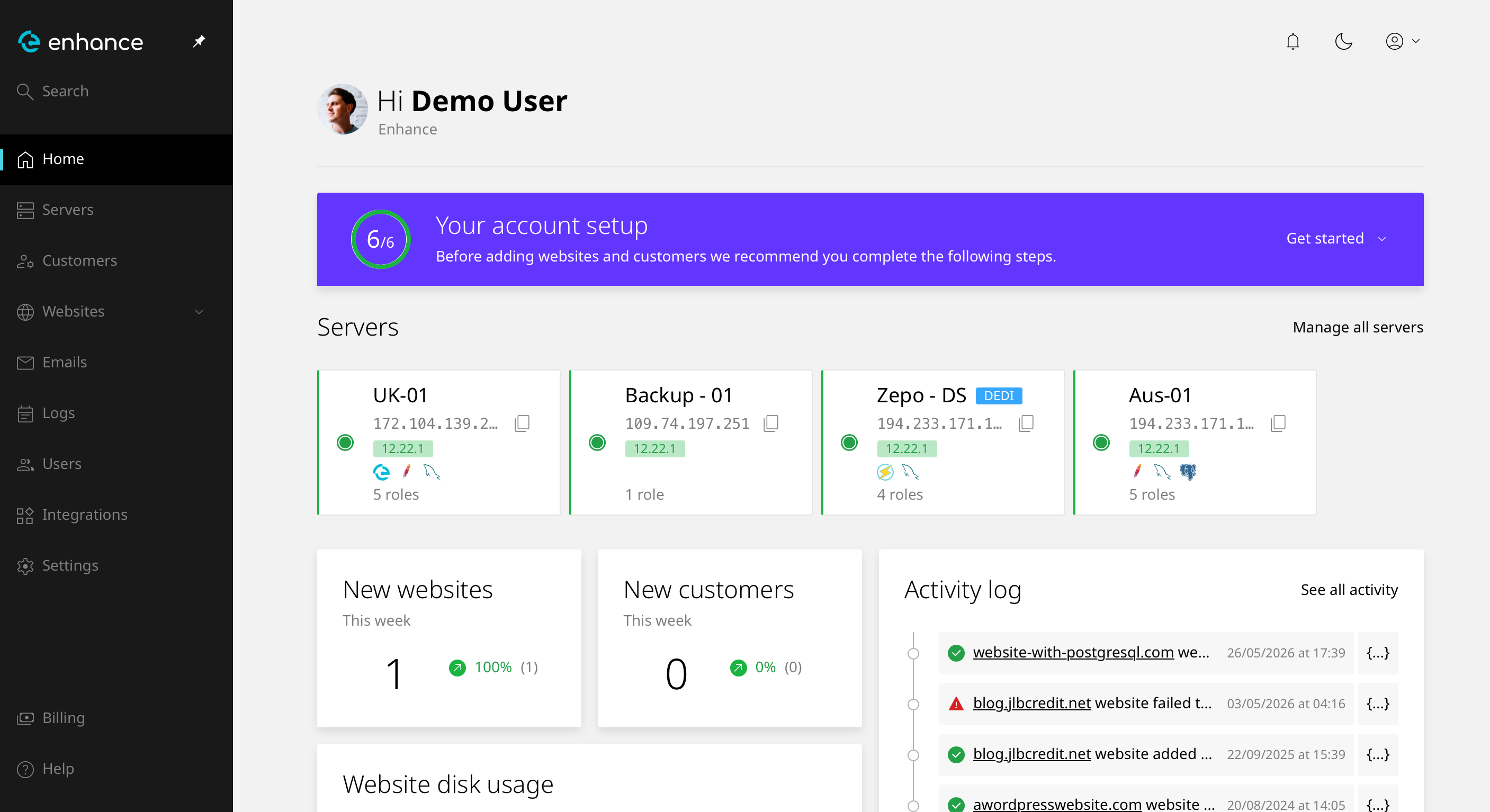
2. Navigate to Websites
Click Websites and select the site you want to work on.
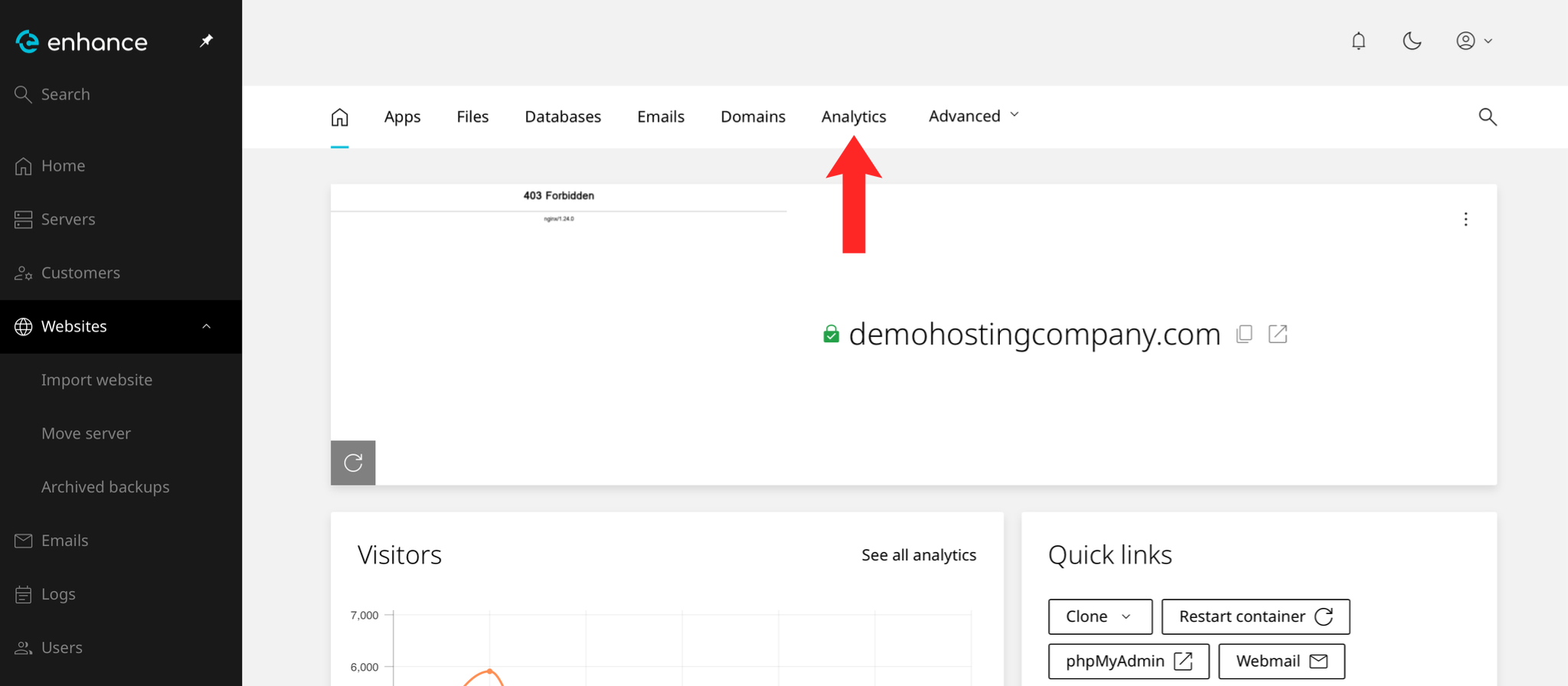
3. Open the Analytics or Statistics Tab
Usage figures are shown alongside your other site statistics.
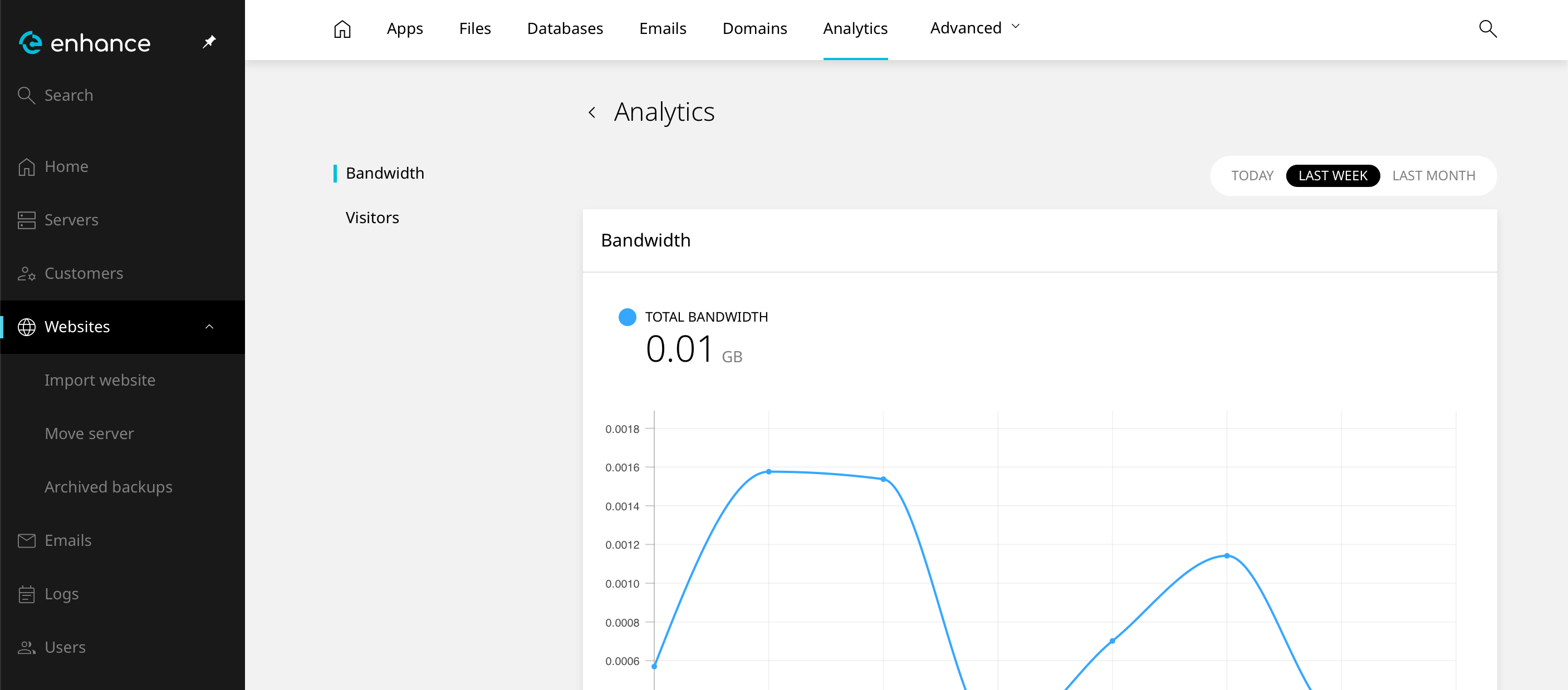
4. Review Your Usage
Compare the figure against the limit on your plan. Anything above about 80 per cent is worth acting on before it becomes a problem.
5. Find What Is Using the Space
Backups, logs and old email are the usual culprits rather than the website itself. Check each in turn using the file manager.
6. Clear What You Do Not Need
Remove old backups, clear log files and empty mailbox trash folders. Download anything worth keeping before deleting it.
7. Consider an Upgrade
If usage is legitimately at the limit, contact our support team about a larger plan rather than deleting things you need.
Next: How to Use the File Manager in Enhance covers finding and removing large files.